You open System Settings > General > Storage, hoping to find out what's eating your disk. You see a colored bar and a handful of categories: Apps, Documents, Photos, System Data. You click "Manage" hoping for a breakdown. What you get instead is a short list of vague recommendations — "Store in iCloud," "Optimize Storage," "Reduce Clutter" — and maybe a list of large files in Documents. That's it. No way to see what's inside System Data. No way to sort your whole drive by size. No way to inspect Library folders, caches, or developer files.
Why the built-in tool stops short
macOS's storage management was designed to nudge you toward iCloud and Apple's own optimization features, not to give you a full audit of your filesystem. It's genuinely useful for finding old messages with large attachments or clearing your Trash, but it was never built as a general-purpose disk analysis tool. A few specific gaps:
- System Data is a black box — no click-through, no file list, just a number
- Only scans certain locations — Library, Application Support, and hidden folders are mostly invisible
- No sorting across your whole drive — recommendations are scoped to specific categories, not a unified view
- No proportional visualization — you get numbers, not a sense of scale
Getting the detail macOS won't show you
Canopy reads your filesystem directly instead of relying on macOS's storage categories. It builds an interactive treemap showing every file and folder on your drive, proportionally sized, including everything hidden behind "System Data."
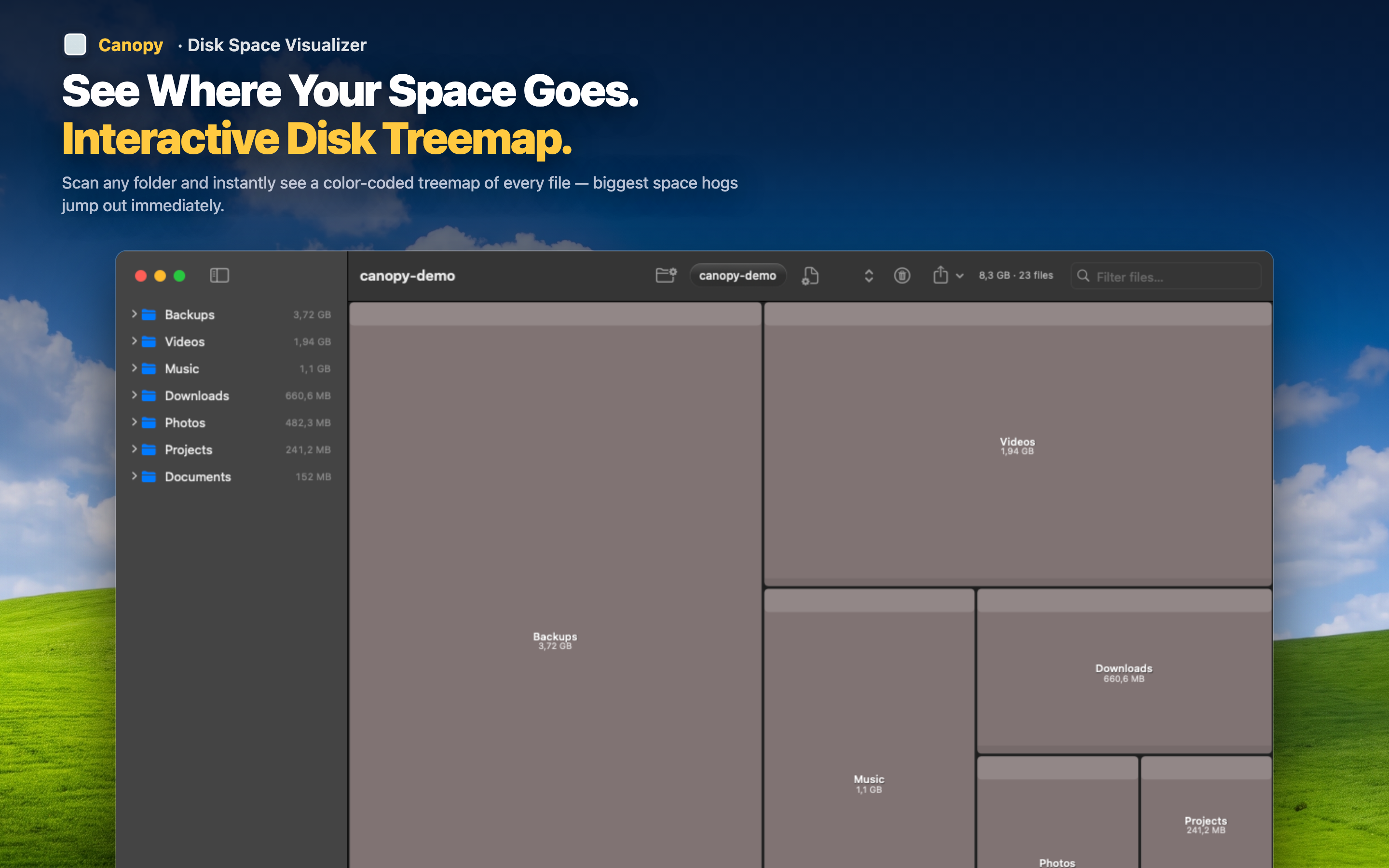
See everything, not a subset
Library folders, developer caches, VM images, application containers — all visible and sized correctly, not hidden behind a vague label.
Sort by looking, not scrolling
Because the treemap is proportional, the largest items are visually obvious the moment the scan finishes. No sorting menus, no drilling through category after category.
Act on what you find
Delete files directly from the map once you've identified them, and rescan to verify the freed space — a complete loop the built-in tool simply doesn't offer.