If you're a developer, Xcode is quietly one of the biggest disk hogs on your Mac. Every build generates derived data. Every simulator you've ever run takes up its own disk image. Every archive you've created for App Store submission sticks around indefinitely unless you manually delete it. None of this shows up clearly anywhere in System Settings.
Where Xcode's disk usage actually lives
- DerivedData —
~/Library/Developer/Xcode/DerivedData/— build artifacts and indexes that regenerate automatically, often 5-20 GB across projects - Archives —
~/Library/Developer/Xcode/Archives/— every App Store build you've ever archived, often 500 MB to 2 GB each, kept forever by default - iOS Device Support — symbol files for every iOS version you've ever debugged on a physical device, adding up over years
- Simulator devices —
~/Library/Developer/CoreSimulator/Devices/— every simulator you've created, each with its own disk image that can be several GB - Simulator caches — old runtime downloads that Xcode doesn't always clean up after updates
It's common for these combined to reach 30-80 GB on a Mac used for active development, and almost none of it shows up as a distinct, actionable item in macOS's storage view.
Seeing exactly what Xcode has accumulated
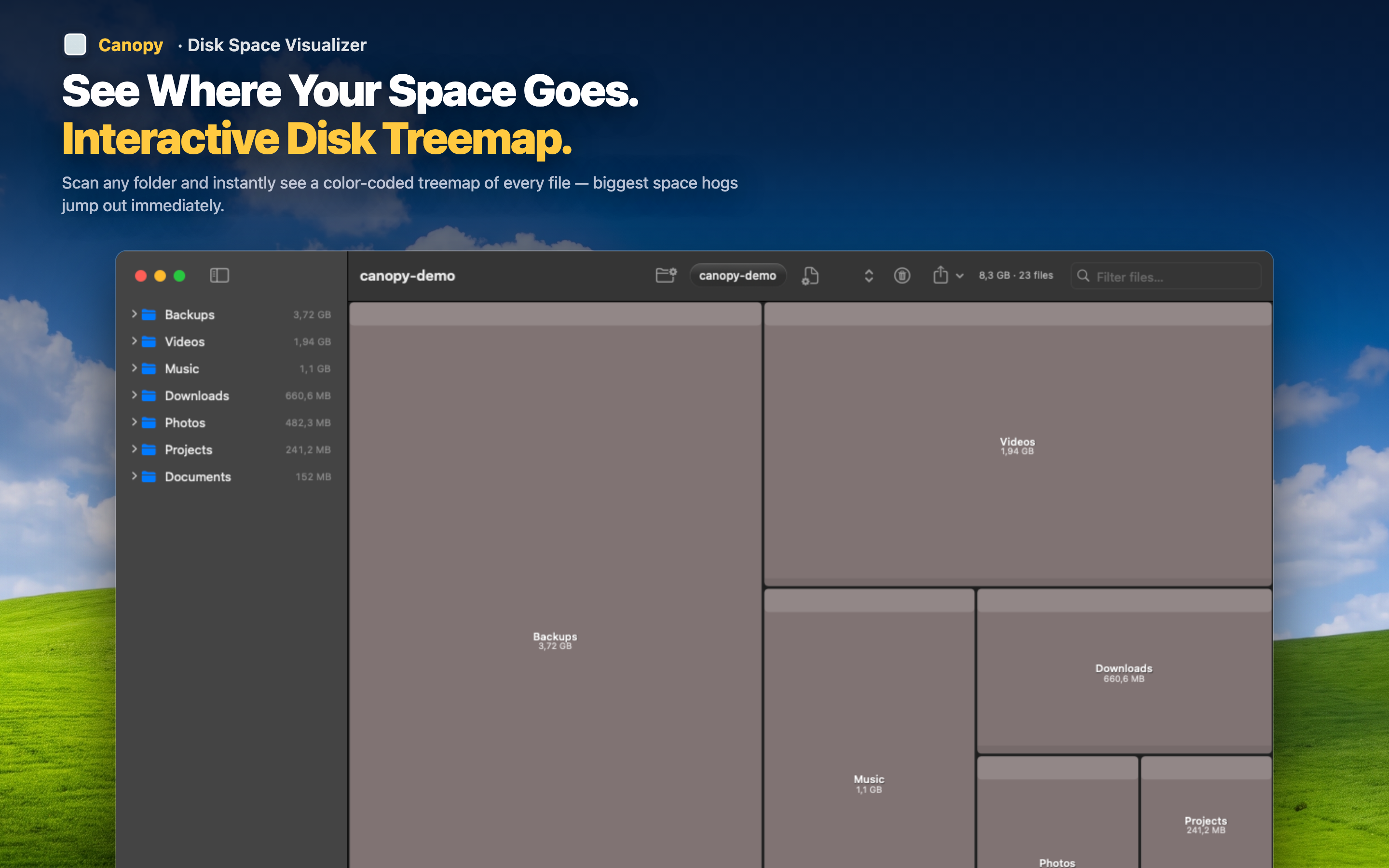
Canopy scans ~/Library/Developer along with the rest of your drive and shows every folder proportionally in a treemap, so DerivedData, Archives, and simulator devices show up as clearly sized, clickable blocks instead of being buried three folders deep.
Safe to clean, mostly
DerivedData is always safe to delete — Xcode rebuilds it automatically on your next build. Old simulator devices you no longer test on are also safe to remove via Xcode's Devices window or directly. Archives are the one category to review carefully, since they're your only record of past App Store submissions if you need to re-export a dSYM.
Zoom into Developer folder specifically
Double-click into Library/Developer from the treemap to see exactly how much each subfolder is contributing, then decide what's worth keeping.
Delete and reclaim instantly
Remove stale DerivedData or old archives directly from the map, then rescan to confirm the gigabytes are actually back.