Time Machine doesn't just back up to your external drive — it also keeps local snapshots directly on your Mac's internal storage, especially when the backup drive is disconnected for a while. These are meant to be temporary and self-managing, automatically purged as your disk fills up. In practice, they can sit around consuming double-digit gigabytes, and they're invisible in Finder and mostly invisible in System Settings too.
How local snapshots work
When Time Machine is enabled, macOS periodically creates a local snapshot — essentially a point-in-time copy-on-write reference to your files — even without your backup drive connected. These snapshots let you restore recent versions of files even if you haven't plugged in your backup disk in days. The catch is that macOS is supposed to delete the oldest ones automatically once your disk gets low on space, but that process doesn't always keep up, especially if your drive fills up quickly.
Why they're hard to see and manage
- They don't appear as regular files in Finder
- System Settings' Storage view lumps them into "System Data" with no breakdown
- The only reliable way to inspect them directly is Terminal (
tmutil listlocalsnapshots /), which most people won't use
Seeing their real impact on your disk
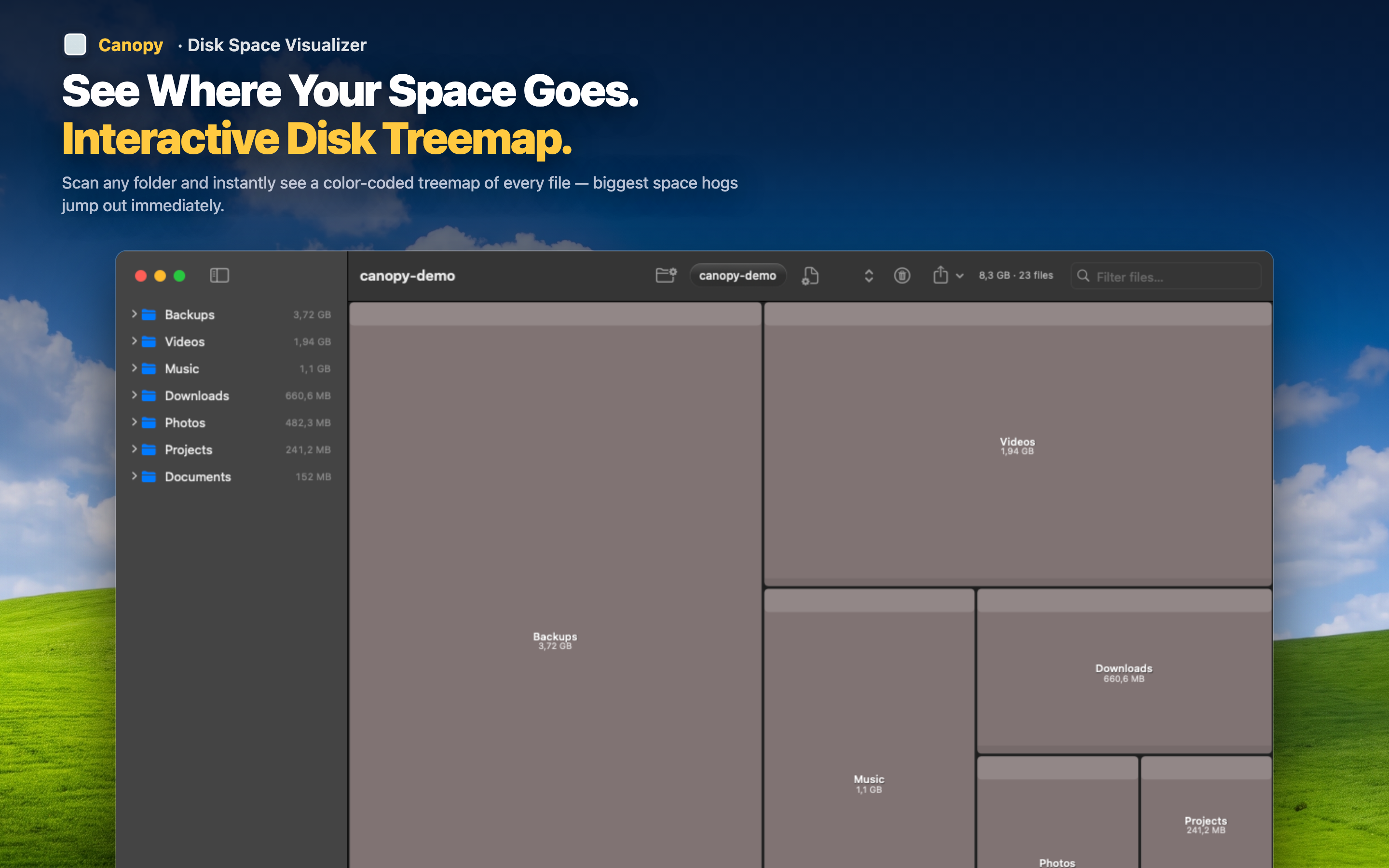
Canopy won't show snapshots as individual files (they're a filesystem-level construct, not regular files), but it does show you your actual free space and used space accurately after a full scan, which helps you notice when the numbers don't add up — a strong sign that local snapshots or another hidden system process is holding space macOS hasn't released yet.
Rule out the obvious first
Before assuming snapshots are the issue, scan your drive with Canopy to confirm there isn't a large, identifiable file — an old backup, a VM, a cache — that's actually the real cause. Snapshots are often blamed when the true culprit is something visible and deletable.
Free up space, snapshots included
Once genuine large files are cleared out, macOS typically reclaims local snapshot space automatically as the disk pressure eases. Rescanning afterward confirms your free space has actually increased.