You check your Mac's storage and there's a category called "Other" (on older macOS versions) or "System Data" (on newer ones) eating 30, 40, sometimes 60+ GB. You can't click into it. macOS won't tell you what it is. It just sits there, consuming space, completely opaque.
This drives people to Google "what is Other storage on Mac" more than almost any other macOS question. The answer is unsatisfying but simple: it's everything macOS doesn't know how to categorize.
What "Other" actually contains
The "Other" / "System Data" category is a grab bag:
- App caches — Chrome, Slack, Discord, Spotify can each store 1-5 GB in cache
- System logs and diagnostics — usually small, but they accumulate
- Fonts, plugins, extensions — rarely large individually but they add up
- Archives and disk images — .zip, .dmg, .tar files that don't fit other categories
- VM and container data — Docker images, Parallels VMs, UTM virtual machines
- Mail attachments and downloads — cached in Mail's support directory
- Spotlight and search indexes — typically 1-4 GB
The frustration isn't that these files exist — it's that macOS hides them behind a label and gives you no way to inspect them.
Inspect "Other" with a treemap
Canopy bypasses macOS storage categories entirely. It reads the filesystem directly and shows every file proportionally in an interactive treemap. The files macOS calls "Other" appear in their real locations with their actual sizes.
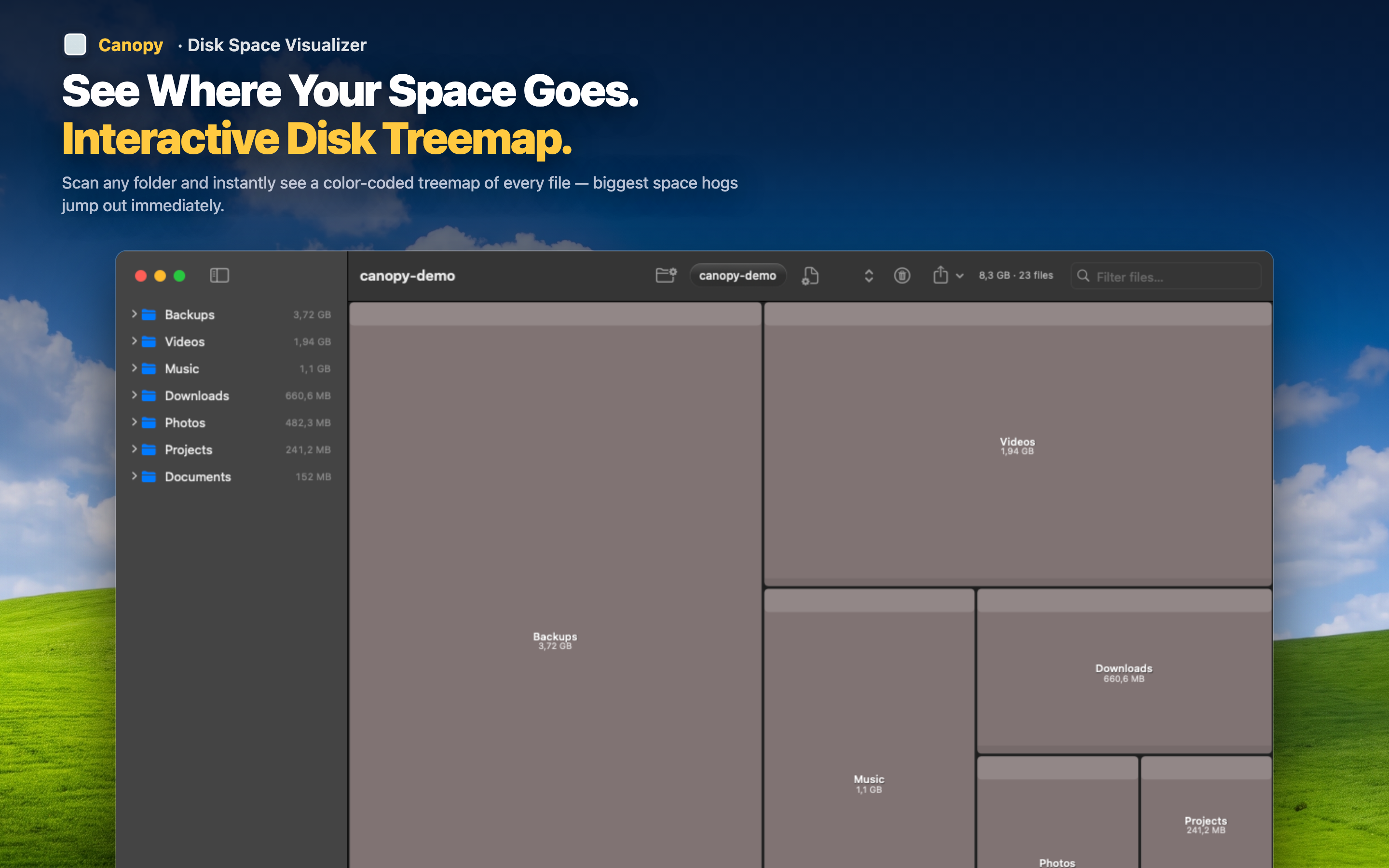
From mystery to specifics
"Other: 42 GB" becomes "Slack cache: 4 GB, Docker.raw: 16 GB, old iOS backup: 12 GB, Xcode derived data: 8 GB, misc: 2 GB." Suddenly you know exactly what you're dealing with and can make informed decisions.
Reduce it strategically
Once you see the actual files, reducing "Other" is straightforward. Delete the old iOS backup you don't need. Clear the Slack cache (it rebuilds at a fraction of the size). Remove the Docker images for projects you finished months ago. Each deletion is a conscious choice, not a blind cleanup.