You get the dreaded "Your disk is almost full" warning. You open About This Mac and see the storage bar — maybe 20 GB of "System Data," a mysterious chunk of "Other," and no clear way to drill into what's actually using all that space. You know something is hogging gigabytes, but what?
This is one of the most common Mac frustrations. You didn't download anything huge recently, yet somehow your drive is packed.
Why macOS doesn't make this easy
The built-in storage breakdown in System Settings groups files into broad categories like "Applications," "Documents," and "System Data." These labels tell you almost nothing actionable. You can't click into them to see individual files. You can't sort by size. You can't figure out that one forgotten 14 GB Xcode archive or a bloated Parallels VM image is the actual culprit.
Finder lets you sort by size in list view, but only within a single folder. If the space hog is buried three levels deep in ~/Library, you'll never find it by browsing manually.
A visual approach: see everything at once
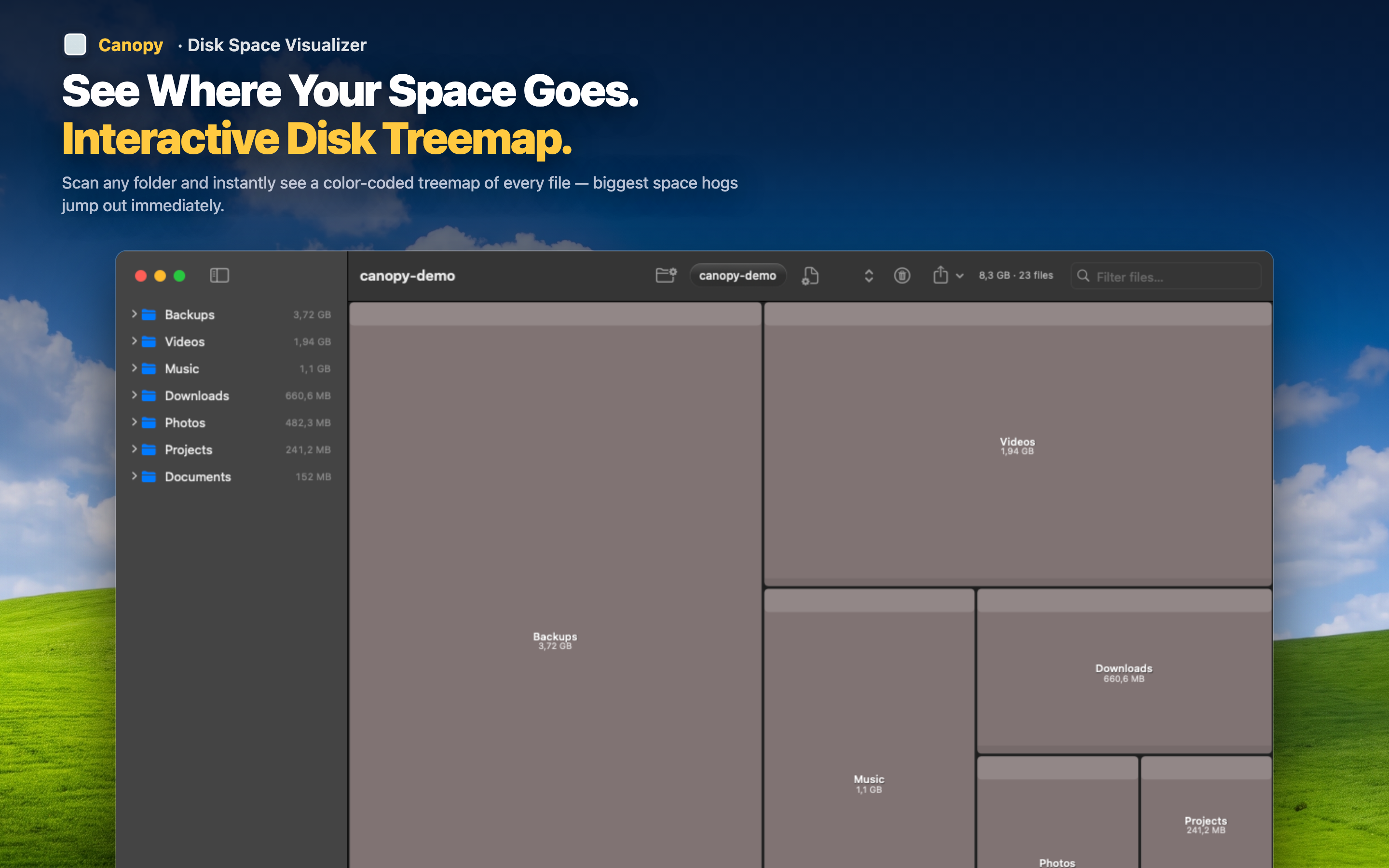
Canopy scans your drive and draws an interactive treemap — a color-coded rectangle map where every file and folder is sized proportionally to the space it uses. The biggest space hogs are immediately visible as the largest blocks on screen.
Spot the biggest offenders instantly
No digging through folders. The treemap immediately highlights the largest files and directories. A 12 GB old iOS backup stands out as a massive rectangle. A forgotten 8 GB Docker image is right there. You see proportions at a glance — something a file list can never convey as quickly.
Click to explore, zoom to drill down
Click any block to see its path and size. Double-click a folder to zoom in and explore its contents. Navigate your entire drive visually, moving in and out of directories without ever opening Finder.
Delete what you don't need
Found a 6 GB cache folder or an old VM snapshot? Delete it directly from the treemap. No switching between apps — identify and remove space hogs in one workflow.