An SSD running low on free space isn't just a storage inconvenience — it can genuinely slow your Mac down. SSD controllers need free blocks to write new data efficiently, and macOS itself needs headroom for virtual memory swap files, temporary files during app operations, and Spotlight indexing. When free space drops below roughly 10-15% of total capacity, you may start noticing slower app launches, laggy file operations, and occasional beachballs — even on a Mac that was fast a few months ago.
Warning signs it's time to act
- Apps take noticeably longer to launch or save files
- Spotlight search results feel slow or incomplete
- You get "disk almost full" alerts
- Video editing or large file exports fail partway through
- System updates fail because there isn't room to download and install them
The fix isn't complicated, but it requires knowing what's actually filling the drive rather than guessing.
Get ahead of it with a full picture
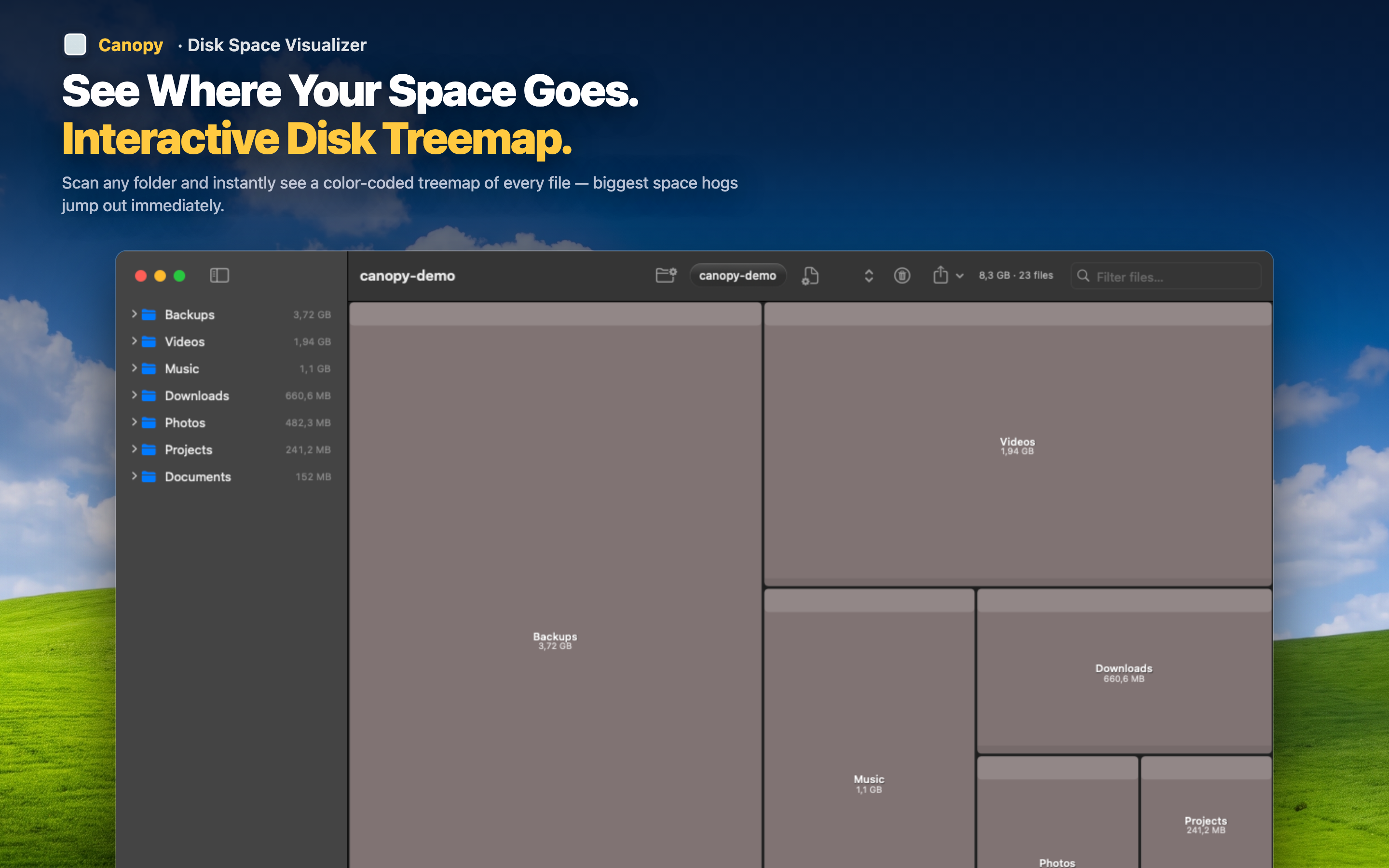
Canopy scans your SSD and shows the entire contents as a proportional treemap, so you can see immediately whether your space problem is a few huge files, thousands of small cache files, or something in between — each of which calls for a different cleanup approach.
Aim for meaningful headroom
Rather than freeing just enough space to dismiss the warning, aim to get back to at least 15-20% free capacity, which gives macOS enough room to operate efficiently and gives you a buffer before the next warning shows up.
Find your biggest wins first
The treemap makes it obvious where the fastest gains are — usually one or two large items rather than dozens of small deletions. Tackle those first for the best return on time spent.
Delete and confirm
Remove what you don't need directly from the map, then rescan to confirm both the freed space and, if you were already noticing slowdowns, check whether performance improves as your SSD gets breathing room back.