If you work with an external monitor — or two — you already know the desktop clutter problem multiplies. It's not just your MacBook screen anymore; it's every connected display, each with its own scattering of files, screenshots, and folders. Cleaning up one screen before a call or recording is annoying enough. Doing it for three is a real time sink.
Single-display fixes don't scale to multi-monitor setups
The usual advice for hiding desktop icons assumes one screen. The Terminal command that disables the Finder desktop process does technically apply system-wide, but it's an all-or-nothing switch with no per-display control and the same Finder-restart downside. Manually dragging files into folders means doing it across every monitor separately, and remembering which files came from which screen when you want them back.
Some people just extend their desktop icons across all displays and accept the mess, or use one monitor purely as a "junk" screen that never gets shared. Neither is a real solution if you actually need to present from, record, or share any of your connected displays.
Cover every display at once
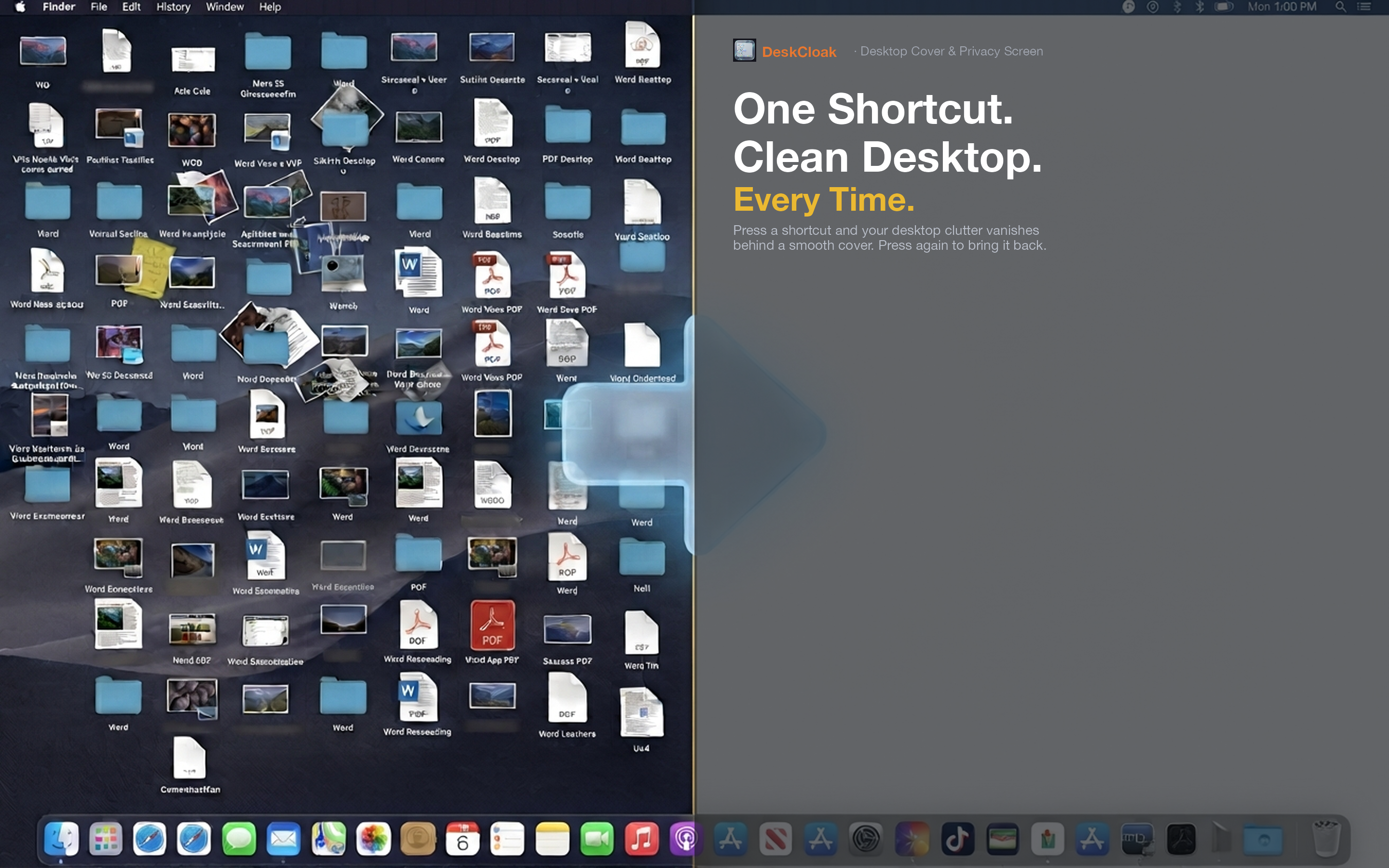
DeskCloak is built with multi-monitor setups in mind. When you toggle it on, the overlay applies to every connected display simultaneously — your MacBook screen, your external monitor, and any additional displays in your setup. One hotkey, all screens covered.
Presenting from a docked laptop
When you connect your MacBook to a conference room display or a home office monitor, both desktops usually need cleaning before you present. DeskCloak covers both the moment you toggle it, so you don't have to check each screen individually before sharing.
Ultrawide and dual-monitor workstations
If your setup spans two or three monitors for coding, design, or video editing, desktop clutter tends to accumulate on whichever screen is least actively managed. DeskCloak treats all of them the same way, so there's no screen left exposed by accident.
Mixed resolution and orientation support
Vertical monitor, ultrawide, built-in Retina display — DeskCloak's overlay adapts to each display's resolution and orientation independently, so the coverage looks correct regardless of how mismatched your monitor setup is.