Audio formats exist for different reasons — WAV and FLAC preserve full quality for editing and archival, MP3 and AAC trade some fidelity for smaller files that play everywhere — and it's common to end up with a file in the wrong one for what you're about to do. A WAV recording that needs to become an MP3 for a website. A FLAC rip that needs AAC to actually fit your phone's storage. A voice memo that needs to be MP3 for a podcast host that won't accept anything else.
Where macOS Falls Short
Apple's tools handle their preferred formats well and everything else awkwardly. Music can convert between some formats through its own import settings, but it's built around your library, not a general file converter, and it doesn't touch WAV or FLAC particularly gracefully. QuickTime Player exports audio, but only to M4A. None of Apple's built-in apps offer a straightforward "pick any format in, pick any format out" audio converter, and MP3 export specifically requires a licensed encoder Apple doesn't ship.
Format Conversion Without the Terminal
The usual workaround is installing ffmpeg through Homebrew and running commands with the right codec flags for each format pair — functional, but it assumes comfort with the terminal and remembering flag syntax that differs between formats.
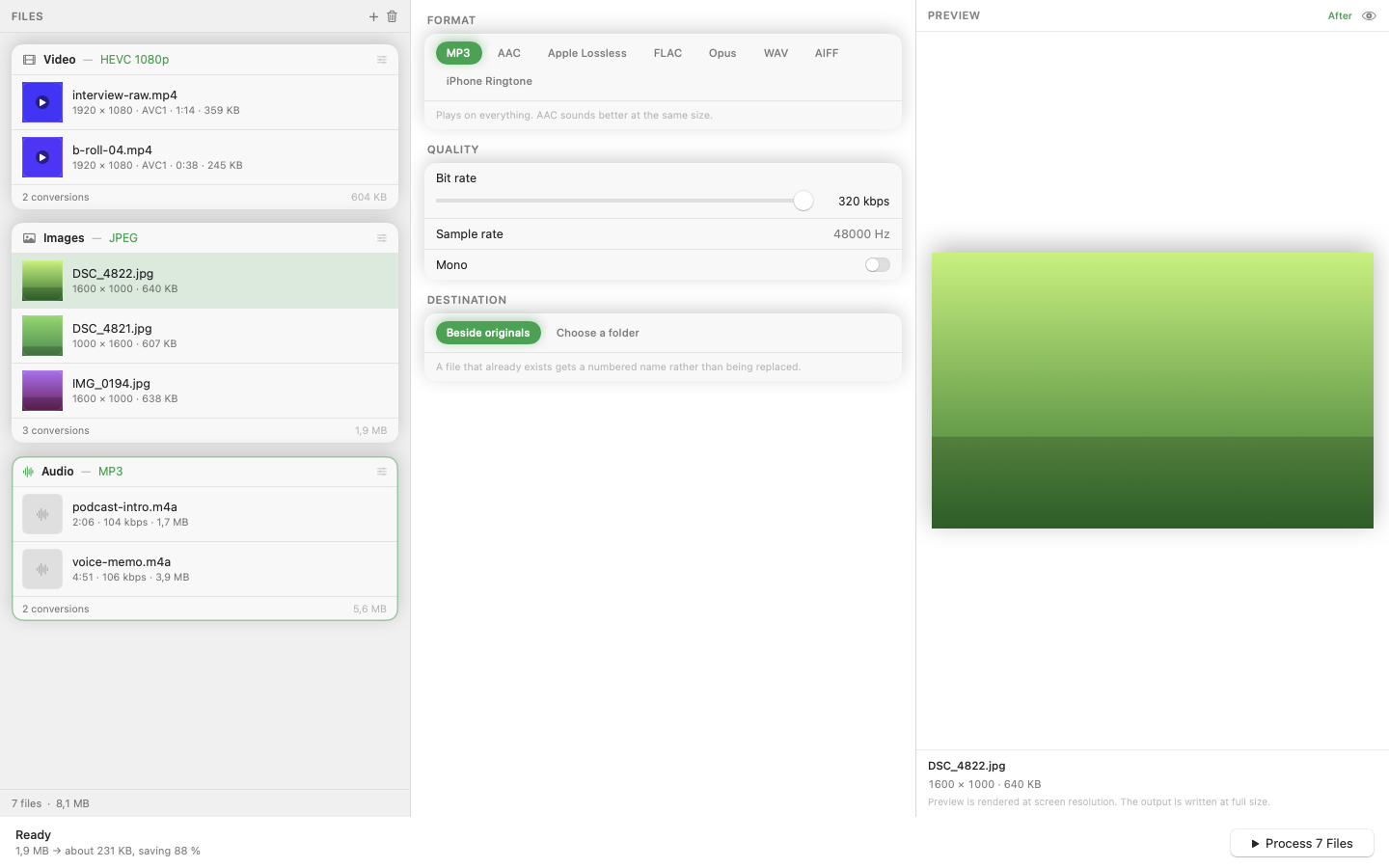
Mediasmith puts this behind a drag-and-drop queue instead. Drop WAV, FLAC, AAC, or other audio files onto the audio queue, pick your output format, and convert. MP3 export works out of the box through a bundled LAME encoder — no separate installation step.
Batch Conversion for Whole Recording Sessions
If you've recorded multiple takes or exported a session as separate WAV stems, convert the whole folder in one queue run rather than exporting file by file. Concurrent processing means the batch doesn't take proportionally longer as the file count grows.
Picking the Right Output Format
MP3 is the safest choice for maximum compatibility — every device and platform plays it. AAC generally sounds better at the same bitrate and is Apple's own preferred format, which matters if the destination is an Apple ecosystem app. Keep WAV or FLAC only if you need lossless quality for further editing.
Audio conversion is a task you shouldn't need to think hard about. A queue that accepts any common format and exports to any other removes the guesswork.