Every photo that ends up on a website, in an email, or on a product listing eventually needs to be resized to fit the space it's going into. Do it once and Preview's Tools > Adjust Size dialog is more than enough. Do it two hundred times for a product catalog and you need something that doesn't require opening each file individually.
The Photoshop Actions Detour
The traditional answer to batch resizing has been Photoshop's Image Processor or a recorded Action run through Automate > Batch. It works, but it means owning or subscribing to Photoshop for a task that's really just "make these images smaller," plus the overhead of setting up an action correctly and pointing it at input and output folders through a fairly unfriendly dialog.
A Resizer That's Just a Resizer
Mediasmith includes resize as one stage of its image pipeline, without requiring the rest of a full image editor to access it. Drop a batch of photos onto the image queue, set target dimensions, and convert. The resize applies to every file in the batch in one pass.
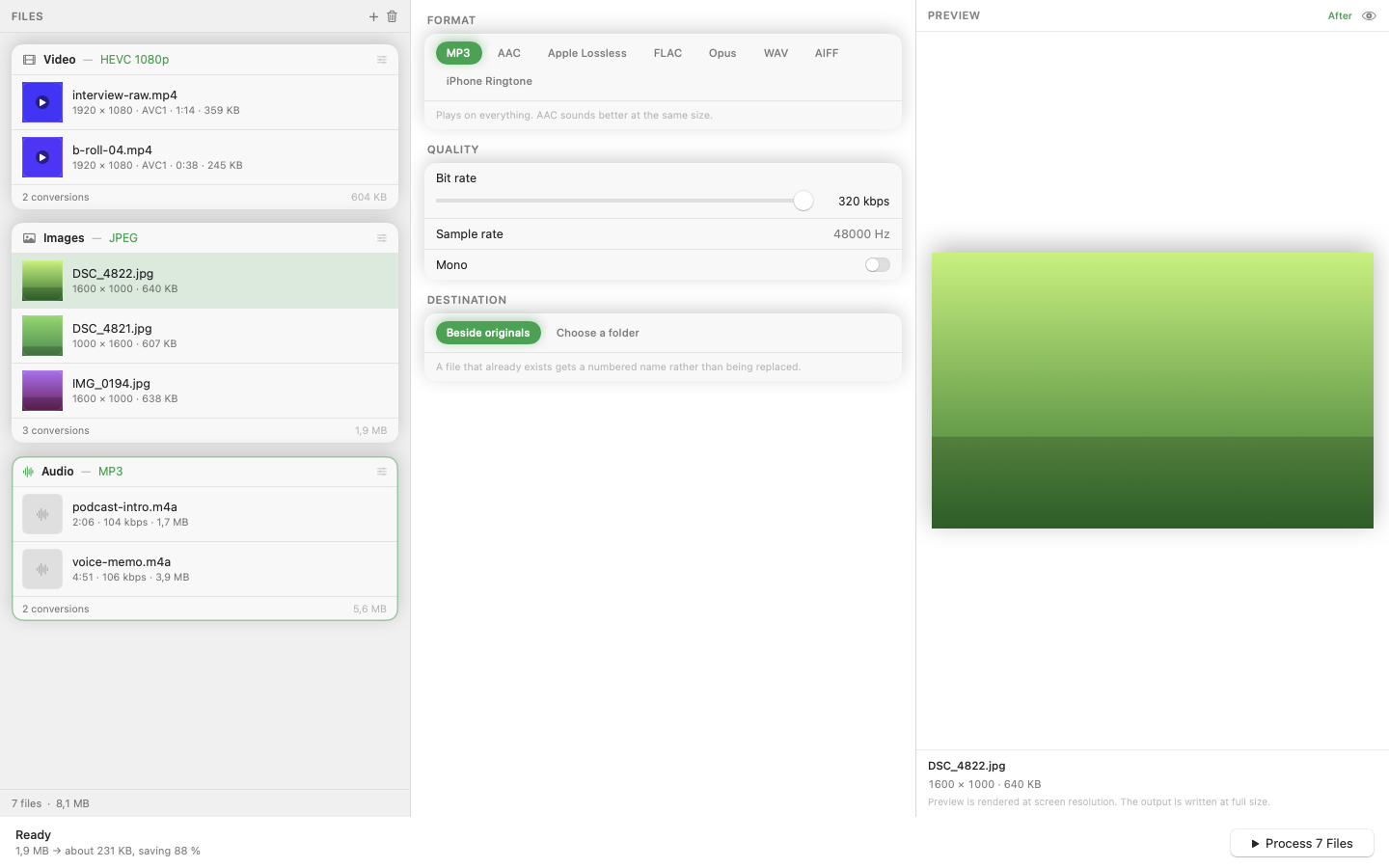
Resize, Then Crop, Then Watermark — In Order
Because resize is one stage in an ordered pipeline alongside crop and watermark, you can chain operations to run in sequence: shrink the image first, then crop to a specific aspect ratio, then stamp a logo in the corner. Each operation runs on the result of the last, so the order you set is the order that executes.
Format Conversion in the Same Pass
If your source images are HEIC or PNG and the destination needs JPG or WebP, the format conversion happens alongside the resize rather than as a separate step. One batch, one pass, done.
Presets for Repeated Dimensions
If you consistently resize to the same target — say, 1200px wide for a blog, or a fixed square for a marketplace listing — save it as a preset so future batches don't need the dimensions re-entered.
Resizing images is a narrow, mechanical task. It doesn't need a full image editor's price tag or complexity attached to it.