Every iPhone photo taken since iOS 11 defaults to HEIC. The format is excellent — half the file size of JPEG at comparable quality. The problem arrives when you need to share those photos with anyone outside the Apple ecosystem. Your WordPress site won't accept HEIC uploads. Your print shop wants JPEG. Your client on Windows 10 can't even open the files.
Converting one HEIC to JPG in Preview takes about ten seconds. Converting 300 from a wedding shoot takes the rest of your evening.
Built-in Options on macOS
Finder's Quick Actions can convert selected images to JPEG. Select your files, right-click, Quick Actions, Convert Image. It works, but you get no quality control — the output quality is fixed and there's no way to resize or apply other adjustments during conversion. Preview can export individual files, but there's no batch export. The sips command handles HEIC-to-JPEG but requires terminal comfort and offers no pipeline options.
Batch HEIC to JPG With Full Control
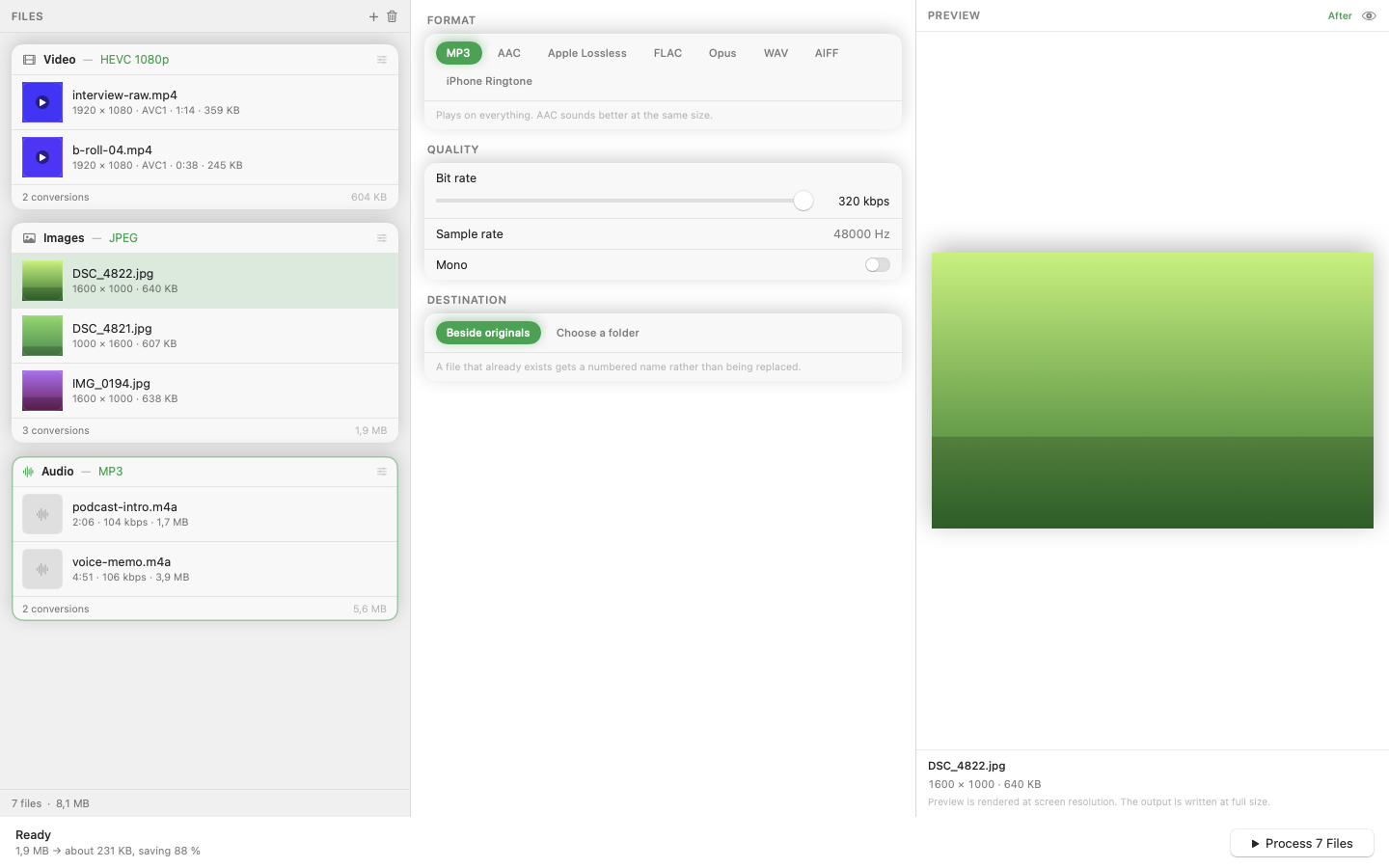
Mediasmith converts HEIC to JPG in batch with a pixel pipeline that gives you control over the output. Drag your HEIC files onto the image queue, set JPEG as the output format, adjust the quality slider, and convert.
Add Operations While You're At It
Since you're already converting, you can chain additional operations in the pixel pipeline. Resize all photos to a maximum width for web use. Crop to a consistent aspect ratio. Add a watermark for portfolio images. The pipeline runs in order, so resize-then-watermark and watermark-then-resize give you intentionally different results.
Preserve or Flatten Metadata
HEIC files carry EXIF data — camera settings, GPS coordinates, timestamps. Depending on your use case, you may want to keep that metadata for archival or strip it for privacy before sharing online.
Save the Workflow
If HEIC-to-JPG is a regular task — monthly photo dumps from your phone, client deliveries — save the format and pipeline as a preset. Next batch, one click.
HEIC is a great format for storage. JPEG is still the universal format for sharing. Converting between them in bulk shouldn't require a terminal or a cloud upload.