You found a .sqlite file in your project folder or buried in an app's container. You double-click it and macOS has no idea what to do with it. You could open Terminal and type sqlite3 mydatabase.db, but reading tabular data in a terminal window is painful — no column alignment, no scrolling, no way to quickly scan hundreds of rows.
The Terminal Approach and Its Limits
The built-in sqlite3 command-line tool ships with every Mac. It works, technically. You can run .tables to list tables and SELECT * FROM tablename; to dump rows. But the output is raw text. Wide tables wrap awkwardly. There's no way to click a value and edit it. And if you're a designer, product manager, or anyone who doesn't live in Terminal, this isn't a realistic workflow.
You might try opening the file in a text editor, but SQLite databases are binary — you'll see garbled characters, not your data.
View Any SQLite Database Visually With Tome
Tome gives you a proper visual interface for SQLite databases on Mac. Drag a .db, .sqlite, or .sqlite3 file onto the app icon or use File → Open, and your database appears instantly — tables listed in a sidebar, data displayed in a scrollable grid.
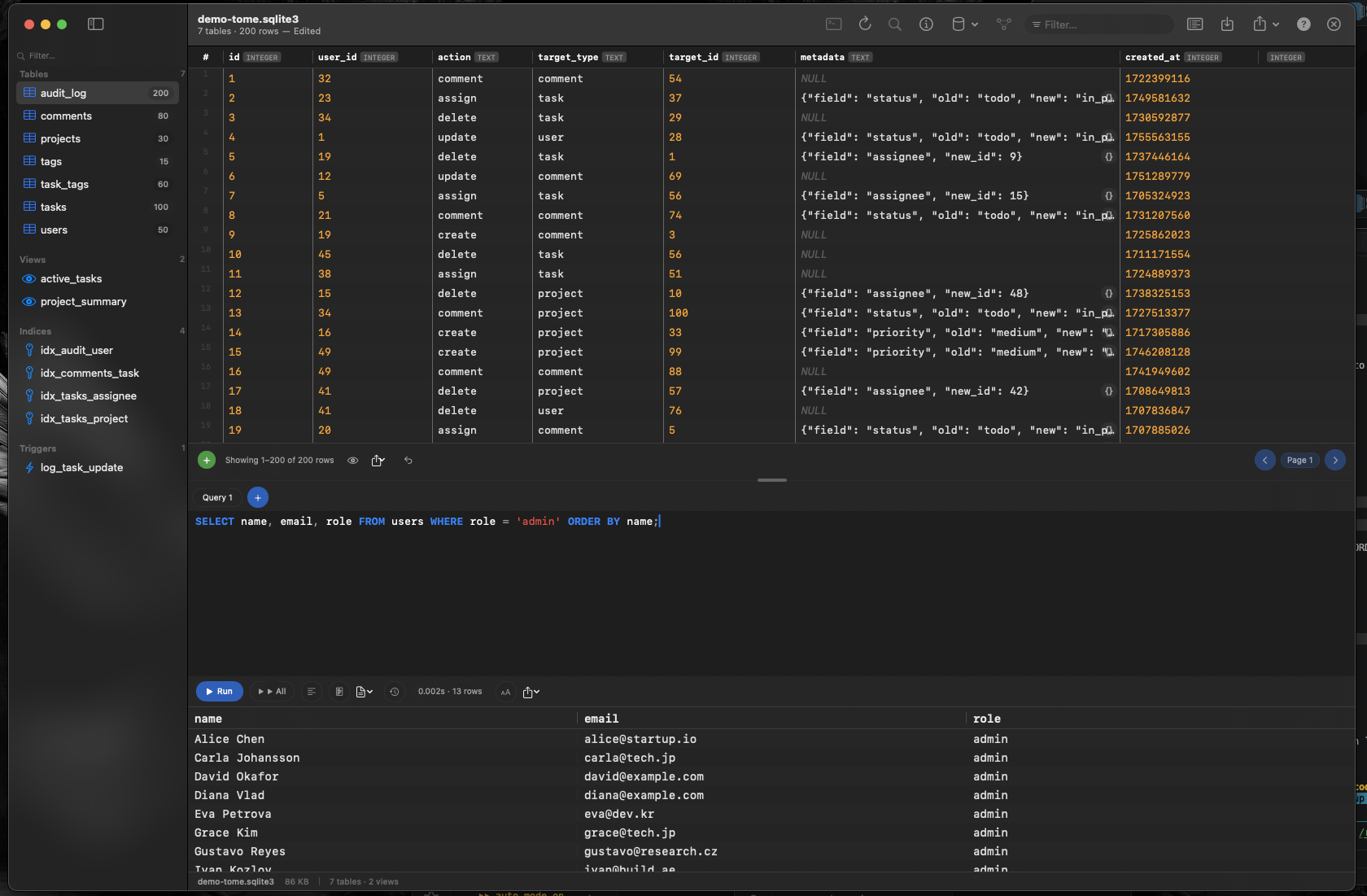
See Your Schema at a Glance
Every table, view, index, and trigger is listed in the sidebar. Click any table to see its rows. Click a view to see its results. No commands to memorize — just point and click.
Run Queries When You Need To
For anything beyond browsing, Tome's SQL query editor is ready. It includes syntax highlighting and auto-complete for table and column names, so you can write queries faster than in Terminal without guessing column names from memory.
Common Use Cases
Debugging an iOS or Android app that stores data in SQLite. Inspecting a web scraper's output database. Checking a Django or Rails development database. Viewing browser history or bookmarks stored in SQLite. All of these become simple — open the file, see the data.