You've received a dataset as a SQLite file — a Kaggle download, a scraped dataset, a colleague's export, or your own ETL output. Before writing Python code to process it, you need to understand what's inside: table names, column types, row counts, data distributions, and potential quality issues. Jupyter notebooks can query SQLite, but setting up the connection, writing exploratory SQL, and rendering results in notebook cells is overhead when all you want is a quick look at the data.
The Exploration Gap in Data Science Workflows
Data scientists typically explore SQLite files using one of three approaches: the sqlite3 CLI (fast but no visual output), a Jupyter notebook with pandas.read_sql() (flexible but requires setup for each session), or a heavyweight database IDE like DBeaver (powerful but overkill for a local file). None of these hit the sweet spot of "open a file and browse the data immediately."
The CLI is particularly poor for data exploration because it has no visual formatting for wide tables, no scrollable output, and no way to quickly scan data distributions. Notebooks add value for analysis but are slow for the initial "what does this data look like?" phase. You end up writing boilerplate connection code before seeing a single row.
Explore Datasets Visually With Tome
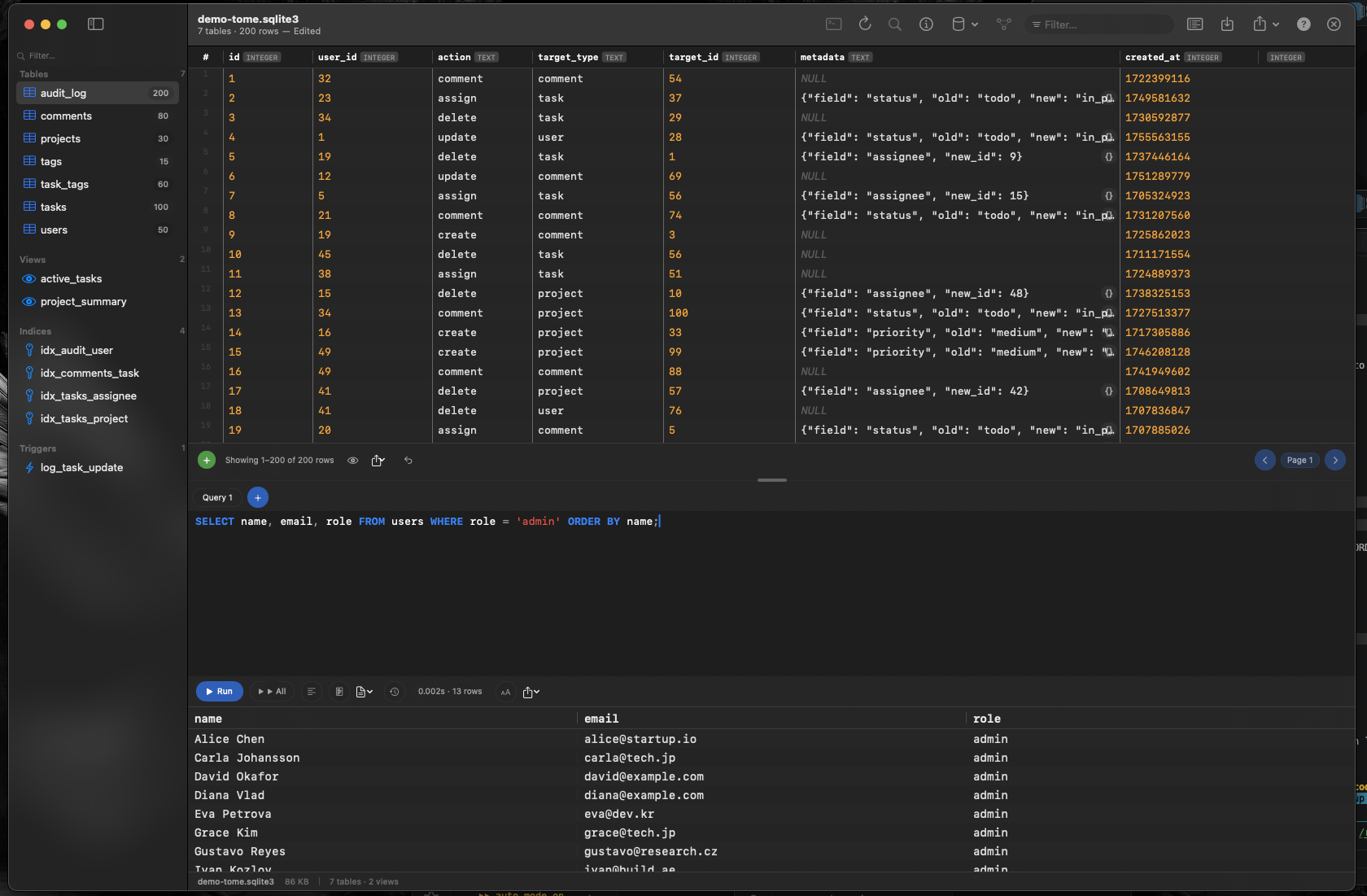
Tome lets you open a SQLite dataset and immediately understand its structure. Every table appears in the sidebar with its row count. Click a table to scroll through its data in a native grid. No setup, no connection strings, no boilerplate — just open the file and look.
Understand Schema Before Writing Code
Browse tables to see column names, types, and sample values. Identify which columns contain nulls, which tables relate to each other through foreign keys, and how the dataset is structured — all before writing a single line of Python. This context makes your analysis code more targeted from the start.
Test Queries Interactively
Use Tome's SQL editor with auto-complete to prototype queries. Test your WHERE clauses, JOIN conditions, and aggregations in Tome first, then copy the working SQL into your Python pipeline. Catching query errors in a visual editor is faster than debugging them in a notebook cell.
Inspect ETL Output
After your pipeline writes results to a SQLite database, open it in Tome to verify the output. Check row counts, spot null values, and confirm that transformations produced the expected results — all without writing additional verification code.