Your iPhone knows more about you than almost anyone: where you go, who you talk to, what you search for, and what you look at. While iOS includes robust privacy features, many are buried in settings menus and disabled by default. This checklist walks through 20 actionable privacy improvements organized by category, from quick wins that take seconds to advanced configurations for those who want maximum protection.
Lock Screen Privacy
1. Use a Six-Digit or Alphanumeric Passcode
Go to Settings, Face ID and Passcode, Change Passcode, Passcode Options. Switch from a four-digit PIN to at least a six-digit code. For maximum security, choose Custom Alphanumeric Code and use a passphrase of eight or more characters. Your passcode is the master key to your entire device.
2. Disable Lock Screen Previews
Go to Settings, Notifications, Show Previews, and select "When Unlocked." This prevents message content, email subjects, and app notifications from being visible to anyone who picks up your phone.
3. Restrict Lock Screen Features
Go to Settings, Face ID and Passcode, and under "Allow Access When Locked," disable: Notification Center, Control Center (prevents toggling airplane mode), Siri, Reply with Message, Home Control, Wallet, and USB Accessories. Each of these provides a potential attack vector when your phone is locked.
4. Enable Stolen Device Protection
Go to Settings, Face ID and Passcode, Stolen Device Protection. When enabled, critical actions require biometric authentication plus a one-hour delay when away from familiar locations. This prevents a thief who knows your passcode from quickly changing your Apple ID password or disabling Find My.
Location Privacy
5. Audit App Location Access
Go to Settings, Privacy and Security, Location Services. Review every app in the list. For each, choose the minimum access needed: "Never," "Ask Next Time," or "While Using the App." Very few apps genuinely need "Always" access. Disable "Precise Location" for apps that work fine with approximate location, like weather or news apps.
6. Disable Significant Locations
Go to Settings, Privacy and Security, Location Services, System Services, Significant Locations. This feature tracks the places you visit most frequently. Turn it off and tap "Clear History" to delete the existing log.
7. Review System Location Services
While in Location Services, tap System Services and review each toggle. Consider disabling: Location-Based Apple Ads, Location-Based Suggestions, iPhone Analytics, and Routing and Traffic. Keep Find My iPhone enabled for device recovery.
Safari and Browsing Privacy
8. Enable Advanced Tracking and Fingerprinting Protection
Go to Settings, Safari, Advanced, Advanced Tracking and Fingerprinting Protection, and select "All Browsing." This blocks sophisticated tracking techniques that follow you across websites without cookies.
9. Switch to a Private Search Engine
Go to Settings, Safari, Search Engine, and consider switching from Google to DuckDuckGo, which does not track your searches or build a profile on you.
10. Enable Fraudulent Website Warning and Hide IP Address
In Settings, Safari, enable "Fraudulent Website Warning" and set "Hide IP Address" to "From Trackers" or "From Trackers and Websites." This prevents websites from using your IP address to track your location and identity.
App Permissions
11. Audit Camera and Microphone Access
Go to Settings, Privacy and Security, then Camera and Microphone separately. Remove access from any app that does not genuinely need it. The orange dot (microphone) and green dot (camera) indicators in the status bar tell you when these are active.
12. Review Contacts, Calendar, and Reminders Access
In Privacy and Security, review which apps have access to Contacts, Calendars, and Reminders. Many apps request contact access for "friend finding" features but then upload your entire address book to their servers.
13. Disable App Tracking Requests (Or Deny All)
Go to Settings, Privacy and Security, Tracking. You can toggle off "Allow Apps to Request to Track," which automatically denies all tracking requests without even showing the prompt. This prevents apps from tracking your activity across other companies' apps and websites.
14. Review Health and Fitness Data Access
Health data is among the most sensitive on your phone. Go to Settings, Privacy and Security, Health, and review which apps can read or write health data. Remove any apps you no longer use or trust.
iCloud and Apple ID
15. Enable Advanced Data Protection
Go to Settings, tap your name, iCloud, Advanced Data Protection. When enabled, most iCloud data categories (including Photos, Notes, Backups, and more) are end-to-end encrypted with keys only your devices hold. Apple can no longer decrypt this data, even with a warrant. You must set up a recovery key or recovery contact first.
16. Review Devices on Your Apple ID
Go to Settings, tap your name, and scroll down to see all devices signed into your Apple ID. Remove any you do not recognize. An unauthorized device could be accessing your iCloud data, location, and messages.
17. Audit iCloud Sharing
Check Find My (are you sharing your location with anyone?), Shared Albums (are old shared albums still active?), and iCloud Shared Photo Library (who has access?). Remove sharing relationships you no longer need.
Communications
18. Enable Message Filtering
Go to Settings, Messages, and enable "Filter Unknown Senders." This separates messages from people not in your contacts into a separate list, reducing phishing and scam exposure.
19. Disable Read Receipts
In Settings, Messages, turn off "Send Read Receipts" if you do not want contacts to know when you have read their messages. This is a minor but meaningful privacy choice.
Advanced
20. Use an Encrypted Vault for Sensitive Files
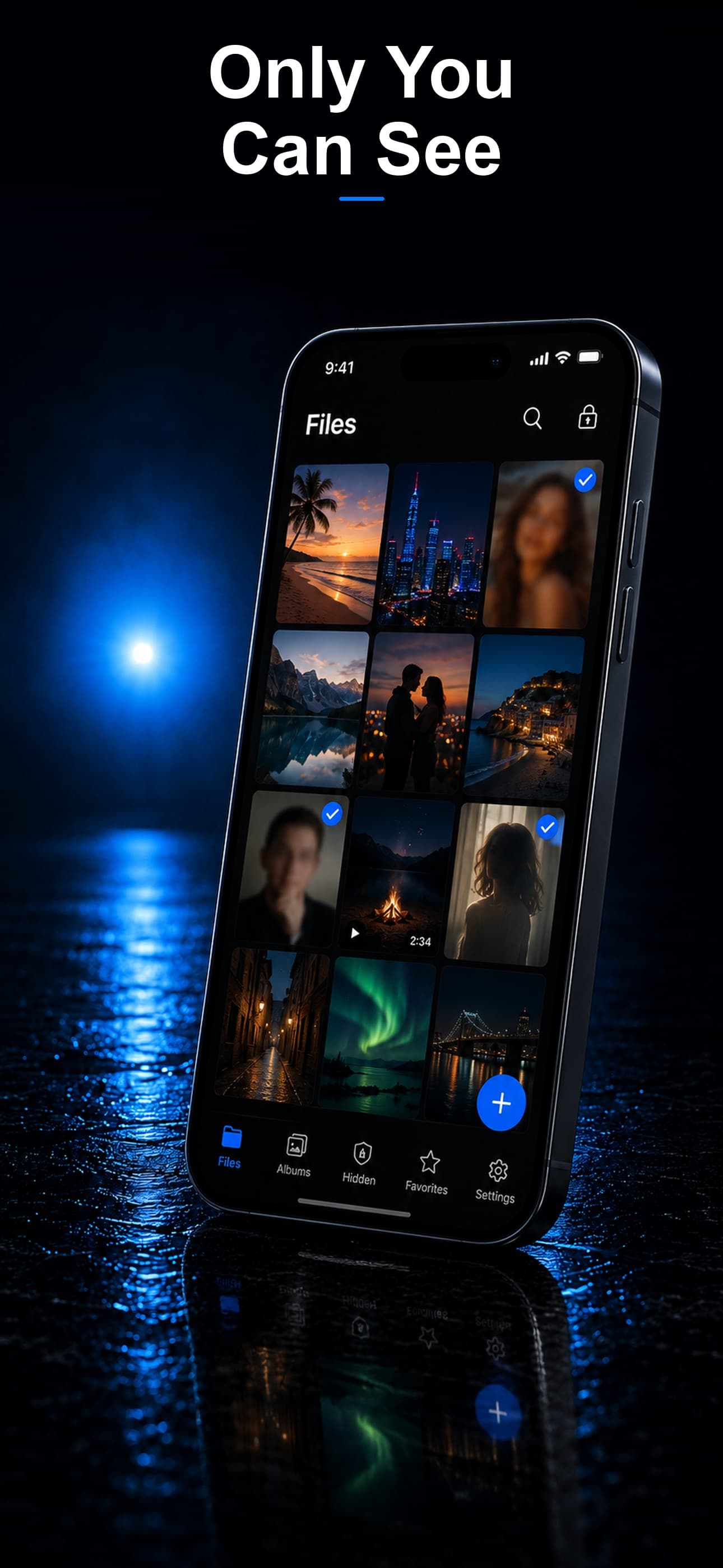
iOS privacy settings protect your device-level data, but they do not add encryption to individual files. For your most sensitive photos, videos, and documents, use a dedicated vault app that encrypts each file independently with AES-256, uses a separate passcode from your device, and stores everything on-device with no cloud sync.
This protects you in scenarios where device-level protections fail: shoulder surfing, unlocked device theft, coerced unlocks, and forensic extraction. A vault is not a replacement for the settings above; it is an additional layer for content that requires the highest level of protection.
Put It Into Practice
You do not need to complete this entire checklist in one sitting. Start with the quick wins (notification previews, app tracking, lock screen restrictions) and work through the more involved settings over the next few days. Each step meaningfully improves your privacy posture.
For the final step on this checklist, Stash provides AES-256 encrypted storage with a disguised interface, decoy vault, and intruder detection, all completely on-device. It is the one step that protects your files even if every other defense is compromised. Download Stash from the App Store and complete your iPhone privacy setup.