You're deep in a document, a code editor, or a design file. Someone messages you: "Are you free at 2?" You Cmd-Tab to Calendar, wait for it to load, scan for the time slot, then Cmd-Tab back. Twenty seconds later you've lost your train of thought — and the answer was just "yes, I'm free."
This happens dozens of times a day. Every glance at your schedule costs a context switch, and context switches are expensive.
Why the built-in Calendar app falls short
Apple Calendar is a full-window application. Opening it covers whatever you're working on. Even in Split View, it demands half your screen — too much real estate for information you only need to glance at. And if you close it to reclaim space, the schedule disappears entirely.
What most people actually need is not a full calendar interface. They need a slim, persistent view of today's events that stays visible while they work.
A calendar sidebar that stays on screen
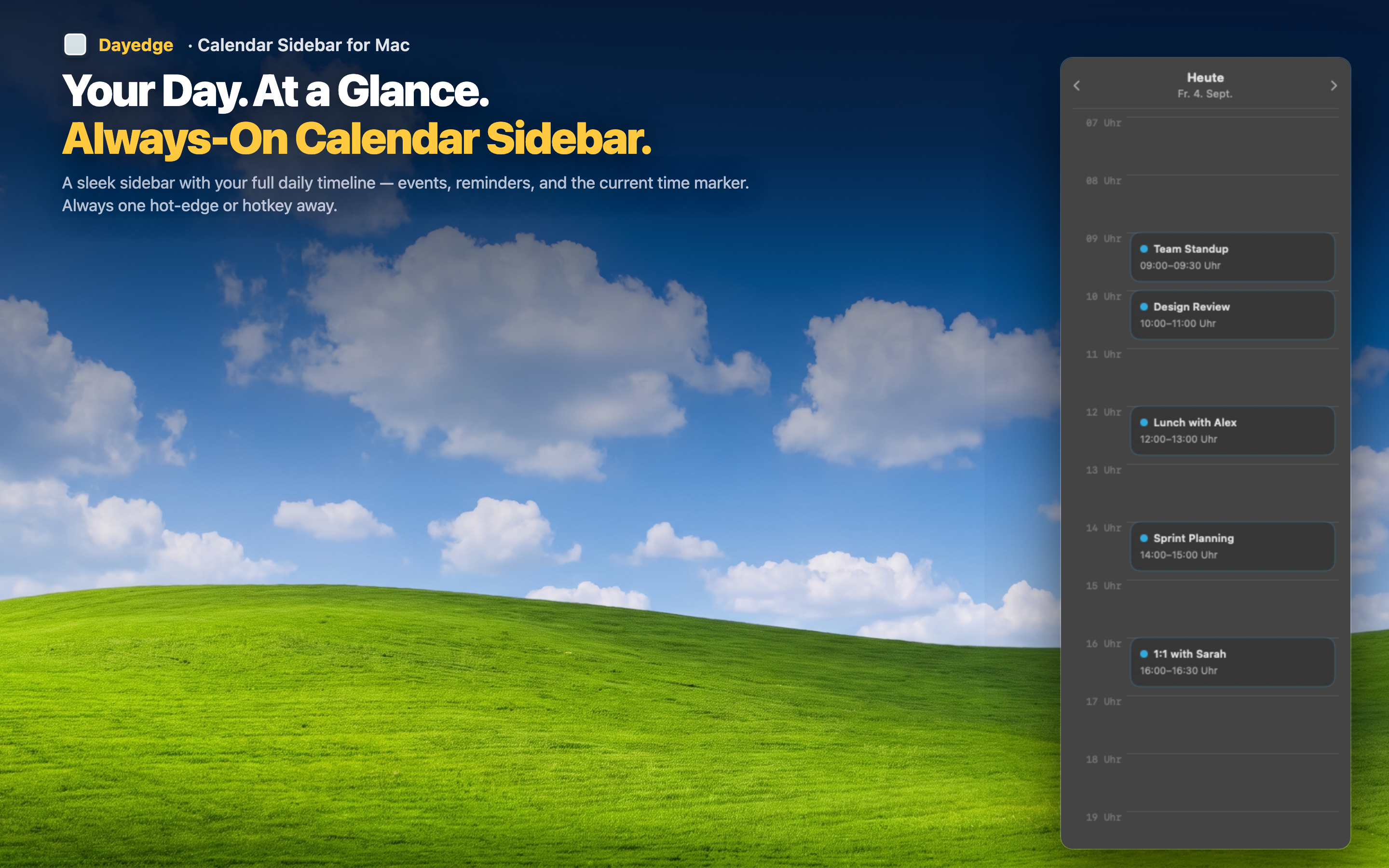
Dayedge pins a narrow timeline to the edge of your screen. It shows your events and reminders for the day without covering your workspace. No app switching, no Cmd-Tab, no lost focus.
Glance, don't switch
The sidebar is always there at the screen edge. When you need to know your next meeting, your eyes move — your hands don't. No clicking, no switching apps, no waiting for anything to load. The timeline updates in real time as events pass.
Works alongside any app
Because the sidebar is slim, it coexists with full-screen editors, browsers, and design tools. Your working area stays intact. You get schedule awareness without giving up screen space that matters.
One-click meeting joins
When a meeting starts, click the event in the sidebar to join Zoom, Google Meet, or Microsoft Teams directly. No digging through email for the link, no hunting through calendar event details. The join button is right there on the timeline.