How many times a day do you open the Calendar app? Not to plan something — just to check what's next. "Do I have a meeting at 3?" "When does this focus block end?" "Is there anything after lunch?" Each check takes 10-15 seconds of app switching, and most of the time the answer is a single event name and time.
You shouldn't need to open a full application for information that fits in a sentence.
What macOS gives you today
The menu bar clock shows today's date and, if you click it, a small calendar widget with a list of upcoming events. It's better than nothing, but it requires a click, the list is small, and it disappears the moment you click anywhere else. You can't keep it visible while you work.
Notification Center has a calendar widget too, but swiping to open it and swiping back to close it is friction. It's designed for occasional checks, not ambient awareness.
Schedule as ambient information
Dayedge treats your schedule as something you should always be able to see, like the clock or your dock. A slim timeline at the screen edge shows today's events and reminders persistently. No clicking, no swiping, no opening anything.
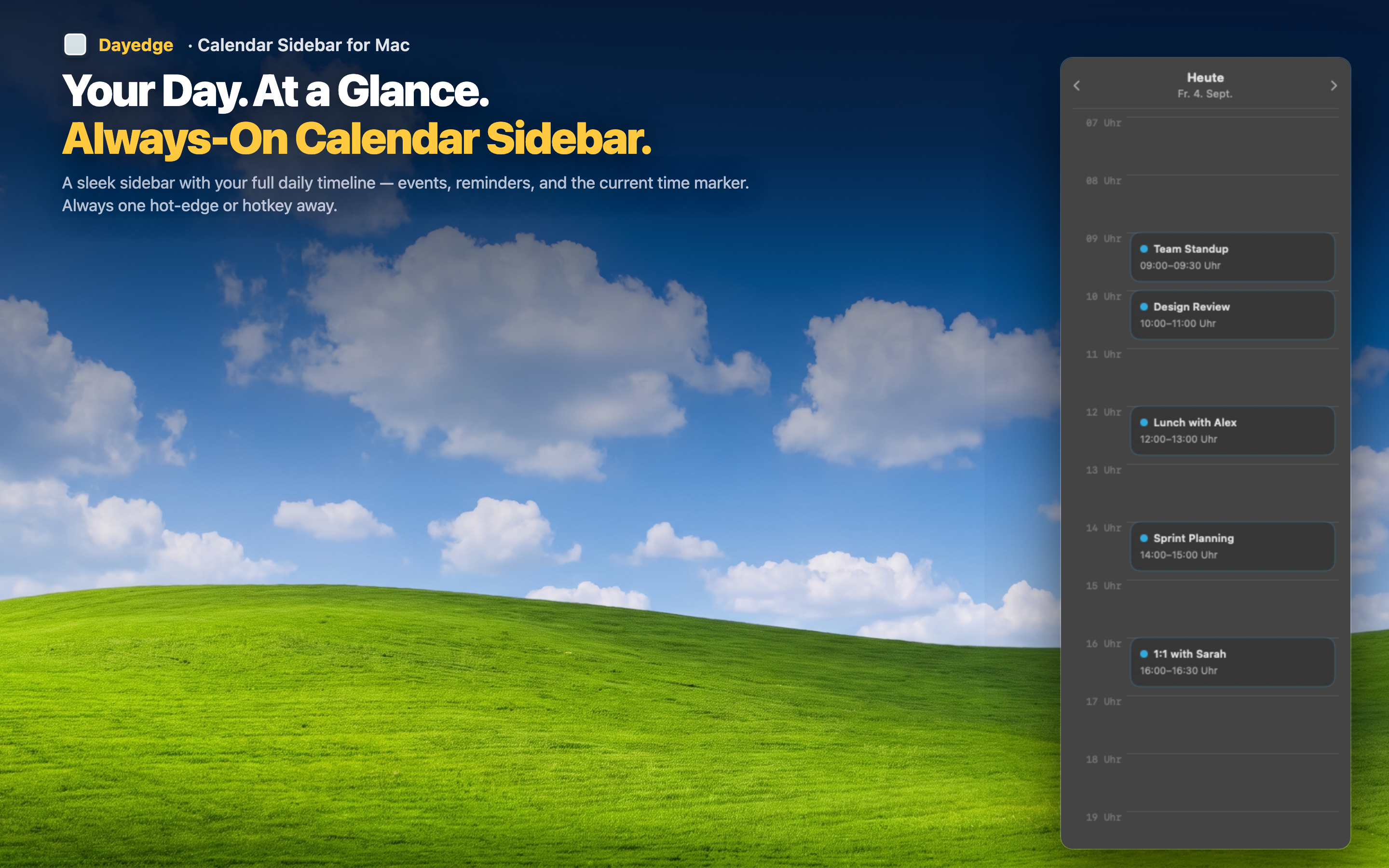
Peripheral vision scheduling
The timeline sits at the screen edge where your peripheral vision catches it naturally. You don't actively look at it — you notice it. When a gap appears in your timeline, you know you're free. When a colored block appears, you know something is coming. It's scheduling by glance.
Events and reminders together
Dayedge reads from macOS Calendar, which means it shows both calendar events and Reminders in one unified timeline. No need to check two separate apps to understand your day.
Hot edge for minimal distraction
If you prefer an uncluttered desktop, enable hot edge activation. The timeline hides completely until you move your cursor to the screen edge. One motion to reveal, one motion to hide. Your schedule is accessible but never in the way.