Screen real estate on a Mac is valuable. Whether you're on a 13-inch MacBook Air or an ultrawide monitor, every pixel dedicated to a calendar window is a pixel taken from the app you're actually working in. But you still need to see your schedule.
The compromise most people make is toggling the Calendar app in and out, or keeping it in a separate desktop. Both solutions mean your schedule is invisible when you need it most — while you're working.
Full-window calendars waste space
Apple Calendar, Fantastical, and Google Calendar in a browser all assume you want a full calendar grid. Month views, week views, sidebars for calendar lists — they're designed for planning sessions, not for glancing at what's next. When all you need is today's timeline, a full calendar app is overkill.
Split View helps, but dedicating half your screen to a calendar is excessive. And Slide Over isn't available on macOS.
A sidebar that earns its space
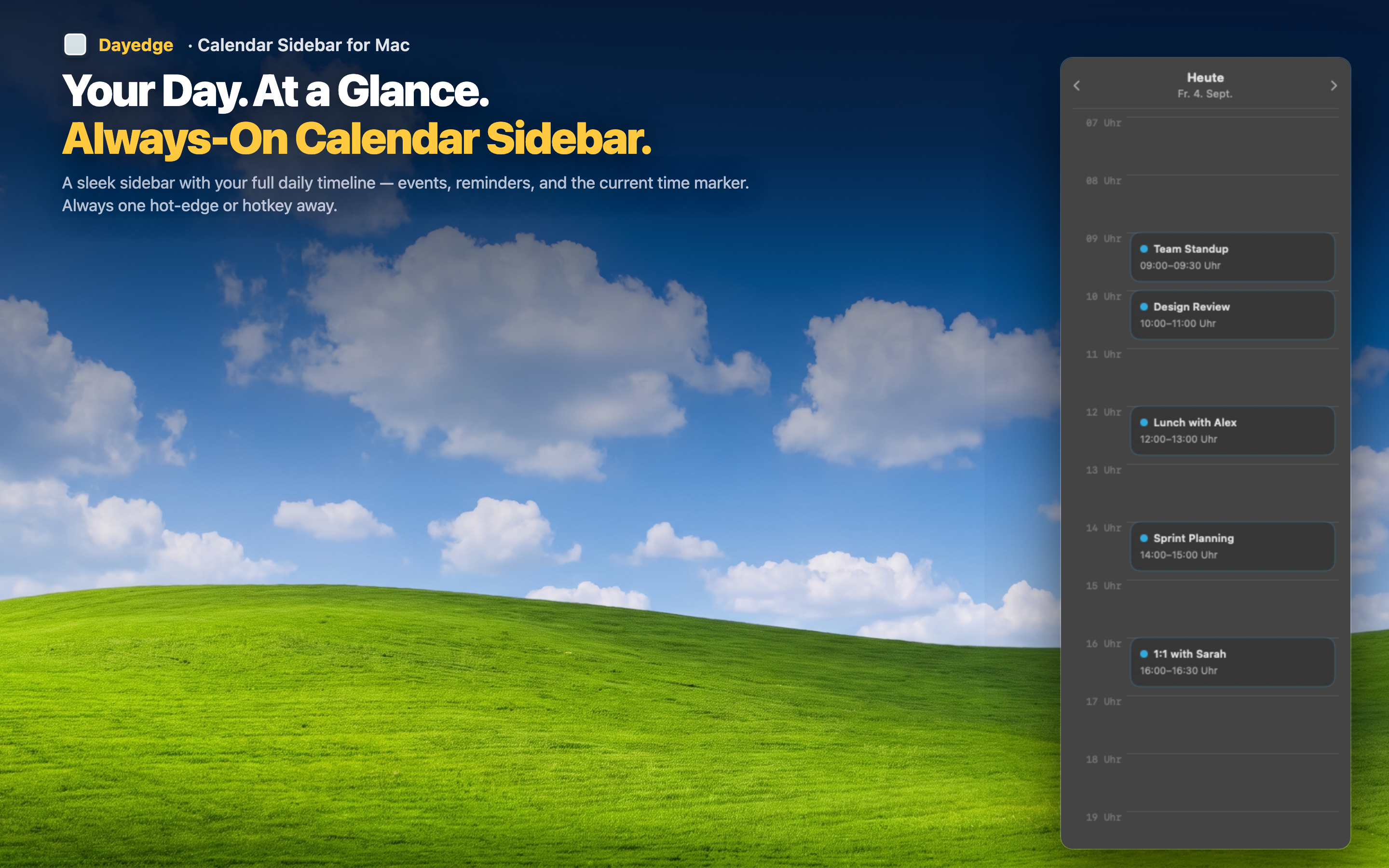
Dayedge takes a different approach. Instead of a window, it pins a slim sidebar directly to your screen edge. The sidebar shows a vertical timeline of today's events and reminders — nothing more, nothing less.
Edge-pinned, not window-based
The sidebar lives at the screen edge, not in a draggable window you have to position and resize. It's always in the same place, always the same width, and never gets buried behind other windows. Think of it like a second dock — but for your schedule.
Hot edge activation
If you prefer a completely clean desktop, Dayedge can hide until you move your cursor to the screen edge. Hover at the edge and the timeline slides into view. Move away and it disappears. Your schedule is always one cursor movement away.
Mini calendar for navigation
Need to check a date next week? The built-in mini calendar lets you navigate without opening a separate app. Tap a date, see its events — all within the same slim sidebar.