Google Calendar is the default for a huge share of teams and companies, but on a Mac it usually lives inside a browser tab. That means checking your schedule requires switching to (or opening) a browser, finding the right tab among dozens of others, and waiting for the page to load or refresh. It's a workflow built for the web, running on a desktop that has better options.
Even if you pin the Calendar tab, it's still competing with your other browser tabs for space and still requires a click to bring to the front.
Browser tabs aren't built for ambient glancing
A browser tab is either the active tab — taking over your full window — or a background tab you have to click to reach. There's no in-between state where it's visible but not in the way. If you work primarily in non-browser apps like an IDE, a design tool, or a writing app, your Google Calendar tab is effectively invisible until you deliberately switch to it.
Browser-based calendars also don't integrate with the rest of macOS the way native apps can — no system-level meeting link extraction, no lightweight always-on display.
Bringing Google Calendar to your desktop
If your Google account is connected to macOS Calendar (which Apple supports natively), your Google events already sync into the system calendar. Dayedge reads directly from macOS Calendar and displays those events — including your Google Calendar events — on a persistent sidebar at the screen edge.
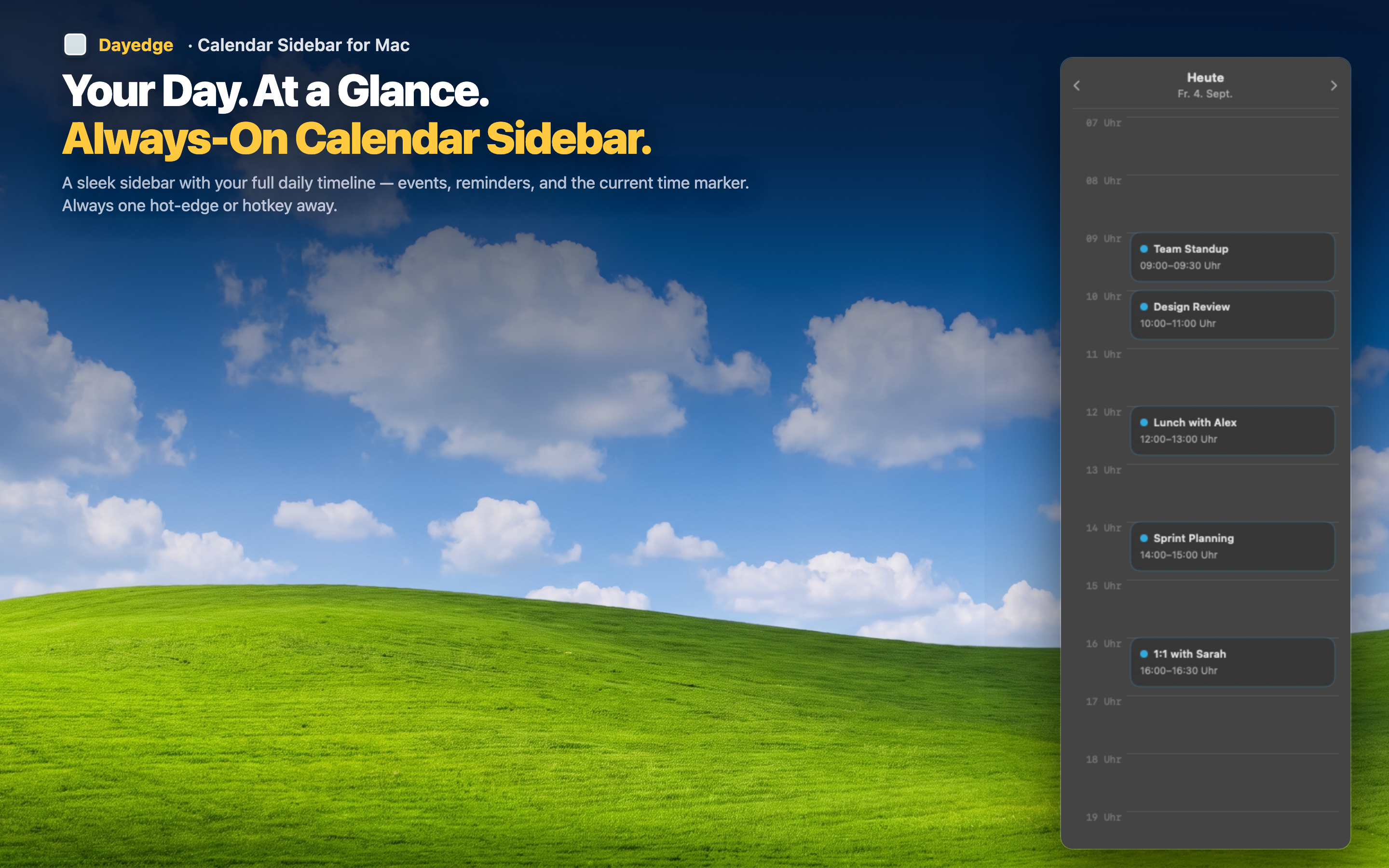
No browser tab required
Once your Google Calendar is linked in macOS System Settings, its events flow into the same timeline as any other calendar. You see your Google events without ever opening a browser.
One-click join for Google Meet
Meetings scheduled with Google Meet links get the same treatment as Zoom or Teams — the link is extracted and shown as a join button right on the event, no tab-hunting required.
Works alongside multiple calendars
If you also use iCloud or Outlook calendars, they all appear together in the same timeline, sorted by time, regardless of which service they came from.