Notifications on macOS pass through a lot of filtering before they reach your eyes: Focus modes can silence them, Do Not Disturb can suppress them entirely, and even when they do appear, a fast Cmd-swipe or an accidental click can dismiss one before you've actually read it. For most notifications that's a minor inconvenience. For a calendar alert telling you a meeting is starting, it can mean walking in five minutes late — or not at all.
The deeper issue is architectural: a notification is a single, transient event. If anything interferes with that one moment, the information is gone.
Where calendar alerts break down
Focus modes are increasingly common on macOS, and it's easy to have a Focus active during deep work that quietly suppresses calendar alerts along with everything else. Full-screen apps can also delay or hide notification banners. And busy notification stacks mean a calendar alert might appear for a second, get pushed down by three Slack messages, and vanish from view before you glance at your screen.
None of this is a bug exactly — it's the tradeoff of a notification system designed to minimize interruptions. But it means calendar alerts alone aren't a dependable way to track your schedule.
Removing the single point of failure
Dayedge doesn't rely on a single alert moment at all. It shows a continuous timeline of your day at the screen edge, so meetings are visible for the entire window of time leading up to them — not just the one instant a notification decides to fire.
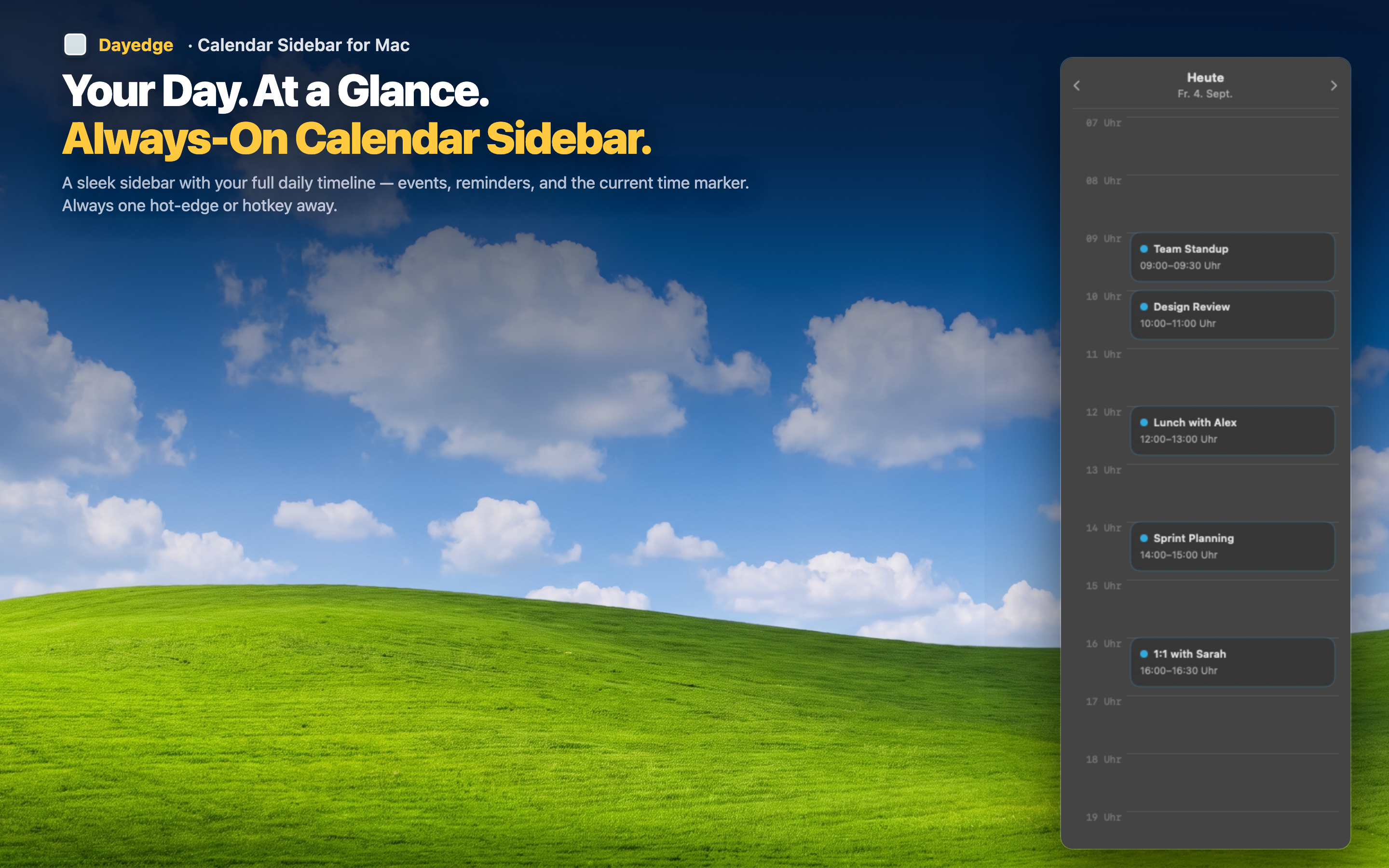
No single moment to miss
Because the timeline stays on screen continuously, there's no equivalent of a notification getting buried or suppressed. The meeting is visible ten minutes out, five minutes out, and right as it starts.
Unaffected by Focus modes
The sidebar isn't part of the notification pipeline, so it isn't subject to the same suppression rules as system alerts. Your schedule stays visible regardless of which Focus mode is active.
Join without digging for the link
When you do notice a meeting approaching, the Zoom, Google Meet, or Microsoft Teams join button is already sitting on the event — no need to open Calendar to retrieve it after a missed alert.