Your day is split across two Apple apps. Calendar holds your meetings and appointments. Reminders holds your tasks and to-dos. Both are time-sensitive. Both affect your schedule. But they live in completely separate interfaces with no unified view.
At 2 PM you have a client call (Calendar). At 2:30 you need to submit a report (Reminders). At 3 PM there's a team standup (Calendar). To see this full picture, you need to check two different apps and mentally stitch the timeline together.
Two apps for one schedule
Apple keeps Calendar and Reminders separate by design. Calendar is for events with specific times and durations. Reminders is for tasks that may or may not have a due time. The logic makes sense from a data perspective, but from a "what does my day look like?" perspective, the separation creates a blind spot.
The menu bar calendar popover shows events but not reminders. Notification Center can show both as separate widgets, but they're stacked vertically in different visual styles with no shared timeline. Siri can tell you about events or reminders, but not both in one answer.
One timeline, both sources
Dayedge reads from macOS Calendar, which gives it access to both calendar events and reminders. It displays them together in a single vertical timeline — meetings, appointments, tasks, and due dates all on the same visual axis.
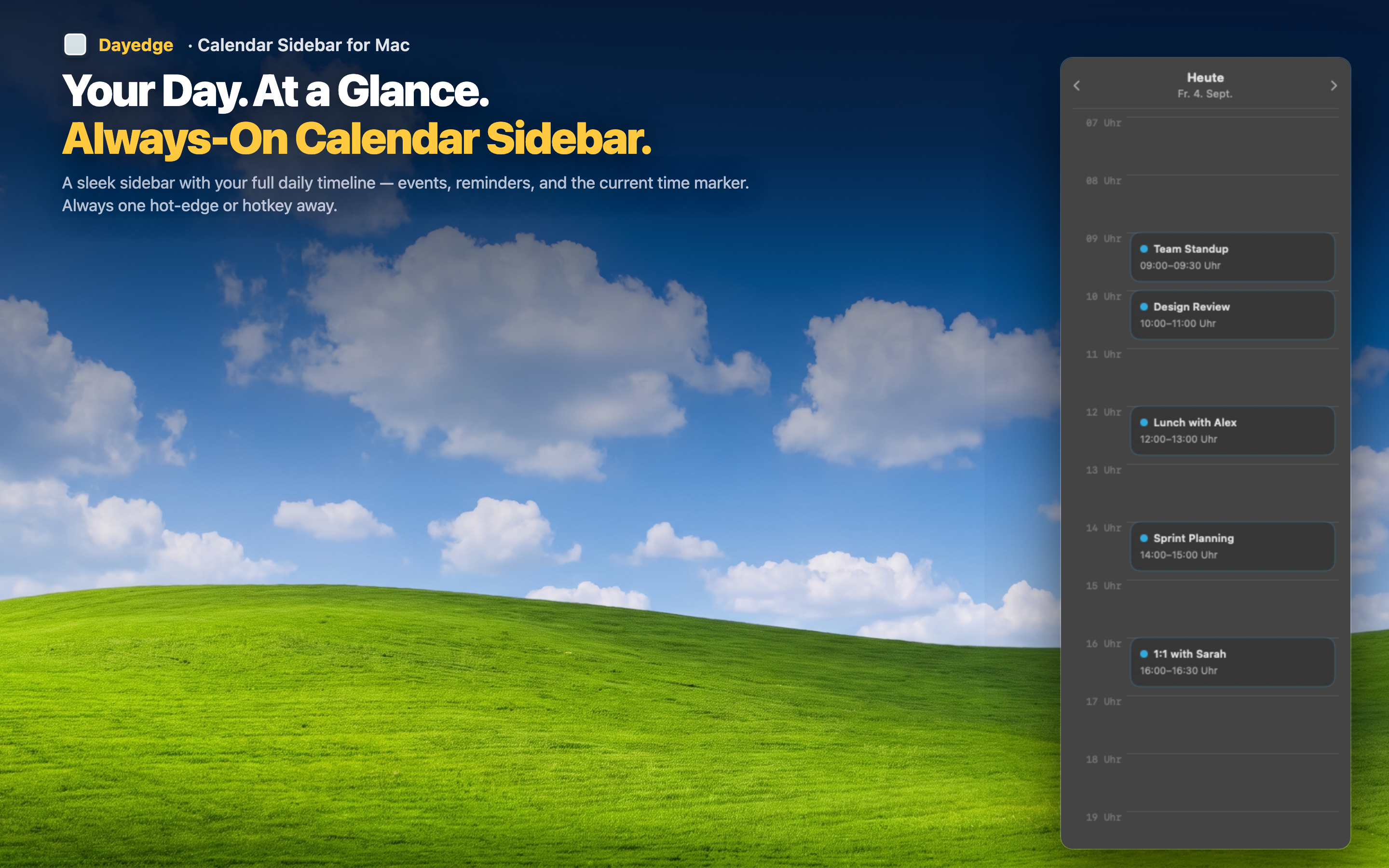
See the full picture
When events and reminders share a timeline, gaps and conflicts become obvious. You can see that you have 30 minutes between meetings to handle a reminder, or that a task is due right when a call starts. This context is invisible when events and reminders live in separate apps.
No data duplication
Dayedge reads directly from your existing macOS Calendar and Reminders data. You don't need to import, sync, or re-enter anything. Whatever you've already set up in Calendar and Reminders shows up automatically in the sidebar timeline.
Persistent, not pop-up
Unlike Notification Center widgets that require a swipe to see and a swipe to dismiss, the Dayedge sidebar stays visible at your screen edge. The combined events-and-reminders timeline is always there — or available with a hot edge gesture if you prefer a cleaner desktop.