Try this experiment: the next time you want to know your next meeting, count the actions it takes. Move your mouse to the menu bar, click the clock, wait for the popover, read the list, click away. That's four or five distinct actions for a piece of information that could, in principle, just be visible.
Every one of those actions is small, but they add up across a day of frequent checks, and each one is a tiny interruption to whatever you were focused on a second earlier.
Why "just click it" isn't actually free
Clicking feels instantaneous, but it isn't cognitively free. It requires locating the target, moving the cursor, executing the click, waiting for a UI response, and then dismissing it afterward. Multiply that by the number of times a day you check your schedule and you've built a habit of small interruptions that compound into real lost focus, especially if you're deep in writing or coding.
The alternative is information you don't have to request — like a wall clock. You don't click a wall clock to check the time; you just look at it.
A timeline you just look at
Dayedge puts your next meeting on permanent display in a sidebar pinned to the screen edge. There's no click required to see it — the timeline is simply part of your screen, the same way the dock or menu bar is.
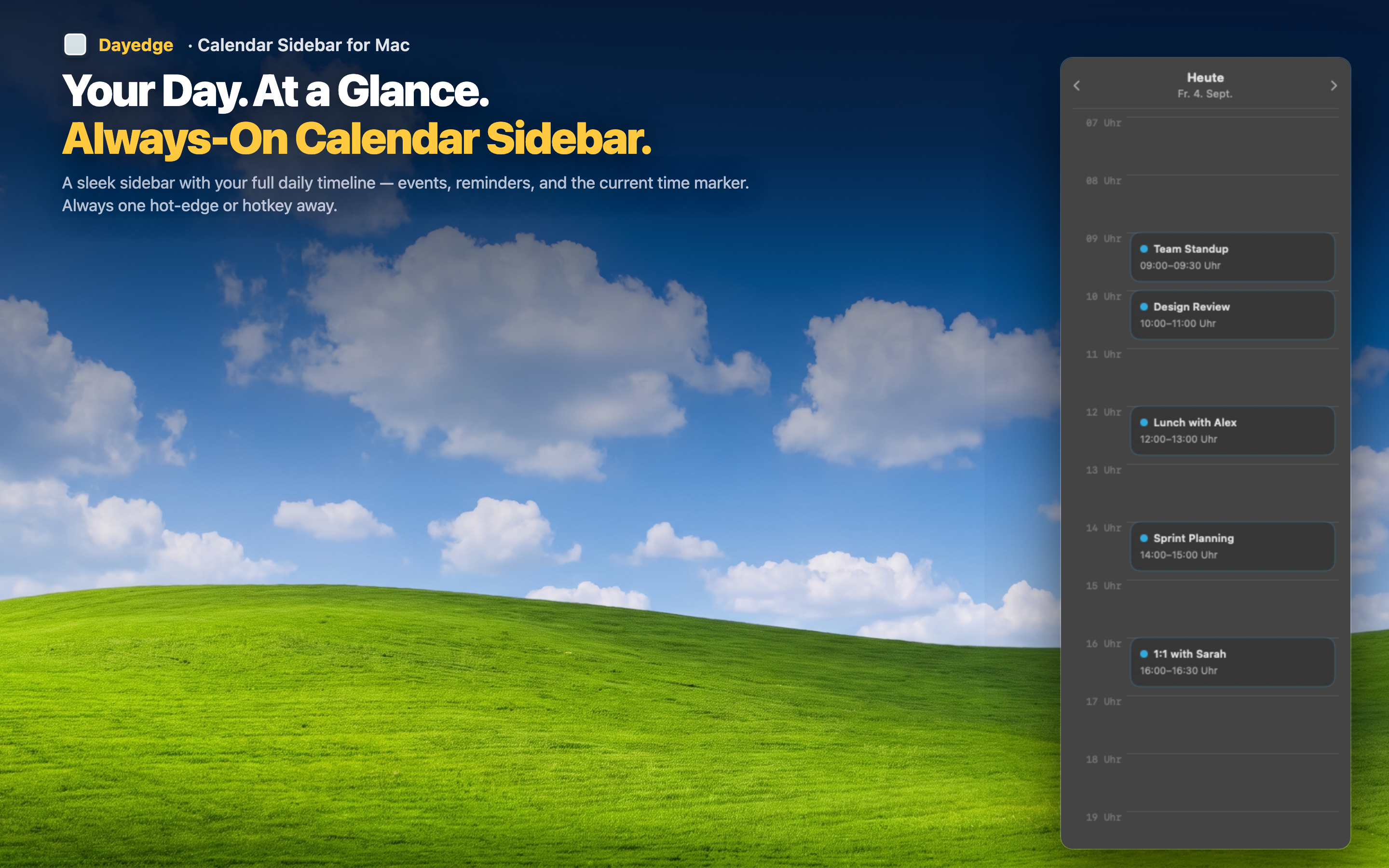
Look, don't click
The next event on your timeline is always at the top, clearly marked with its time. A flick of your eyes tells you what's coming — no cursor movement, no click, no waiting for a popover to render.
Even the join step is a single click
When it is time to act — joining a Zoom, Meet, or Teams call — the click count drops to exactly one. The join button lives on the event itself, already extracted from the calendar data.
Stays out of your way otherwise
Because it's slim and pinned to the edge, the timeline never competes with your main workspace. You get zero-click awareness without sacrificing the screen space you're actively using.