You've been in this situation before: you join a Zoom meeting, share your screen, and then realize your desktop is a mess. Maybe you remember to clean it up before the call half the time. The other half, you're hoping nobody's paying attention to the file names scattered across your screen.
The fix isn't remembering harder. It's automating the cleanup so you don't have to think about it at all.
Manual cleanup doesn't scale
If you have one meeting a week, tidying your desktop before each call is manageable. But most people have multiple Zoom or Teams calls per day. That's multiple interruptions where you need to minimize windows, scan for embarrassing file names, and maybe drag things into a folder — all while someone is waiting for you to share your screen.
macOS offers no automation for this. There's no built-in rule that says "when Zoom launches, hide my desktop icons." You could build something with AppleScript or Shortcuts, but the Terminal command to hide icons restarts Finder every time, which is disruptive and unreliable.
App triggers in DeskCloak
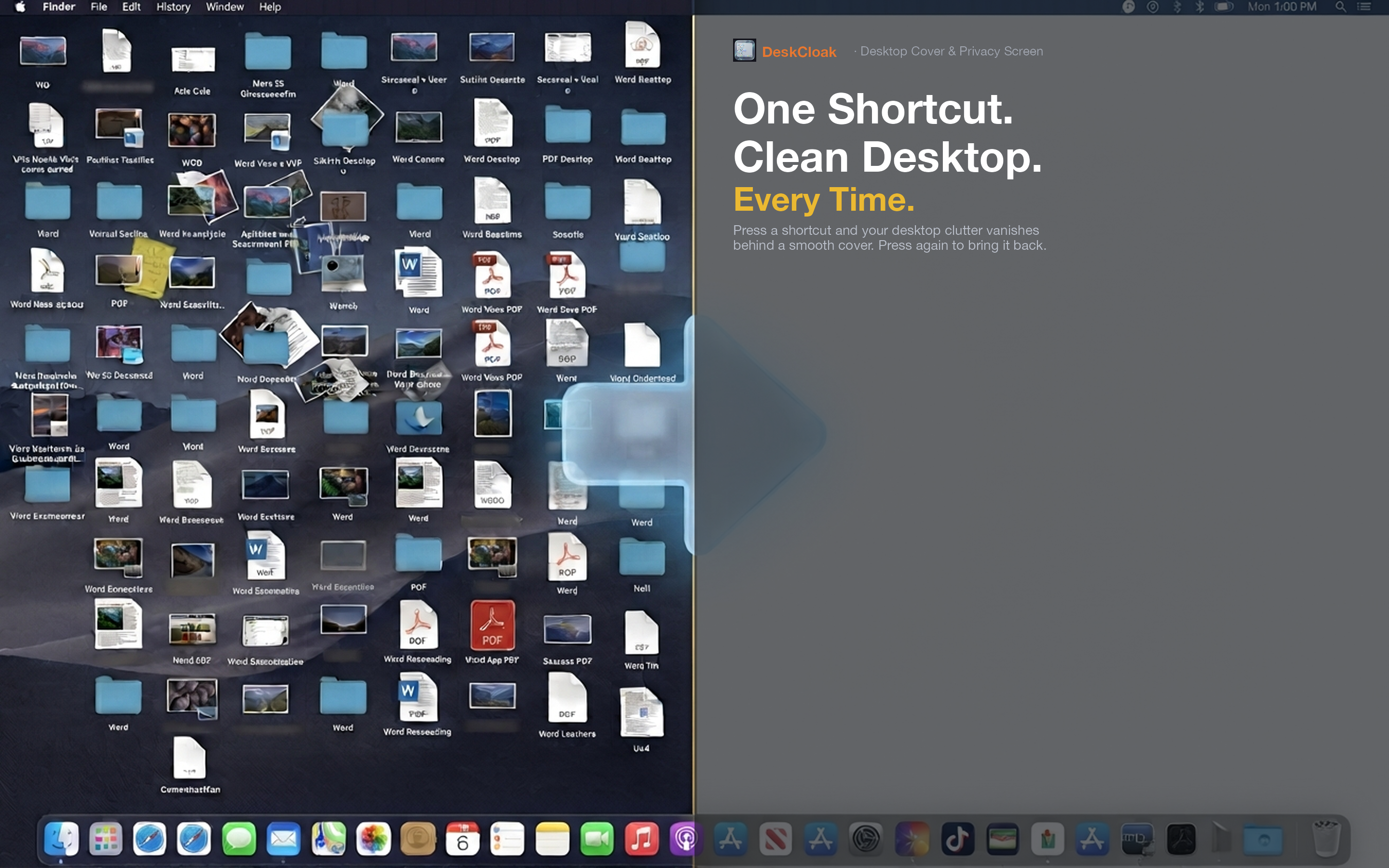
DeskCloak has a feature called app triggers. You tell it which apps should activate the desktop overlay, and it does the rest. When Zoom launches, DeskCloak automatically covers your desktop. When Zoom quits, the overlay lifts. Zero manual effort.
Zoom trigger
Set Zoom as a trigger app. Every time Zoom opens — whether you launch it manually or click a meeting link — your desktop is automatically covered. You never have to remember to activate it before sharing your screen.
Microsoft Teams trigger
If your workplace uses Teams, set it as a trigger alongside or instead of Zoom. The same automatic behavior applies: Teams launches, desktop is covered. Teams quits, desktop is visible again.
Multiple triggers for multi-app workflows
You can set multiple apps as triggers. If you use Zoom for external calls, Teams for internal meetings, and Google Meet in the browser, configure DeskCloak to respond to all of them. Your desktop stays clean regardless of which conferencing tool you're using that day.
It runs from the menu bar and stays out of your way. No Dock icon, no windows to manage — just automatic desktop privacy when you need it.