Your desktop icons are there for a reason. Active projects, quick-access files, things you're working on right now. Moving them into a folder to "clean up" defeats the purpose — you put them on the desktop because you need them within reach.
But there are times when you don't want them visible. Screen shares, recordings, presentations, or just when you need a clean visual workspace. The challenge is hiding icons temporarily without disrupting your file organization.
Existing options all have tradeoffs
The most common approaches to hiding desktop icons on Mac all require sacrificing something:
- Drag files into a folder: They're no longer on your desktop. You lose quick access and have to remember to drag them back later.
- Terminal command:
defaults write com.apple.finder CreateDesktop -bool falsehides all icons but restarts Finder, disrupting open windows. Not reversible with a quick toggle. - Create a clean Desktop space: Switching between macOS spaces during a presentation is jarring and can break screen share sessions.
- Use Stacks: Reduces clutter but doesn't eliminate it. Files are still visible, just grouped.
None of these give you what you actually want: the icons hidden visually but still in place, toggled with a single action.
DeskCloak: an overlay that sits between icons and windows
DeskCloak places a visual layer directly above your desktop icons and below your application windows. It's an overlay — your icons don't move, your files don't change location, nothing gets reorganized. The overlay simply covers them.
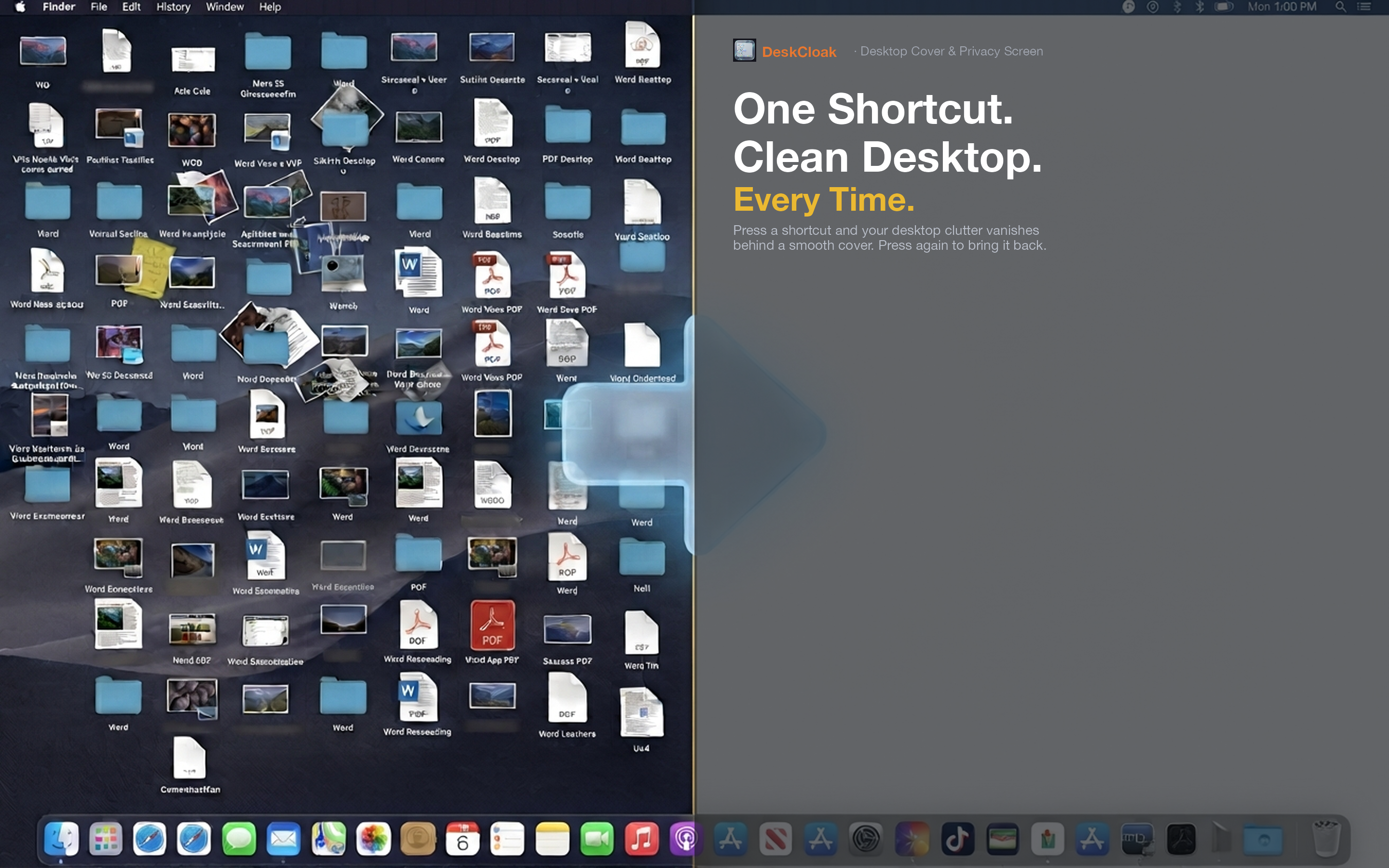
You can choose what the overlay looks like:
- Wallpaper mirror: Matches your existing wallpaper, so it looks like a perfectly clean desktop
- Solid color: A flat color for a minimal, focused look
- Gaussian blur: Blurs the desktop content for a frosted-glass effect
- Custom image: Use any image as your overlay
Toggle with a hotkey
Assign a global keyboard shortcut. Press it to cover your desktop, press it again to reveal your icons. No menus, no delay, no Finder restart. It works even when you're inside another app.
Multi-monitor support
If you work with multiple displays, DeskCloak covers all of them simultaneously. No need to manage each monitor separately.