You're recording a tutorial, a product demo, or a walkthrough for your team. Every time you switch apps, minimize a window, or navigate between tools, your desktop flashes on screen. If it's covered in files and folders, that's now baked into your recording — and you can't edit it out without jump cuts.
For content creators, educators, and anyone who records their screen regularly, a messy desktop is a recurring production problem.
Why desktop clutter hurts screen recordings
Unlike a live screen share where the moment passes, a recording is permanent. Every frame of desktop clutter is captured and can't be taken back. Viewers notice:
- File names that reveal projects or clients you shouldn't be disclosing
- Messy organization that undermines your credibility as someone teaching a skill
- Visual noise that distracts from the content you're trying to present
- Inconsistency between takes if you clean up between some recordings but not others
Professional tutorials on YouTube and course platforms always have clean desktops. It's a subtle quality marker that viewers pick up on, even if they can't articulate why one tutorial feels more polished than another.
Record with a clean desktop using DeskCloak
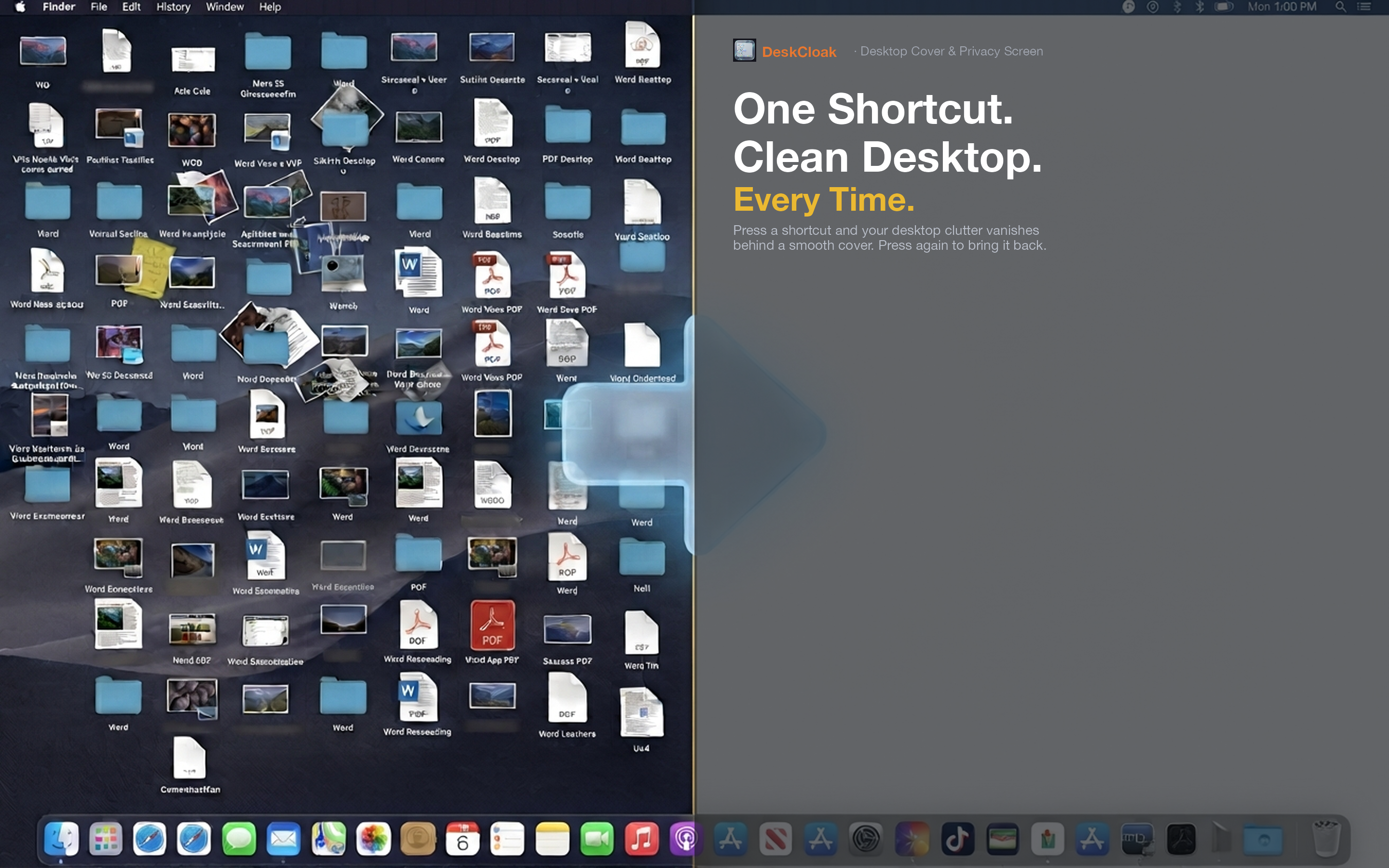
DeskCloak gives you a consistently clean desktop for every recording session. Toggle it on before you hit record, and your desktop looks pristine whenever it's visible — no matter how many files are actually on it.
YouTube tutorials and courses
If you create educational content, a clean desktop is part of your production quality. DeskCloak's wallpaper mirror mode makes your desktop look naturally clean — viewers won't even know you're using an overlay. It's one less thing to worry about in your recording setup.
Software demos and product videos
When showcasing software to potential customers, the background matters. A solid-color overlay in your brand color gives a consistent, professional look across all your demo recordings. Every transition between windows shows a clean, branded background.
Internal documentation and walkthroughs
Even recordings for internal use benefit from a clean desktop. When a new hire watches your onboarding walkthrough, a tidy screen communicates professionalism and makes the content easier to follow without visual distractions.