Every year a new version of macOS ships, and every year people search for a built-in way to hide desktop icons — expecting Apple to have finally added the option. It hasn't. macOS Sequoia, Sonoma, and every version before them all lack a native "hide desktop icons" switch in System Settings.
If you've tried searching System Settings for "desktop icons," you've probably found nothing useful. The Desktop & Dock preferences let you control wallpaper, widgets, and Stage Manager, but there's no toggle for the icons themselves.
The Terminal method still works, but it's rough
The classic workaround from years past still functions on current macOS:
defaults write com.apple.finder CreateDesktop -bool false; killall Finder
Run that and your icons disappear. Run it again with true instead of false to bring them back. The catch: killing Finder closes any open Finder windows and briefly flickers your Dock. It's a system-level change, not a toggle, and there's no keyboard shortcut for it — you'd need to open Terminal, type the command, and remember the exact syntax every single time.
Third-party apps fill the gap Apple left
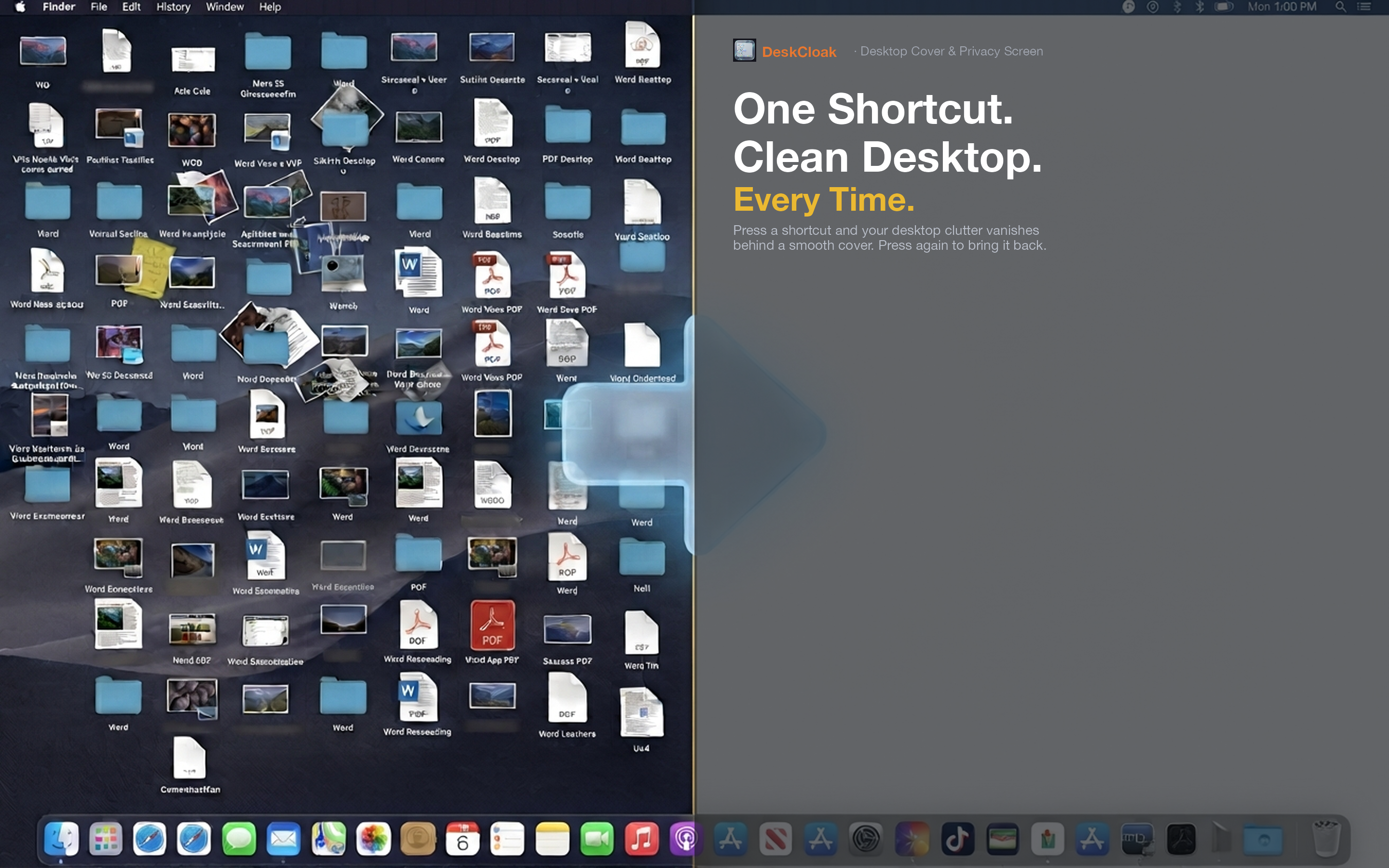
Because macOS still doesn't solve this natively, a small category of menu bar apps has grown around the problem. DeskCloak is one of them, built specifically for modern macOS versions. Instead of disabling the Finder desktop process, it places a visual overlay above your icons and below your windows — accomplishing the same visual result as the Terminal command, but instantly and reversibly.
No Terminal required
You never open Terminal, never type a command, and never restart Finder. Set a global hotkey once in DeskCloak's preferences, and from then on a single keypress hides or reveals your desktop icons.
Works the same across macOS versions
Because it runs as a lightweight overlay rather than toggling a system-level Finder preference, DeskCloak behaves consistently whether you're on the latest macOS release or an older supported version. You're not relying on an internal defaults key that Apple could change or remove in a future update.
Reversible in an instant
Toggle off and your icons are exactly where you left them — no waiting for Finder to relaunch, no flicker, no disruption to open windows. It's the difference between a system hack and an actual feature.