Be honest: when was the last time your Mac desktop was actually clean? For most people, the desktop is a landing zone for screenshots, downloads, documents in progress, and files that don't have a proper home yet. It grows messier by the day, and cleaning it up always feels like something you'll get to later.
The clutter isn't just cosmetic. It's visual noise that makes it harder to focus, and it's a liability every time someone else sees your screen.
The desktop clutter cycle
macOS makes it easy to save things to the desktop. Screenshots land there by default. Downloads often end up there. Quick saves from any app default to the desktop. Before you know it, you have dozens of files scattered across your wallpaper.
macOS Stacks help by grouping files into categories, but they don't reduce the visual clutter — they just reorganize it. You still see a row of stacked icons across the right side of your screen. And if you use Stacks, finding a specific file becomes harder because everything is collapsed.
The nuclear option — the Terminal command to hide all desktop icons — works but requires restarting Finder and remembering to undo it later. It's not practical for daily use.
Hide the mess without cleaning it
DeskCloak takes a different approach: instead of organizing or deleting your files, it simply covers them. A clean overlay sits on top of your desktop icons, hiding all the clutter behind your wallpaper, a solid color, a gaussian blur, or a custom image. Your files are still there — just not visible.
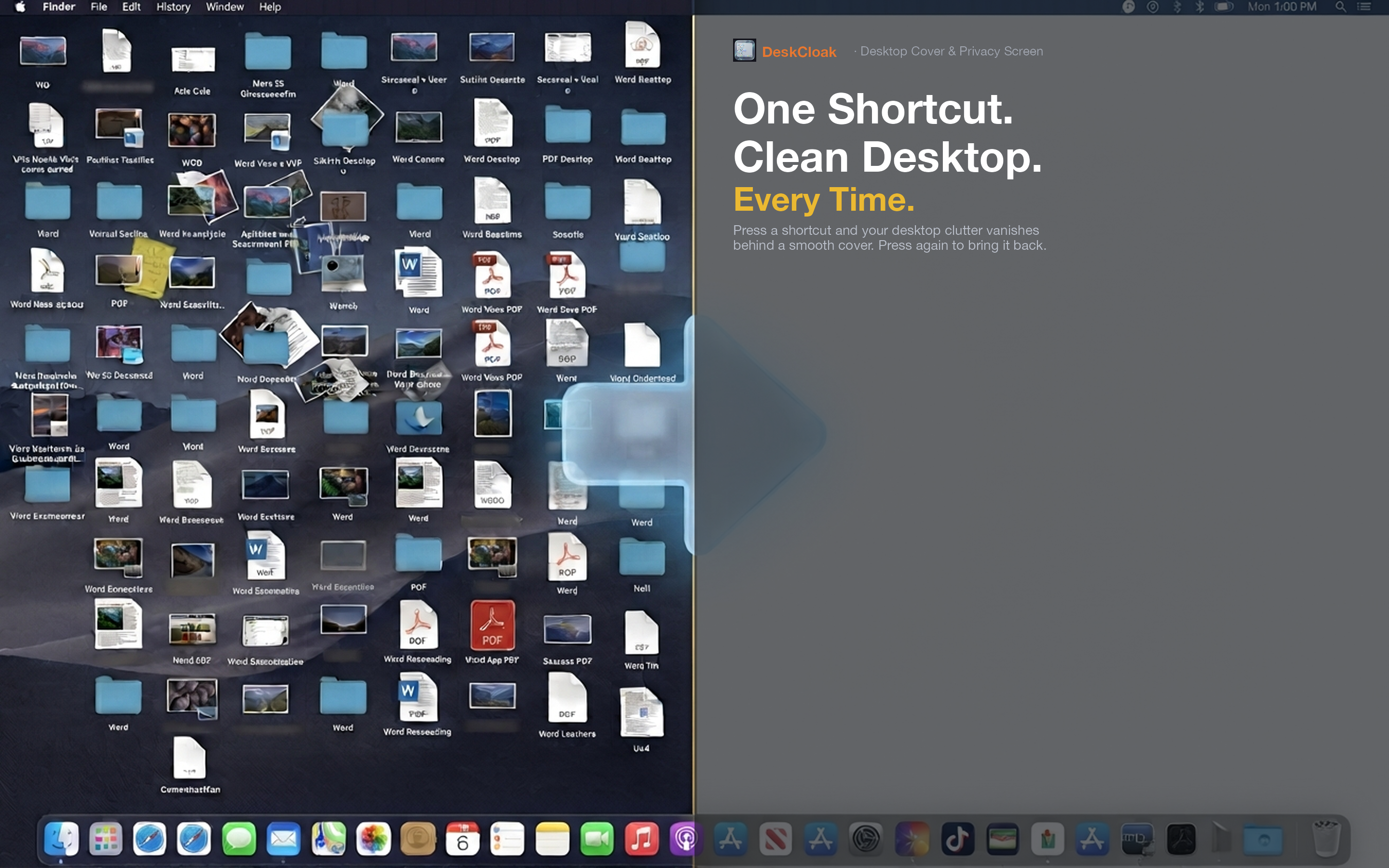
Daily focus mode
Toggle DeskCloak on at the start of your workday. No visual distractions from desktop files. When you need a file that's on the desktop, toggle it off, grab the file, and toggle it back on. It takes less than a second.
Instant cleanup for unexpected calls
Someone pings you for a quick screen share. No time to clean up. Hit your DeskCloak hotkey and your desktop looks spotless. No scrambling, no apologies.
Screenshot-heavy workflows
If you take a lot of screenshots — for bug reports, documentation, or design feedback — your desktop fills up fast. DeskCloak lets the screenshots pile up without the visual clutter. Clean them up on your own schedule.