You share your screen on Zoom to walk through a document, and in the process everyone on the call gets a full view of your desktop. File names like "resignation_draft.docx" or "salary_comparison.xlsx" flash by for all to see. Personal photos, random downloads, half-finished work — it's all there.
Even if you share a single window, the moment you switch apps or minimize something, the desktop peeks through. Zoom doesn't blur or hide what's behind your active window.
Zoom's screen sharing privacy gap
Zoom lets you share your entire screen or a single window. Sharing a single window is safer, but it's limiting — you can't easily switch between apps, show your browser, or demo a multi-window workflow. And the moment you click on the desktop or minimize a window, everything is exposed.
There's no built-in option in macOS or Zoom to hide desktop icons during screen sharing. Zoom's "Optimize for video" and "Share computer sound" settings don't address the privacy issue. You're left manually tidying up before every call or hoping nobody notices.
A privacy layer for your desktop
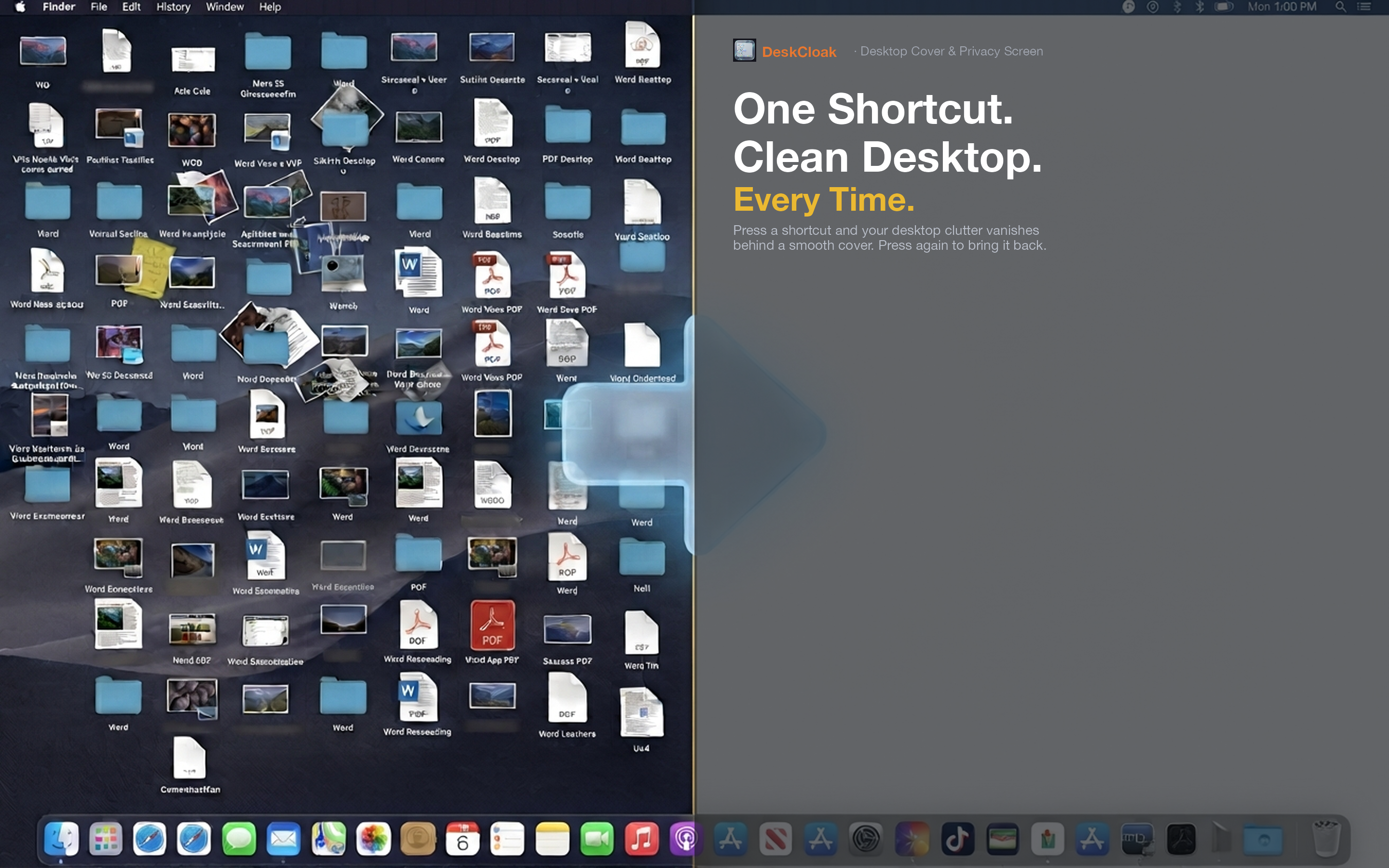
DeskCloak adds a clean overlay between your icons and your windows. When you share your entire screen on Zoom, the desktop behind your windows looks clean — your wallpaper with no clutter. Toggle it with a global hotkey without leaving the call.
Sensitive file names
HR documents, financial spreadsheets, legal contracts — if they're saved to your desktop, their file names are visible during screen shares. DeskCloak covers them completely. No need to move files to a hidden folder before every meeting.
Work-from-home privacy
When you work from home, your desktop often has a mix of personal and professional files. DeskCloak lets you keep that separation clean during video calls without reorganizing your workflow.
Recurring meetings
If you're in Zoom calls several times a day, manually cleaning your desktop each time isn't realistic. DeskCloak can auto-activate when Zoom launches — set it once and your desktop is always covered during calls.