Search for a "keyboard shortcut to hide desktop icons on Mac" and you'll find the same Terminal command repeated everywhere, presented as if typing it into Terminal counts as a shortcut. It doesn't. A real keyboard shortcut is something you press once, from anywhere, without opening another app first.
Why there's no native macOS shortcut for this
macOS ships with plenty of built-in shortcuts — Mission Control, Spotlight, screenshots — but hiding desktop icons was never one of Apple's design priorities. There's no key combination buried in System Settings' keyboard shortcuts panel for it, and you can't create one yourself for a Finder preference that requires restarting Finder to take effect.
Some people try to work around this with Automator or Shortcuts.app, chaining together a shell script action triggered by a keyboard shortcut. It technically works, but it still restarts Finder every time, which means a visible flicker and any open Finder windows closing. It's a shortcut in name only — the underlying action is still disruptive.
A genuine global hotkey
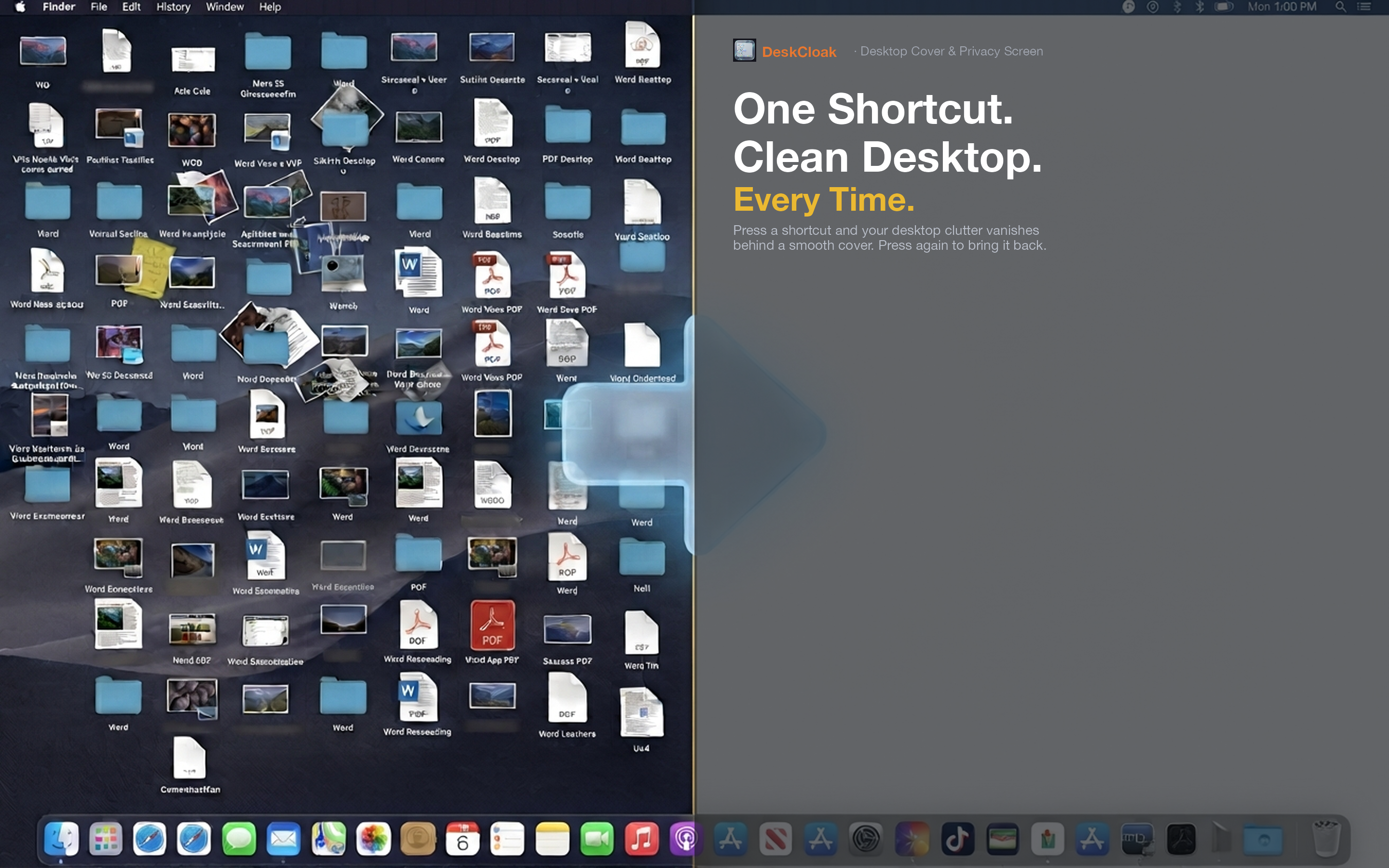
DeskCloak gives you an actual global keyboard shortcut, assignable to whatever key combination you prefer, that instantly toggles the desktop overlay on or off. No Terminal, no Automator workflow, no Finder restart — just the visual result you want, immediately.
Works from any app
Because it's a system-wide global hotkey, it works no matter what you're doing — writing an email, in the middle of a call, inside a full-screen app. Press it and the desktop overlay toggles instantly, without switching focus away from what you're doing.
Set it once, forget the syntax
Unlike remembering a Terminal command's exact flags and casing, a keyboard shortcut only needs to be set up once in DeskCloak's preferences. After that, muscle memory takes over.
Instant, not eventual
There's no restart, no waiting for Finder to relaunch, no brief flash where your Dock disappears and reappears. The overlay applies the moment you press the key, which is what a shortcut should actually feel like.