When you record your screen on a Mac, QuickTime or your recording app of choice captures exactly what's on your display — including the split second your desktop shows through when you switch windows, close an app, or drag something to a new position. Unlike a live call, this gets baked permanently into your video file.
Editing it out afterward is a poor substitute
If you notice desktop clutter in a recording after the fact, your options are limited. You can cut the clip and re-record, which wastes time if the rest of the take was good. You can try to crop or blur the frame in post-production, which is fiddly and often looks obviously edited. Or you can just publish it as-is and hope viewers don't notice — which they usually do, even subconsciously.
The better fix is preventing the clutter from ever entering the frame in the first place, which means having a clean desktop background before you hit record, not after.
A consistent clean background for every take
DeskCloak lets you set up your background once and reuse it for every recording session. Toggle it on before you start capturing, and any moment your desktop is visible shows a clean, consistent look — no matter how many files are actually sitting there.
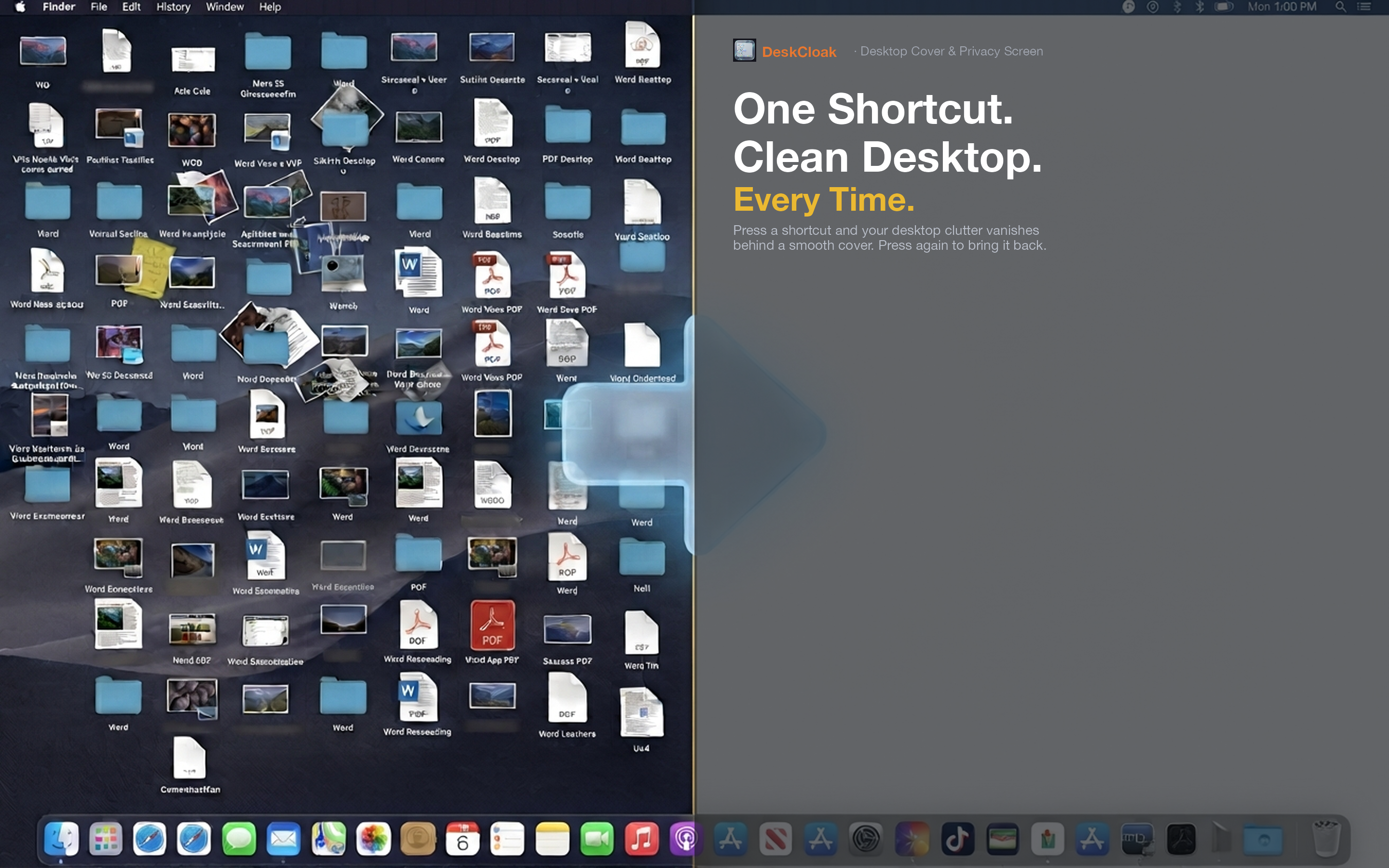
Multi-take consistency
If you record a tutorial series over several sessions, keeping the background identical across episodes matters for a cohesive look. DeskCloak's overlay stays exactly the same every time you activate it, so your desktop looks the same in episode one and episode twenty.
No last-minute scrambling
Instead of tidying files right before you record — and inevitably missing something — activate the overlay and everything is covered uniformly. You can record confidently even if your actual desktop is a mess behind the scenes.
Works with any recording tool
Because DeskCloak changes what's actually rendered on your display, it works with QuickTime, ScreenFlow, Camtasia, or any other screen recording software — there's no plugin or integration required.