Streaming with OBS on a Mac often involves a "Display Capture" or "Window Capture" source that shows your whole screen or a specific app window. Any time you tab out to grab a file, open Finder, or switch scenes to a desktop view, viewers see your actual desktop — icons, files, and all. For streamers who care about their visual brand, that's a problem worth solving.
OBS scene tricks only go so far
Some streamers try to work around this by building an OBS scene collection that avoids ever showing the raw desktop — always cutting to a "Be Right Back" screen before switching apps, or using Window Capture exclusively instead of Display Capture. This works, but it's restrictive. You can't freely browse Finder, drag files, or multitask visibly without breaking the illusion, and forgetting to switch scenes even once exposes the mess to your entire audience live.
Others try to keep an immaculate desktop at all times, which sounds nice in theory but doesn't survive contact with actual daily computer use — screenshots, downloads, and game files pile up regardless of good intentions.
A branded, always-clean desktop background
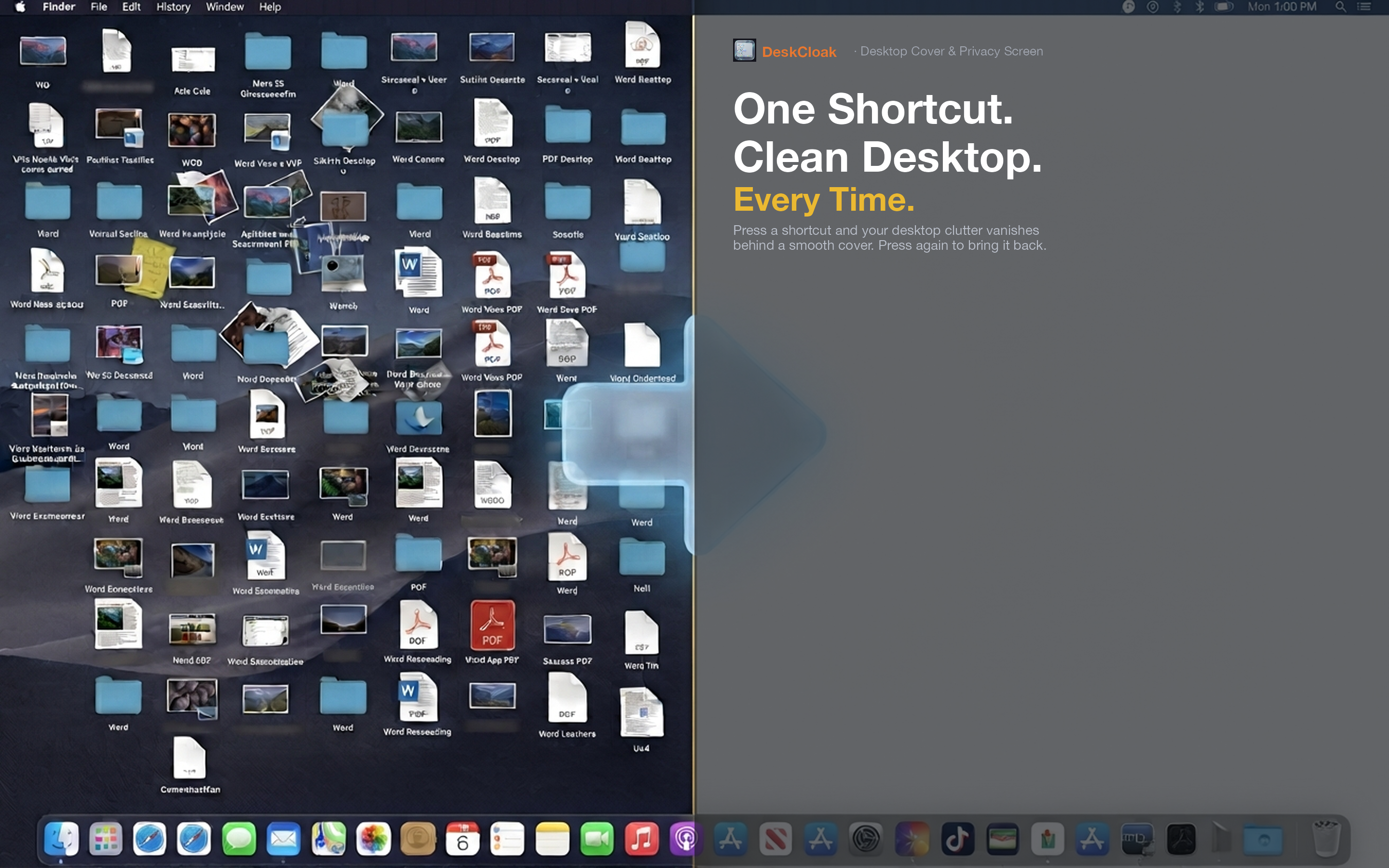
DeskCloak lets streamers set a custom image, solid color, or blur as a permanent desktop backdrop, so any time the raw desktop is captured — intentionally or by accident — it looks deliberate rather than messy. Set it once and it stays active through the whole stream.
Freedom to multitask on stream
With the desktop always covered, you can freely alt-tab, open Finder, or drag files during a broadcast without worrying about what viewers might glimpse. The overlay handles it regardless of what you're doing underneath.
Branded custom image mode
Use a custom image matching your channel's branding as the overlay, so even accidental desktop exposure reinforces your visual identity instead of looking like an oversight.
No OBS configuration needed
Because DeskCloak changes what's actually rendered on screen at the system level, it works with Display Capture, Window Capture, or any other OBS source — no extra scenes, filters, or source ordering required.
Set it and stream
Toggle DeskCloak on before you go live and forget about it. There's no need to babysit scene transitions specifically to avoid desktop exposure.