Most ways of hiding desktop content leave an obvious visual signature — a plain gray screen, a black rectangle, something that clearly signals "this has been hidden." A wallpaper mirror approach avoids that entirely: it replicates your actual desktop wallpaper as the cover, so the result looks exactly like a desktop that simply has no icons on it. No obvious overlay, no giveaway.
Why looking "naturally clean" matters
If your goal is a subtle, professional appearance during a screen share or recording, a blocked-out or solid-color desktop can actually draw more attention than a cluttered one — viewers wonder what's being hidden and why. A wallpaper mirror avoids that entirely because it looks like a perfectly ordinary, tidy desktop. Nobody watching would suspect there's an overlay involved at all.
Achieving this manually would mean actually moving every file off your desktop into a folder, which changes your file organization and takes real time. A wallpaper mirror effect gives you the same visual outcome without touching a single file.
How DeskCloak's wallpaper mirror mode works
DeskCloak reads your current desktop wallpaper and renders it as the overlay, matched precisely to your actual background. The result: your desktop looks like it always does, minus every icon. Toggle it on and, visually, nothing has changed except the clutter is gone.
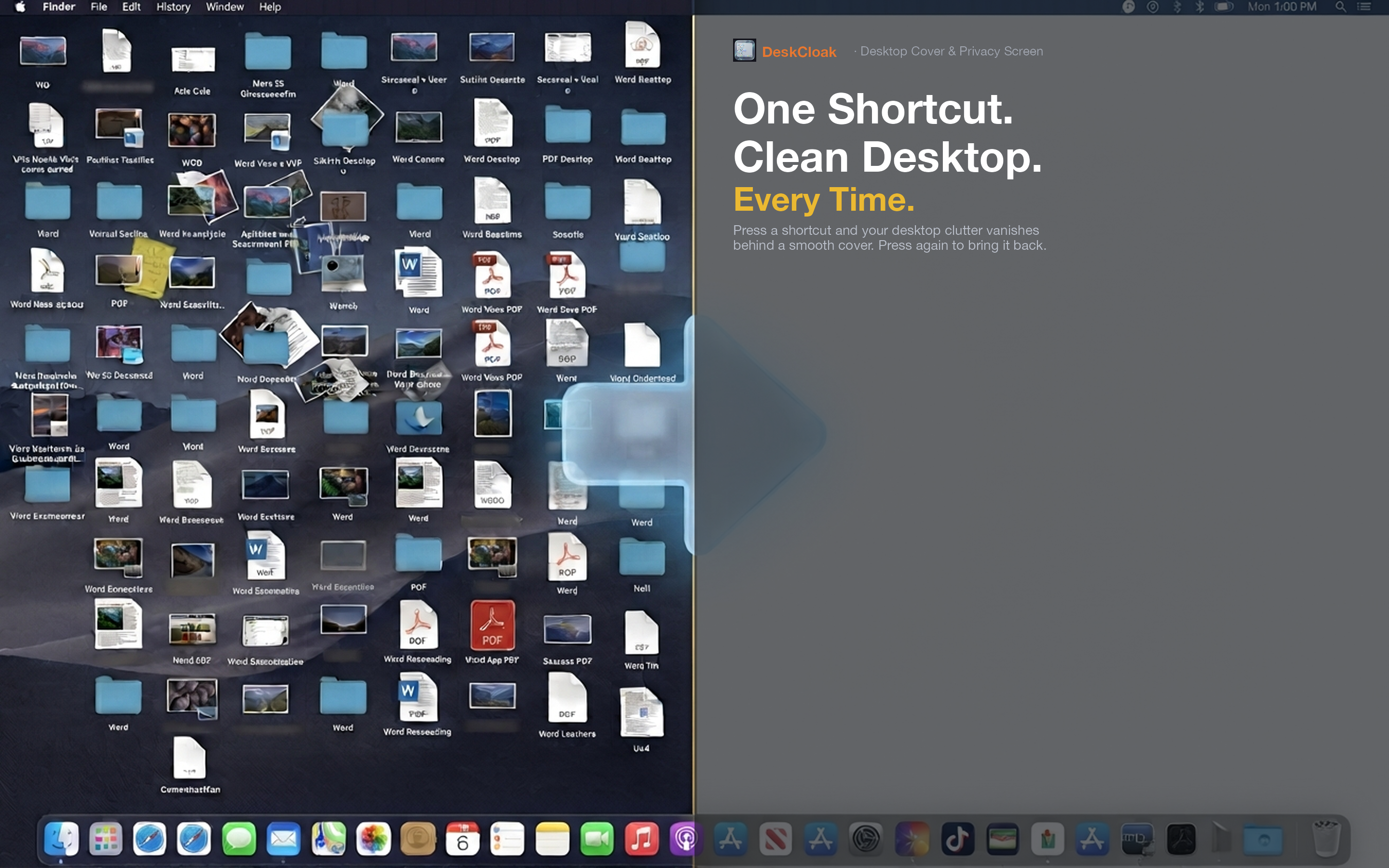
Invisible to your audience
Because the overlay matches your wallpaper exactly, viewers on a call or in a recording have no reason to notice anything's different. It just looks like an unusually tidy desktop, which is exactly the impression you want.
Works with any wallpaper
Whether you use a static image, a solid Apple-provided color wallpaper, or a photo, the wallpaper mirror mode adapts to match whatever you currently have set as your desktop background.
Switch wallpapers without reconfiguring
If you change your system wallpaper later, DeskCloak's mirror mode picks up the new image automatically the next time you activate it — no need to manually update the overlay to match.