Starting a coding session usually means opening the same handful of apps in roughly the same order: your editor, a terminal window (maybe two — one for the dev server, one for git), a browser pointed at localhost, and possibly a database client or API testing tool. None of this is hard, but it's repetitive, and repetitive setup steps are exactly the kind of friction that adds up across a workday.
Pinning all of these to the Dock works until you're also pinning apps for email, communication, and everything else — at which point your development tools are mixed in with apps that have nothing to do with writing code.
macOS doesn't distinguish "dev mode" from anything else
The Dock, Spotlight, and Launchpad all treat VS Code the same way they treat Mail or Calendar — as one app among many, with no sense that some of your apps form a coherent development environment that gets used together, repeatedly, in the same combination.
A panel dedicated to your dev stack
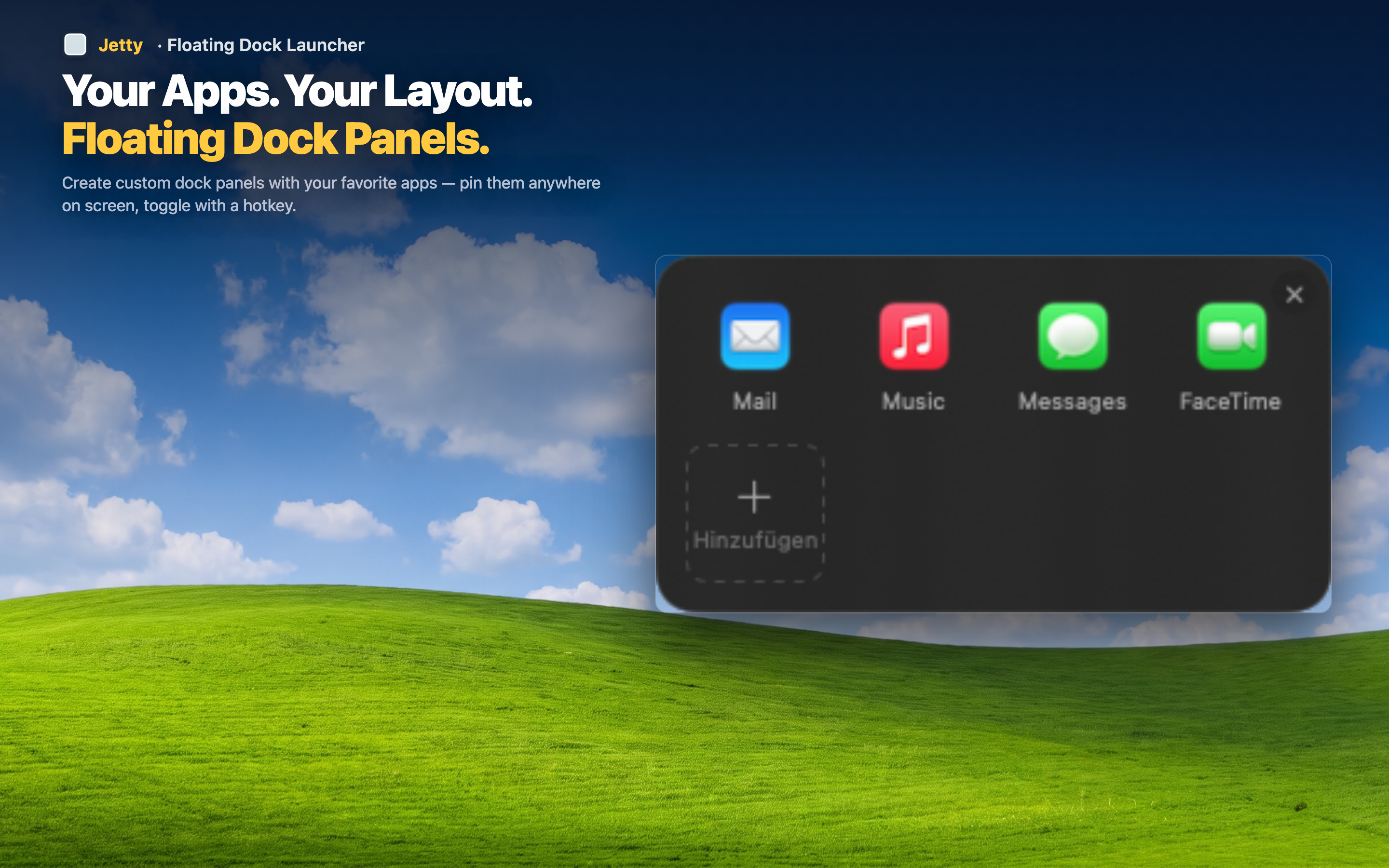
Jetty lets you build a "Dev" panel containing exactly your development toolkit — VS Code or Xcode, Terminal, a browser, a Git client, a database tool — and launch any of them with a single click from the menu bar, without those tools cluttering the same space as your non-coding apps.
Project folders alongside your tools
Drop your repository folder directly into the same panel as your editor and terminal. Starting work on a project means opening one panel instead of separately navigating to a folder and then launching each tool.
Separate panels per stack
If you work across a frontend stack and a backend stack, or juggle multiple client codebases, build one panel per context. Switching between them is a menu bar click, not a Cmd+Tab hunt through a mixed pile of windows.
Stays out of your way while you work
Once your tools are launched, the panel closes and gets out of your way. It's not a persistent dock item competing for attention on a screen that's often already packed with editor panes and terminal windows.