If you've ever worked on a 13" MacBook screen, you know how much vertical space the Dock consumes. Hiding it (System Settings > Desktop & Dock > Automatically hide and show the Dock) gives you those pixels back. But now every time you want to launch an app, you hover at the screen edge, wait for the slide-up animation, find the icon, and click. The delay is small but constant, and it adds up.
You want the screen space of a hidden Dock with the quick access of a visible one.
The auto-hide tradeoff
macOS Dock auto-hide has a deliberate delay before it appears — roughly 0.5 seconds by default. You can reduce this with a Terminal command, but you can't eliminate it. And even at its fastest, the animation itself takes time. Multiply this by the dozens of times you launch or switch apps per day, and the friction is real.
Some people accept the tradeoff. Others keep the Dock visible and lose the screen space. Neither option is great.
Move launching to the menu bar
Jetty puts your app shortcuts in the menu bar, which is always visible. No hover delay, no animation wait. Click the Jetty icon, see your panels, click what you need. The Dock can stay hidden permanently because you don't need it anymore.
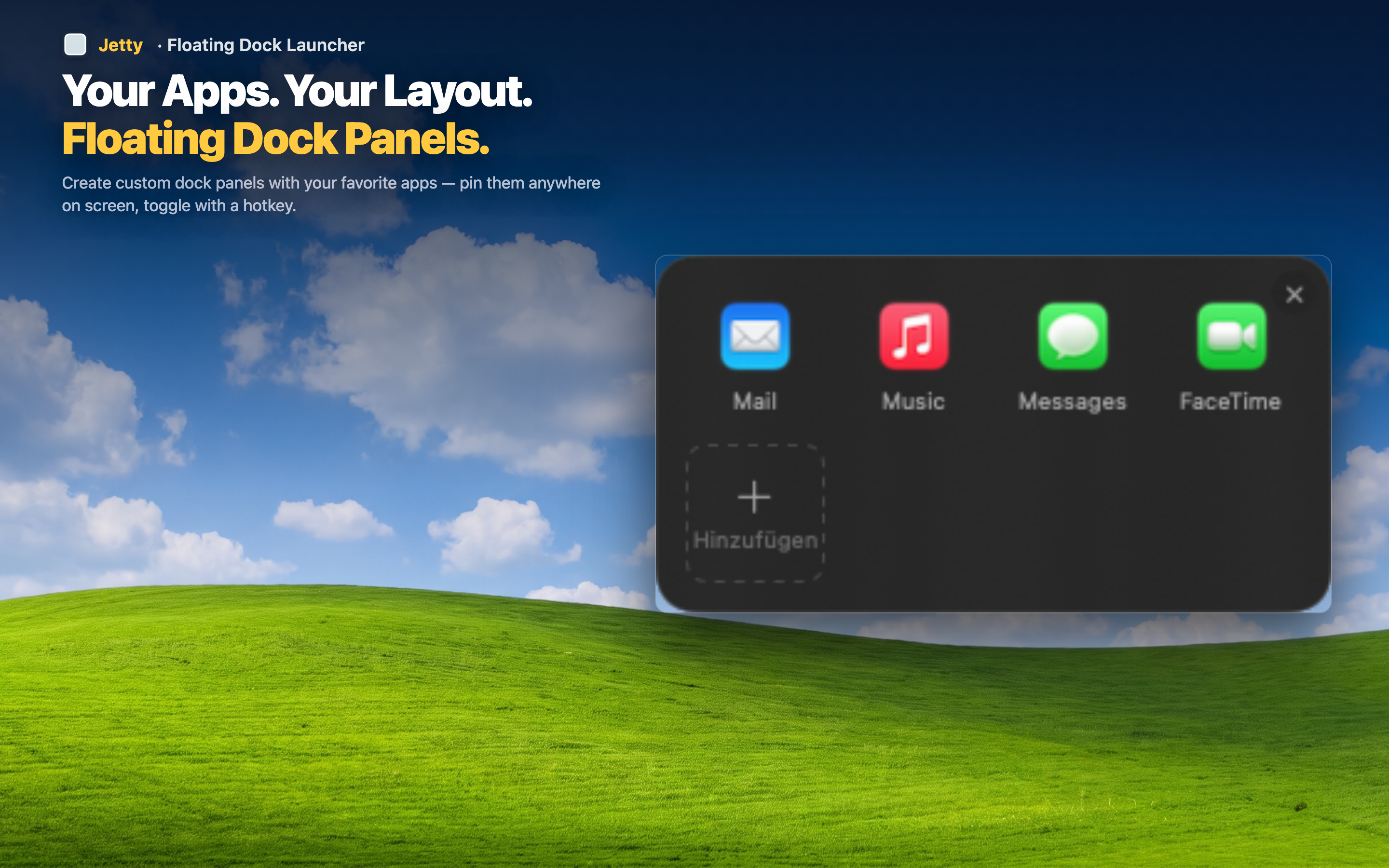
Full screen space, zero delay
With the Dock hidden and Jetty in the menu bar, you get maximum vertical screen space and instant access to every app you care about. The menu bar is always there — it costs you nothing extra.
Works especially well on laptops
On a MacBook Air or 14" MacBook Pro, every pixel counts. Hiding the Dock and using Jetty gives you a cleaner workspace without sacrificing launch speed. External display users benefit too — no Dock flashing between screens when you move your cursor to the bottom edge.
Gradual transition
You don't have to go cold turkey. Set up your Jetty panels with your most-used apps, hide the Dock, and try it for a day. If you miss the Dock, it's one toggle away. Most people don't go back.