Dock magnification was designed to help you see small icons better as you move your cursor across a crowded Dock. In practice, it often does the opposite: icons grow and shrink in real time as your cursor moves, shifting their position slightly with every pixel of movement. You aim for one icon, the magnification effect nudges it, and you click the one next to it instead.
Turning magnification off avoids the shifting, but then you're back to small, hard-to-distinguish icons if your Dock has more than a dozen apps in it.
Why magnification causes more misclicks than it prevents
Magnification is a moving target by design — the very act of moving your cursor toward an icon changes that icon's size and position. For anyone without perfectly steady mouse control (which is most people, especially on trackpads), this creates a small but real accuracy problem that gets worse as Dock icons get smaller and more numerous.
Icons that don't move when you approach them
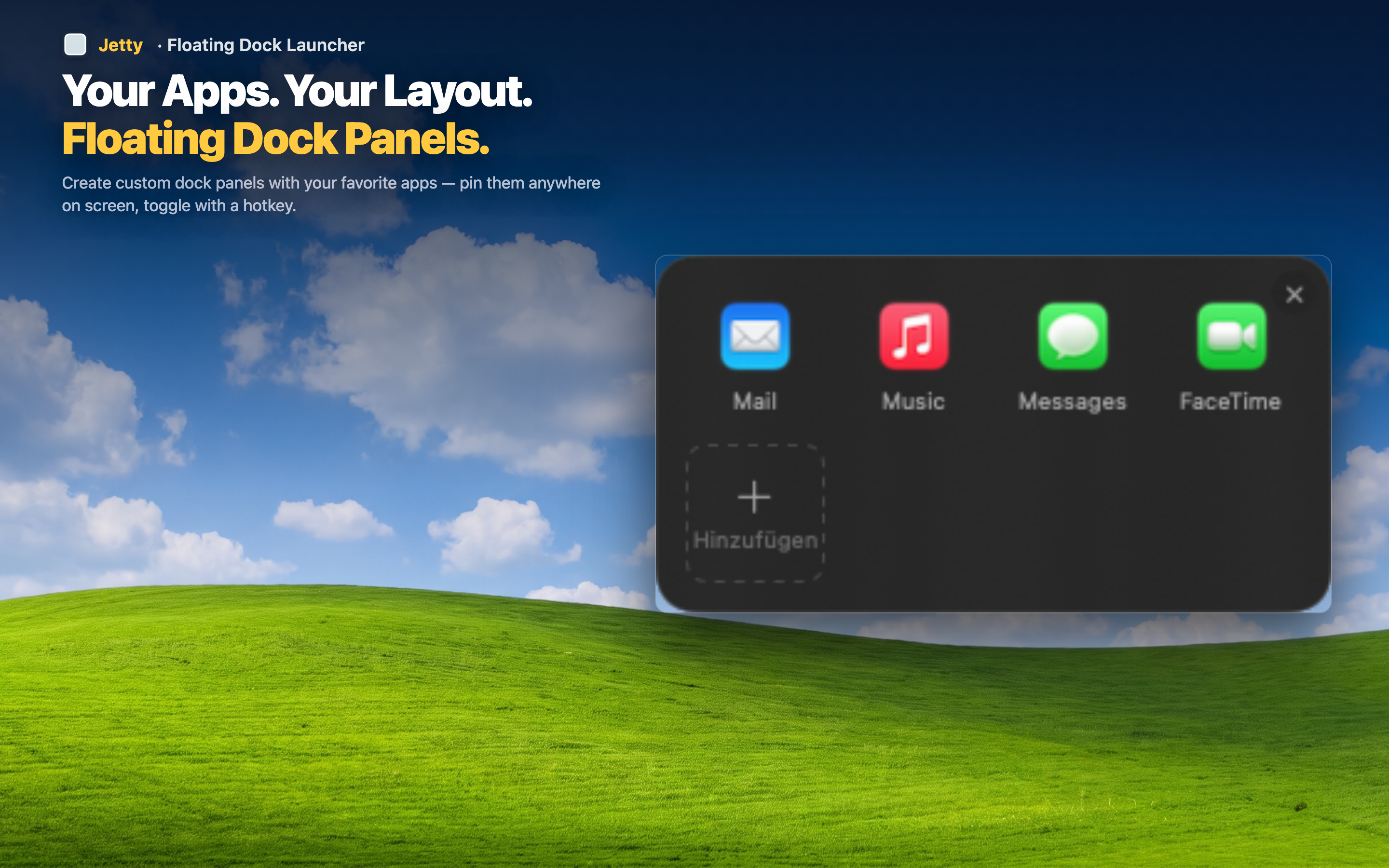
Jetty panels display apps at a fixed size with no magnification effect. Icons stay exactly where they are and exactly the size they are, whether your cursor is nearby or not. What you see is what you click — no shifting target.
Fewer apps per panel means bigger icons anyway
Because you're not cramming every app into one row, each Jetty panel can show a manageable number of icons at a comfortable size — without needing a magnification effect to make them legible in the first place.
Predictable clicking, every time
Since nothing grows or shifts as your cursor approaches, the click target is exactly where your eyes tell you it is. That predictability matters more the faster you're trying to move.
Turn off Dock magnification entirely
Once your daily apps live in Jetty panels, there's little reason to keep magnification enabled on a Dock you're using less. Switching it off removes one more source of visual noise from your desktop.