Launchpad looks nice in Apple demos. In practice, it's a full-screen wall of every app installed on your Mac — sorted alphabetically by default, spread across multiple pages, with apps you've never opened sitting next to apps you use hourly. Finding anything means either swiping through pages or using the search bar at the top (at which point you might as well use Spotlight).
For the occasional app you can't find elsewhere, Launchpad works. As a daily launcher, it's too slow and too cluttered.
Why Launchpad feels slow
Three things add up:
- Full-screen takeover — activating Launchpad covers your entire workspace. You lose visual context of what you were doing. After launching an app, you're disoriented for a moment.
- No meaningful organization — alphabetical order doesn't reflect how you work. You can create folders, but they're limited: small icon grids, no names visible until you open the folder, and they reset if you rearrange.
- Too many icons — Launchpad shows system utilities, helper apps, and tools you forgot you installed. The signal-to-noise ratio is terrible.
The result is that most power users stop using Launchpad entirely and fall back to Spotlight or the Dock — each with their own limitations.
A curated launcher
Jetty shows only the apps you've chosen to include, organized the way you want. It opens in a compact panel over your current workspace — no full-screen takeover, no loss of context. You see what you need and nothing else.
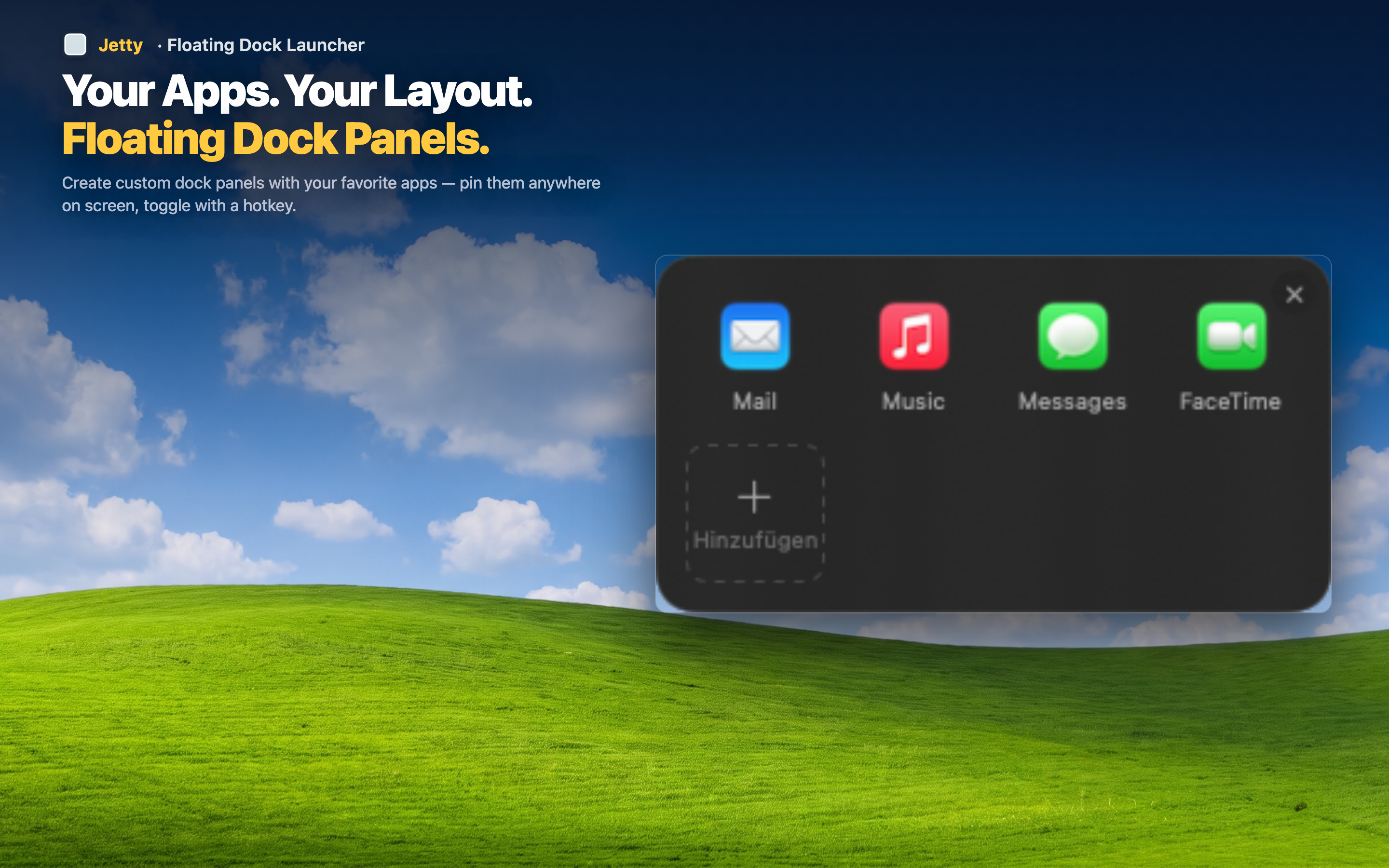
Signal over noise
If you actively use 20 apps, you should see 20 apps — not 80. Jetty panels contain exactly what you put in them. No system utilities cluttering the view, no apps you installed once and forgot about.
No context loss
Jetty opens as a dropdown from the menu bar. Your current workspace stays visible behind it. Launch an app and you're right back where you were — no full-screen transition, no re-orientation.
Organized from day one
Drag your apps into named panels and they stay there. No fighting with Launchpad's folder system, no apps jumping to different pages after an update. Your layout is yours and it stays put.