Most advice about Dock clutter boils down to "remove apps you don't use." That helps for a week, until you add new apps and the clutter returns. The problem isn't that you have too many apps — it's that the Dock has no structure. Every icon is equally prominent whether you need it right now or haven't touched it in days.
What you need isn't fewer shortcuts. You need shortcuts that appear in context.
Why "remove from Dock" isn't the answer
You remove 10 apps from the Dock. Now they're harder to launch — you have to use Spotlight, Launchpad, or Finder to get to them. A week later you start pinning a few back because the extra steps are annoying. A month later you're back to a crowded Dock. The cycle repeats.
The Dock's design forces an all-or-nothing choice: an app is either permanently visible or effectively hidden. There's no middle ground — no "show me this app only when I'm doing design work."
Workflow-based panels
Jetty introduces that middle ground. Instead of one flat list of everything, you create panels that correspond to how you actually work. Each panel is a curated collection of apps (and folders and files) for a specific context.
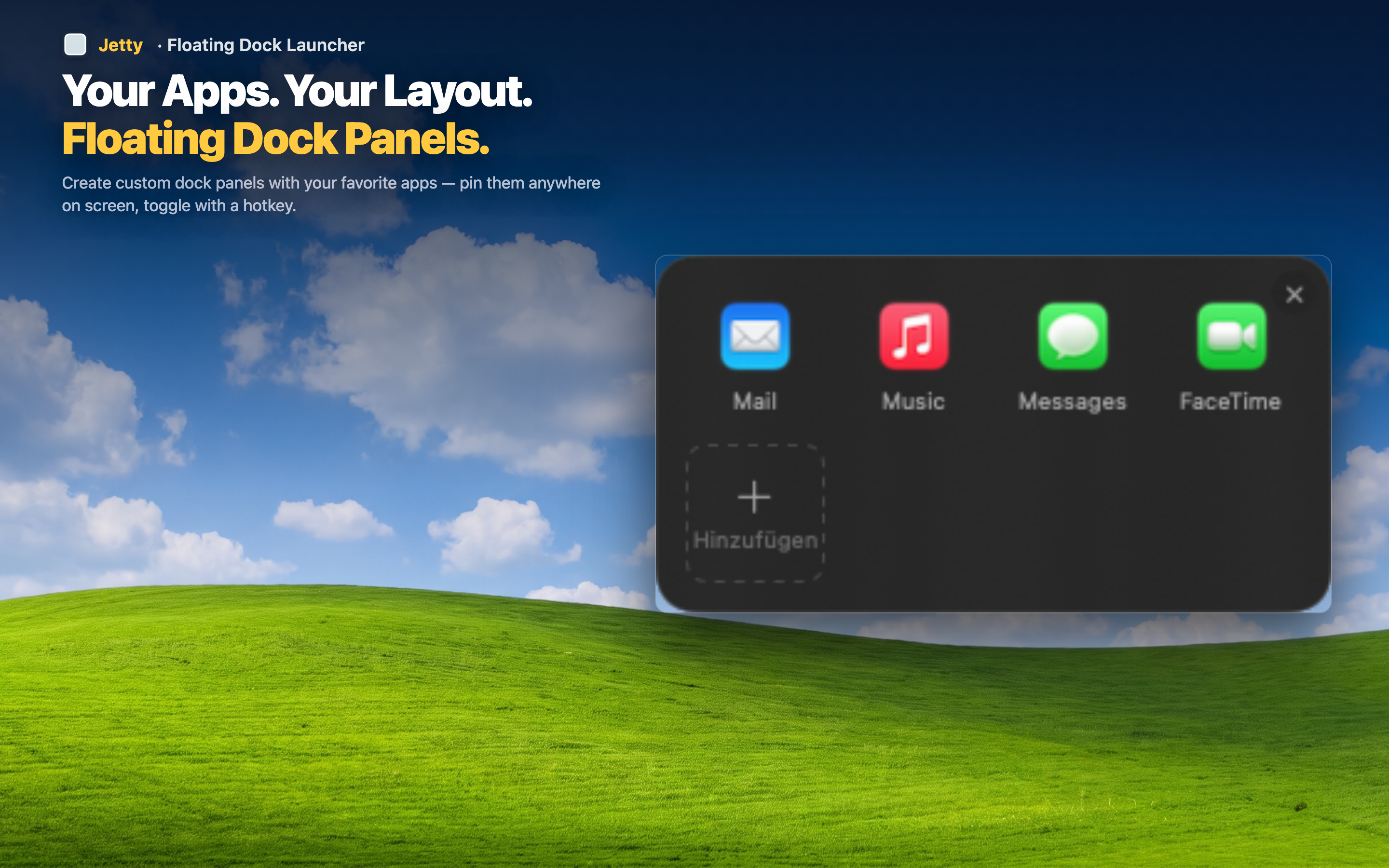
Example setup
- Creative — Figma, Photoshop, Illustrator, your assets folder
- Dev — VS Code, Terminal, GitHub Desktop, localhost bookmark
- Communication — Slack, Zoom, Mail, Calendar
- Media — Spotify, Photos, QuickTime, a downloads folder
- Utilities — Activity Monitor, Disk Utility, system tools you need occasionally
Five panels, each with 4-6 items. That's 20-30 apps organized and accessible, while your Dock stays at 3-5 essential icons.
Clutter-proof by design
When you install a new app, you add it to the relevant panel — not to a growing strip at the bottom of your screen. The Dock doesn't grow. Each panel stays focused. The organization scales with your app collection instead of breaking down.
Drag-and-drop setup
Building panels takes a couple of minutes. Drag apps from Finder or your Applications folder into the panel. Reorder them however makes sense to you. Done. No Terminal commands, no plist editing, no configuration files.