When you're working on a video project, you need Final Cut, Motion, Compressor, and maybe a color grading tool. When you switch to writing, it's Ulysses, Safari for research, and a notes app. When you move to code, it's VS Code, Terminal, a database browser, and a Git client. Each workflow has its own set of tools — but macOS has no concept of this.
Every time you switch projects, you're mentally reassembling the right group of apps from a flat, undifferentiated list.
macOS doesn't understand workflows
The Dock, Launchpad, and Spotlight all treat your apps as one collection. There's no way to say "these five apps belong to my video work" or "these three are for client communication." You can create folders in Launchpad, but they're buried behind an extra click and limited to a grid that resets if you rearrange things.
Some people use multiple desktops (Spaces) per project, but Spaces organize windows, not launchers. If an app isn't already open, Spaces doesn't help you find and launch it faster.
Project-based panels
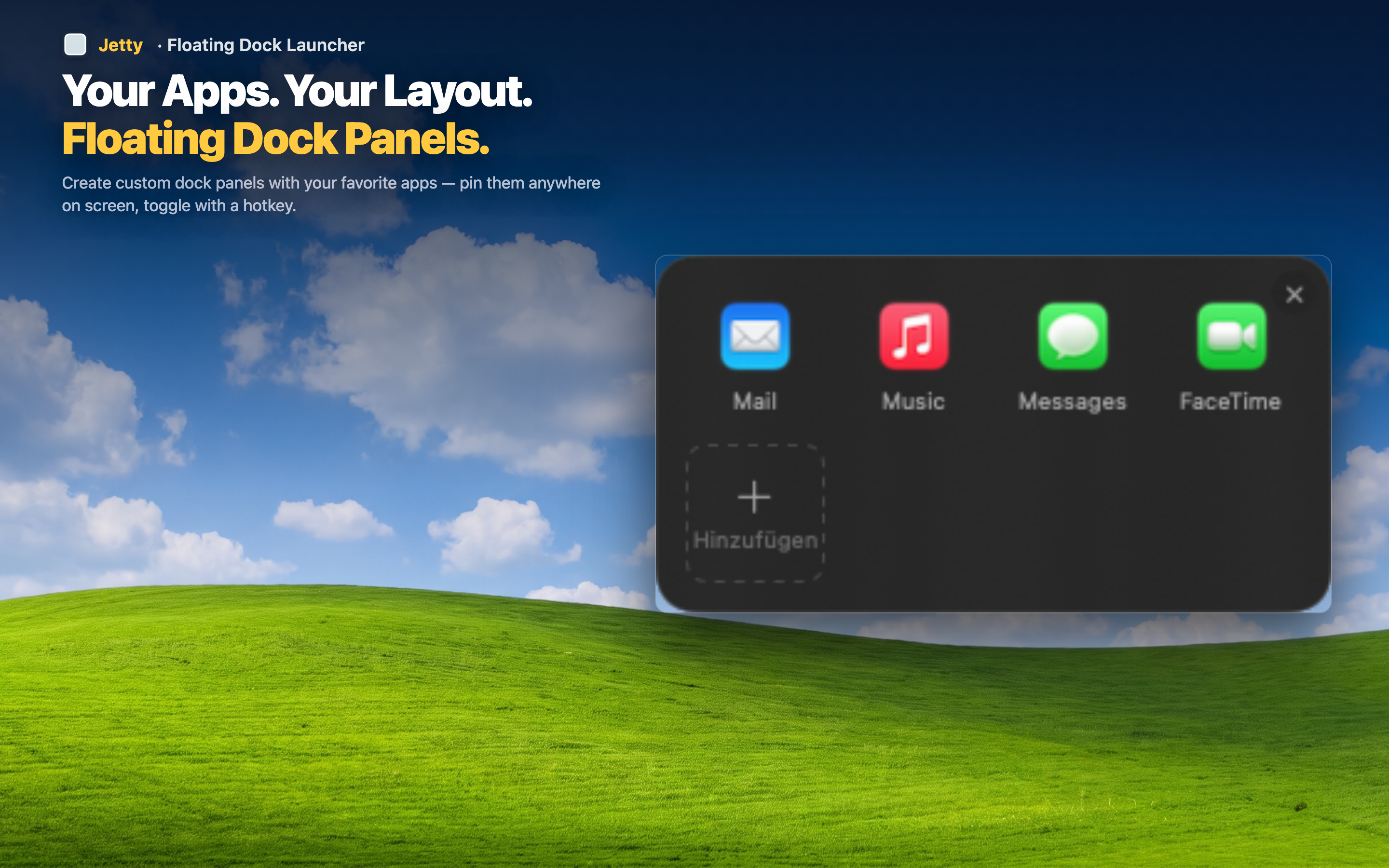
Jetty lets you create named panels that map directly to your workflows. Each panel holds the apps, folders, and files associated with a specific project or task type. You build the panel once and it's always ready when you switch contexts.
Example: freelance designer
Create a "Client Work" panel with Figma, Slack, Invoice Ninja, and your client's shared folder. A "Personal" panel with your side-project tools. A "Admin" panel with Calendar, Mail, and accounting software. Each panel is one click from the menu bar.
Example: developer
A "Backend" panel with VS Code, Terminal, Postico, and Docker. A "Frontend" panel with a browser, DevTools bookmarks, and Figma for reference. Switching between backend and frontend work is now a panel switch, not an app hunt.
Files and folders, not just apps
Jetty panels can hold folders and files too. Drop your project directory right into the panel alongside the apps you use with it. Everything for one workflow, in one place.