Design work has its own toolkit: something like Figma or Sketch for the actual design, Photoshop or an image editor for asset prep, a browser tab full of references and inspiration, and maybe a font manager or color picker utility on the side. Individually these are common apps, but together they form a specific working set that's different from what you need for email, calls, or admin tasks.
The trouble is that macOS doesn't recognize "design mode" as a thing. Your design tools sit in the same Dock as your calendar, your Slack, and whatever else you've pinned, and you re-locate the same handful of icons every time you sit down to work.
No built-in concept of a toolkit
The Dock and Launchpad both treat every app as an individual, unrelated item. There's no way to say "these four apps are my design toolkit" and have macOS present them together. You either pin all of them permanently (crowding the Dock with tools you don't need outside design work) or hunt for them individually each time.
A dedicated panel for design work
Jetty lets you build a single panel — call it "Design" — containing exactly your design toolkit: Figma, Photoshop, a reference browser bookmark, your assets folder. One click in the menu bar opens the panel; one more click launches whichever tool you need next.
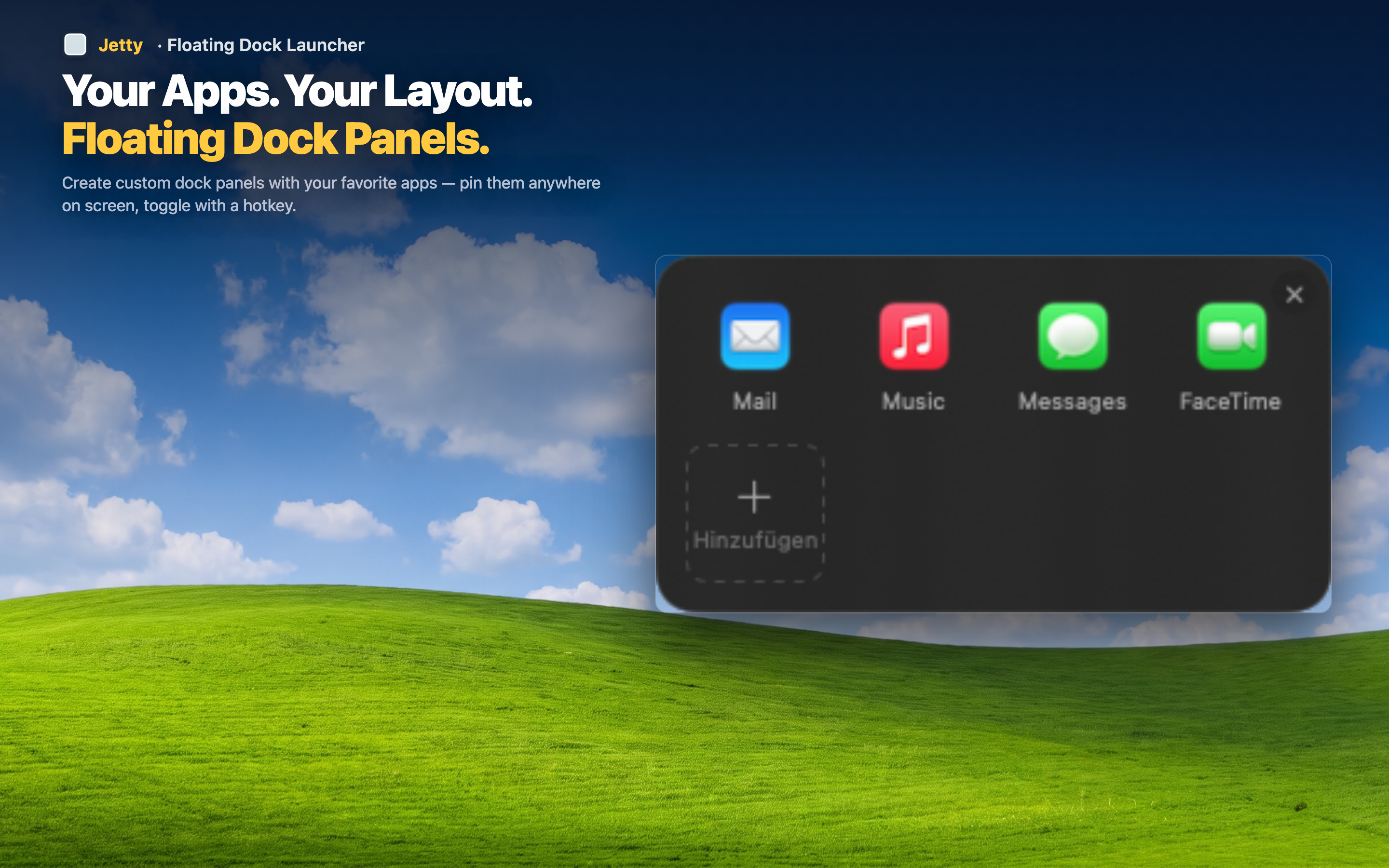
Everything for a design session in one place
Instead of separately launching Figma, then finding your reference folder, then opening Photoshop for a quick asset fix, open one panel and launch each in sequence. The setup time for a design session drops to seconds.
Assets and files, not just apps
Design work involves files as much as apps — export folders, brand asset libraries, a client's shared drive. Drop those into the same panel as your design apps so the whole toolkit, files included, launches from one spot.
Separate from client or admin panels
Keep your design panel focused purely on design tools, and put client communication or admin apps in their own separate panels. Each stays lean and specific to the work it supports.