It starts innocently. You install a new app and it stays in the Dock. Then another. A few months later you're staring at 30+ tiny icons crammed into a strip at the bottom of your screen, squinting to tell Slack from Discord from Messages. The Dock was supposed to make launching apps fast. Instead it's become a junk drawer.
You know you should clean it up, but every time you try, you worry about removing something you'll need later. So nothing changes.
Why the Mac Dock gets cluttered
The Dock is a flat list. Every app sits at the same level, whether you use it ten times a day or once a month. There are no categories, no grouping, no context. A design tool sits next to a calculator sits next to a game you played once. macOS offers no built-in way to organize Dock icons into meaningful groups.
You can add spacers using Terminal commands, but they're fragile and tedious to manage. You can remove apps and rely on Spotlight, but then you lose the visual quick-launch that makes the Dock useful in the first place. Neither option really solves the problem.
A cleaner approach: grouped panels
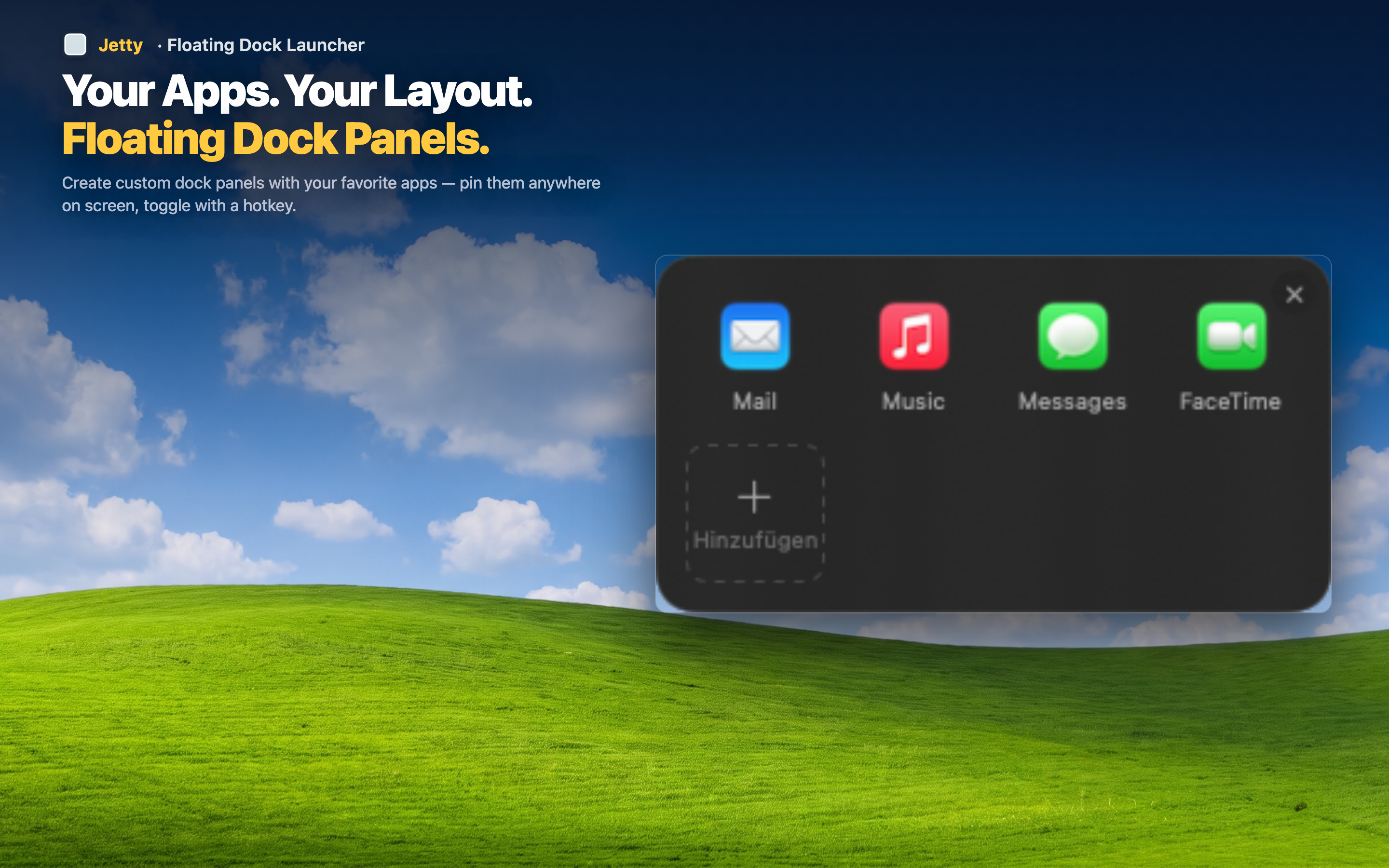
Jetty moves your app shortcuts out of the Dock and into organized panels that live in the menu bar. You create named panels — "Design," "Communication," "Dev Tools" — and drag the apps that belong together into each one. Your Dock shrinks to just the essentials (or disappears entirely), while every app stays one click away.
Reduce without losing access
Remove apps from the Dock without the anxiety. Everything lives in a Jetty panel, categorized and easy to find. Your Dock goes from 30 icons to 5, and you can still launch any app in two clicks.
Group by purpose, not by alphabet
Put Figma, Sketch, and Preview in a "Design" panel. Put Slack, Zoom, and Mail in "Comms." The grouping matches how you think, not how macOS sorts things.