You're looking at a project folder in Finder. Inside it are subfolders for assets, source code, exports, documentation, and configuration. Inside those are more subfolders. You need a quick overview of the entire structure — what's where, how deep it goes, whether certain files exist — but Finder only shows you one level at a time.
Column view gets you partway there, but it's narrow, scrolls horizontally, and still requires clicking into each subfolder manually. There's no way to see the full tree at a glance.
Finder's folder navigation limits
Finder is built for navigating into folders, not for surveying them from above. Each view mode has limitations when you're trying to understand a folder's full structure:
- List view — you can expand disclosure triangles, but it's tedious for deep hierarchies and easy to lose your place
- Column view — shows one level per column, but deep structures scroll off-screen and the columns are narrow
- Icon view — shows the top level only, no structure information at all
- Gallery view — designed for visual files, not folder structure
And Quick Look — which previews everything else — shows nothing for folders. Select a folder, press Space, and you see its name, item count, and size. No file names, no structure, no tree.
See full folder trees with one keystroke
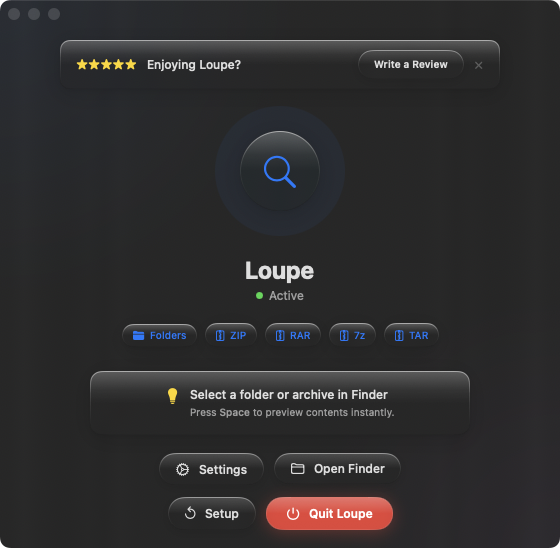
Loupe extends Quick Look to preview folder contents as a tree view. Select any folder in Finder, press Space, and the full hierarchy appears — every file, every subfolder, every nesting level — in a clean, readable tree.
Surveying project structures
Before diving into a project you haven't touched in months, press Space on the root folder to refresh your memory. See the full layout — where the source files are, where the assets live, how the exports are organized — without opening a single subfolder.
Comparing directory layouts
You have two versions of a project folder. Select one, press Space, note the structure. Arrow to the next, press Space again. Compare the two trees side by side in your head — or take screenshots of each for a visual diff. Faster than opening both in separate Finder windows and clicking through each level.
Verifying file organization
Before sharing a folder with a collaborator or archiving it, press Space to verify everything is where it should be. Confirm that no files were left in the root that belong in a subfolder, and no subfolders are empty. A quick structural audit in seconds.