You received a ZIP file — maybe from a client, maybe from a file transfer service, maybe from your own backup drive. Before you extract it, you want to answer a simple question: is this the right file? Does it contain what you expect?
On macOS, you can't answer that question without extracting first. There's no "list contents" option, no preview panel, no way to peek inside. Your only choice is to extract everything and then look.
Why checking before extracting matters
Extracting an archive is a commitment. On a large ZIP file, it takes time, uses disk space, and creates a folder of files you may not want. If the archive turns out to be the wrong version, a duplicate, or corrupted, you've wasted time and now have files to clean up.
Common scenarios where you need to check first:
- Version confusion — a client sent three ZIPs labeled "final," "final-v2," and "final-FINAL." You need to find the real one without extracting all three.
- Large archives — a 5 GB design handoff. Extracting takes minutes and doubles your disk usage temporarily. You want to confirm it's the right deliverable before starting.
- Security awareness — you want to see the file types inside an archive before extracting. An unexpected .exe or .app inside a ZIP that's supposed to contain PDFs is worth knowing about in advance.
Inspect ZIP contents with Quick Look
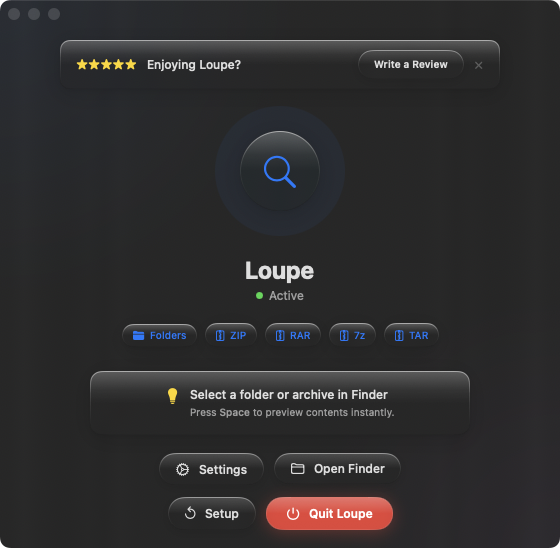
Loupe lets you check the contents of any ZIP file by pressing Space in Finder. The full file tree appears instantly — every file name, size, and folder — without extracting anything.
Finding the right version
Three ZIP files, all labeled some version of "final." Select each one, press Space, and compare the file listings. The one with the most recent exports or the expected file count is your winner — identified in seconds without extracting any of them.
Pre-screening shared files
Someone shared a ZIP via AirDrop or a cloud service. Before extracting it into your Documents folder, press Space to see what's inside. If it's not what you expected, you can delete the ZIP immediately — no extracted files to hunt down and remove.
Reviewing archived projects
You zipped up a project months ago and now need something from it. Instead of extracting the whole archive to find one file, preview the contents with Quick Look. See the full tree, confirm the file is there, and only then extract if you need to.