When you double-click a ZIP file on your Mac, Archive Utility handles the extraction silently in the background. It creates a new folder with the extracted contents, and that's it. No confirmation dialog, no file listing, no option to select which files to extract. It's all or nothing.
Archive Utility has worked this way since its introduction, and while the automatic extraction is convenient for simple cases, it's a problem when you need more control. There's no way to preview an archive's contents, no way to extract selectively, and no way to stop an extraction once it starts on a large file.
What Archive Utility doesn't do
Archive Utility is designed for one task: decompress archives. It does this well, but it lacks features that other operating systems provide by default:
- No content preview — you can't see what's inside an archive before extracting
- No selective extraction — you can't choose to extract only specific files or folders
- No progress for small files — extraction just happens, with no feedback until it's done
- Limited format support — only ZIP and a few TAR variants are supported; RAR and 7z require third-party tools
The biggest gap is the lack of preview. Before committing to extracting a large archive — which takes time and disk space — you'd want to see what's inside. Archive Utility doesn't offer this. Neither does Quick Look, which shows only the file name and size for archives.
Preview archive contents before extracting
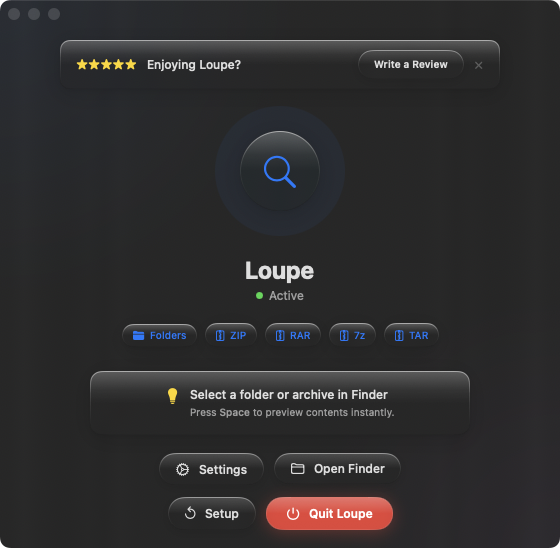
Loupe adds what Archive Utility is missing: a way to see inside an archive before you extract it. Select any ZIP, RAR, 7z, TAR, .tar.gz, or .tar.bz2 file in Finder, press Space, and the full contents appear as a tree view. Then decide whether to extract — or skip it entirely.
Avoiding unnecessary extractions
A 2 GB ZIP file that takes 30 seconds to extract — and turns out to be the wrong version. With a Quick Look preview, you'd have known in one second. Press Space, check the file listing, and move on without wasting time or disk space.
Previewing formats Archive Utility can't open
Archive Utility doesn't support RAR or 7z files at all. Loupe previews both formats in Quick Look, so you can see what's inside even without a dedicated extraction tool installed. When you do need to extract, tools like The Unarchiver can handle the job.
Complementing Archive Utility
Loupe doesn't replace Archive Utility — it adds the preview step that Archive Utility is missing. Preview with Space, then double-click to extract with Archive Utility if the contents look right. Two tools that work together to fill each other's gaps.