Your Downloads folder is full of compressed files — ZIPs from email attachments, RARs from file-sharing links, .tar.gz packages from developer tools. You want to check what's inside each one before deciding what to do with it. Is this the right file? Does it contain what you expect? Is it safe to extract?
On macOS, the answer to all of these questions requires extracting first. You can't preview the contents of any compressed file format in Finder. Quick Look shows you the file name and size, and that's it.
Downloads deserve a preview step
For images, PDFs, and videos you download, macOS gives you a clear preview workflow. Select the file in Finder, press Space, and see what it is. You can decide immediately whether to keep it, move it, or delete it — all without opening an application.
But for compressed files — one of the most common types of downloads — there's no equivalent preview. You have to take an action (extract the archive) before you can evaluate the contents. This creates several problems:
- Wasted time — extracting large archives just to check their contents, then deleting the extracted files
- Disk clutter — extracted folders that accumulate in Downloads because you forgot to clean them up
- Uncertainty — not knowing whether a downloaded archive contains the expected files until after extraction
Preview compressed downloads with Quick Look
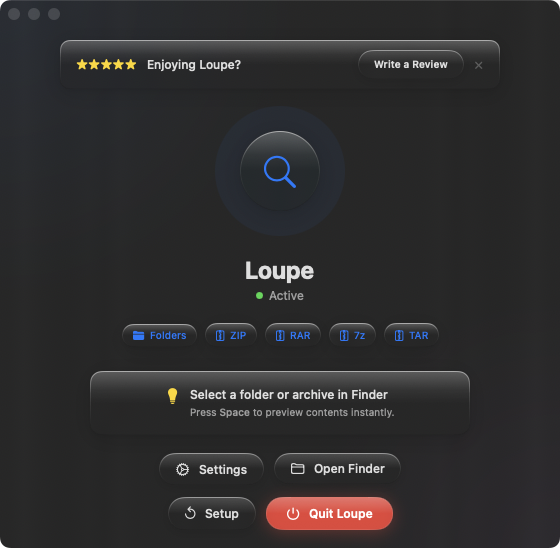
Loupe gives compressed files the same preview treatment that images and documents already enjoy. Select a ZIP, RAR, 7z, or TAR file in your Downloads folder, press Space, and see the full file listing as a tree view. No extraction, no extra steps.
Triaging your Downloads folder
Open Downloads in Finder, press Space on the first compressed file, then use arrow keys to cycle through each one. In seconds, you can identify what each archive contains — keep the ones you need, trash the rest. No extraction required.
Verifying email attachments
Someone sent you a ZIP via email. Before extracting it into your workspace, press Space to confirm it contains the expected files. Wrong attachment? Delete the ZIP and ask for the right one — cleanly, without leftover extracted files.
Checking shared links
A colleague shared a download link to a compressed file. After downloading, preview the contents with Space to verify the right files and versions are included. If something's off, you know immediately — before you've invested time in extraction.