You're staring at a ZIP file in Finder. Maybe it's something you downloaded last week and forgot about. Maybe it's one of five similarly named archives from a client. Maybe you zipped something yourself and now can't remember what's in it. Whatever the case, you need to know what's inside — and macOS won't tell you.
Pressing Space shows you the file name and size. Double-clicking extracts everything into a new folder. There's no middle ground: no quick inspection, no file listing, no way to answer "what's in this ZIP?" without committing to a full extraction.
A basic question macOS can't answer
"What's in this archive?" is the most fundamental question you can ask about a compressed file. Every other operating system — Windows, Linux, and most mobile platforms — provides some way to browse archive contents without extracting. macOS, despite its polish and attention to user experience, does not.
The Terminal can answer the question (unzip -l filename.zip), but switching to a command-line tool to answer a basic file management question is an unnecessary disruption. You're in Finder, working visually. The answer should be available visually, right there.
This gap is especially frustrating because Quick Look already answers this question for every other file type. What's in this image? Press Space. What's in this PDF? Press Space. What's in this ZIP? Extract it and look. The inconsistency breaks an otherwise seamless workflow.
Press Space. See everything inside.
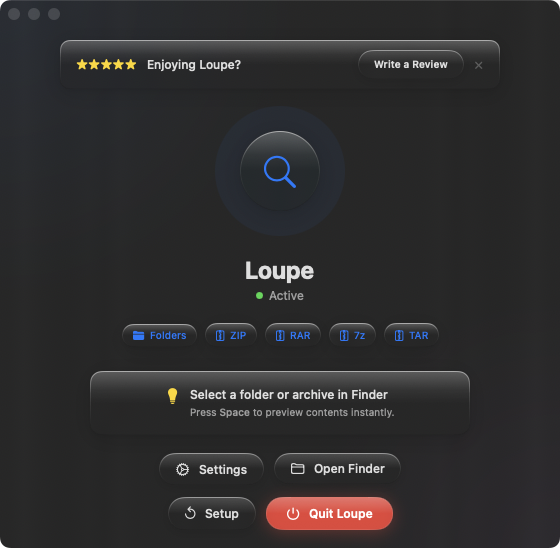
Loupe makes Quick Look answer that question for archives. Select a ZIP, RAR, 7z, TAR, .tar.gz, or .tar.bz2 file, press Space, and the full contents appear as a tree view. File names, sizes, folder structure — everything you need to know, instantly.
Identifying mystery archives
That ZIP you downloaded two weeks ago? Select it, press Space, and immediately see what's inside. No guessing, no extracting, no leftover folders. Decide to keep it or delete it in seconds.
Comparing similar archives
Five ZIPs from a client, all with nearly identical names. Arrow through them with Quick Look open — each one shows its contents as you navigate. Find the right one without opening any of them.
Checking before sending
You created a ZIP to share with someone. Before sending, press Space to confirm the right files are included. It takes one second and can save you the embarrassment of sending an incomplete or wrong archive.