Modern project structures are deeply nested. A typical web project has source directories, build output folders, configuration files, test directories, and documentation — each containing their own subfolders. Navigating this in Finder means clicking into folder after folder, losing context as you go deeper, and then clicking back out to get your bearings.
Quick Look should help here — press Space on a folder to see what's inside. But it doesn't. macOS shows you the folder name, the total item count, and the size. No file names, no subfolder structure, no tree view. You're looking at a closed container and learning nothing about its contents.
The nested folder navigation problem
Finder's view modes each handle nested folders differently, but none give you a full tree at a glance:
- List view with disclosure triangles can show nesting, but expanding multiple levels manually is slow and the view becomes unwieldy for deep structures
- Column view shows one level per column, but deep nesting requires horizontal scrolling and you can only see one branch at a time
- Icon and gallery views show only the top level of any folder
None of these give you what you actually want: a quick, read-only overview of the entire folder tree — every file, every subfolder, every nesting level — in one view.
See the full tree with one keystroke
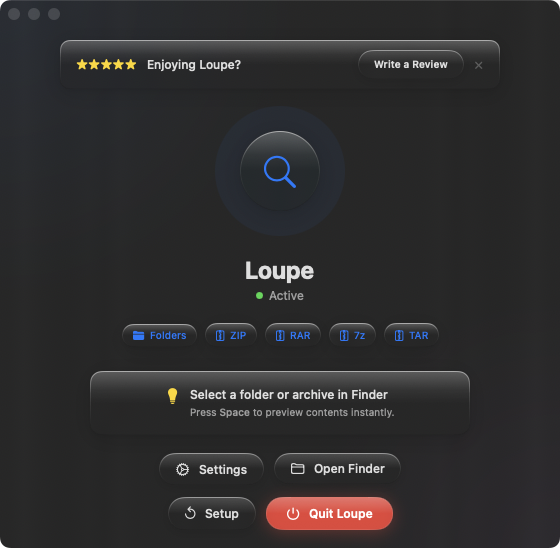
Loupe extends Quick Look to display folder contents as a complete tree view. Select any folder in Finder, press Space, and see every file and subfolder inside — no matter how deeply nested. Names, sizes, and the full hierarchy are visible immediately.
Refreshing your memory
You haven't worked on a project in months. Before diving back in, select the project root and press Space. The full tree reminds you how the project is organized — where the source files are, where the build output goes, where the configuration lives. No clicking into subfolders, no guessing.
Verifying build outputs
After running a build or export process, press Space on the output folder to confirm everything landed in the right place. See the full tree of generated files without opening the folder and navigating through its contents manually.
Sharing folder structures
Need to show someone how a project is organized? Press Space on the root folder and take a screenshot of the tree view. It's faster than describing the structure verbally or generating a tree with a Terminal command.