Every day, Mac users download compressed files from websites, email attachments, and cloud services. Before extracting or opening these files, a reasonable question is: what's actually in there? Does this ZIP contain the PDF document I was promised, or something unexpected? Does this RAR have the assets I need, or is it the wrong file entirely?
macOS doesn't help you answer this question. Gatekeeper checks whether an app is signed, and XProtect scans for known malware, but neither tells you what files are inside a compressed archive. Quick Look shows the file name and size — nothing about the contents.
Why previewing downloads matters
Extracting a downloaded archive is a trust decision. You're telling macOS to unpack files from an external source onto your disk. While macOS has security measures for running applications, it doesn't offer any inspection tool for compressed files. You extract blindly and hope for the best.
A preview step before extraction gives you basic awareness:
- File type verification — does the archive contain the document types you expect? A ZIP that should hold PDFs but contains executables is worth knowing about before extraction.
- Content validation — are the right files inside? If you ordered a font pack, does the archive contain font files?
- Size check — are the individual files inside reasonably sized? An archive with a single 50 GB file inside a 1 MB ZIP is suspicious.
Preview archive contents with Quick Look
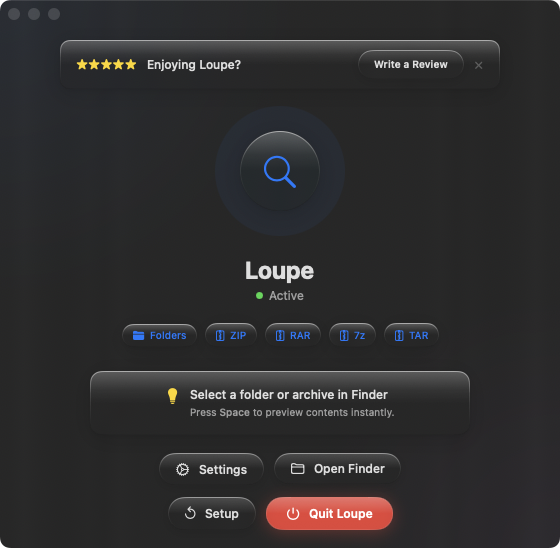
Loupe adds a visual preview step to your download workflow. Select any compressed file in Finder — ZIP, RAR, 7z, TAR, .tar.gz, .tar.bz2 — press Space, and see the full file listing before extracting anything. File names, sizes, and folder structure are all visible.
Checking before extracting
A file arrives in your Downloads folder. Select it, press Space, and scan the contents. The tree view shows every file and folder inside. If everything looks right, proceed with extraction. If something seems off, you can investigate further before committing.
Screening email attachments
A ZIP file attached to an email from an unfamiliar sender. Before extracting, press Space to see what's inside. You'll know immediately whether it contains the documents they claimed or something else entirely.
Managing multiple downloads
You downloaded several archives from different sources. Use Quick Look's arrow-key browsing to preview each one in sequence — check the contents, decide which to keep, and delete the rest. All without extracting a single file.