Finder has a built-in preview pane — accessible via View > Show Preview — that shows file information and thumbnails on the right side of the window. For images, it displays a thumbnail. For documents, it shows a page preview. For videos, you get a still frame. It's a useful passive preview that updates as you click through files.
But for compressed archives, the preview pane shows almost nothing. Select a ZIP file, and you see its name, size, date, and a generic archive icon. Select a RAR or 7z, and you get even less — often just a blank icon. No file listing, no hint of what's inside, no useful preview at all.
The preview pane's archive blind spot
Finder's preview pane and Quick Look are related but different. The preview pane provides a persistent sidebar preview without pressing any key. Quick Look (Space bar) provides a larger, focused preview in a floating panel. Both share the same limitation with archives: neither shows the contents.
This means that no matter how you browse files in Finder — whether you rely on the preview pane for passive browsing or Quick Look for active inspection — compressed archives are invisible containers. You can see them listed among your files, but you can't see what's inside them without extracting.
For users who work with archives frequently — receiving deliverables, managing backups, sorting downloads — this blind spot forces a constant cycle of extracting, checking, and cleaning up. Every archive inspection requires leaving the Finder browsing flow.
Make Quick Look show archive contents
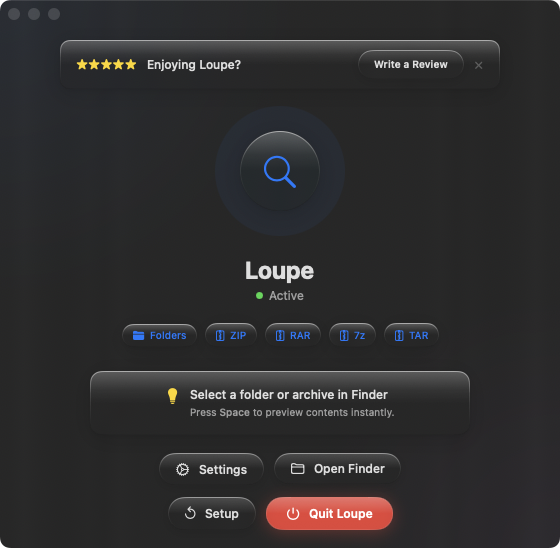
Loupe extends Quick Look to preview the contents of ZIP, RAR, 7z, TAR, .tar.gz, and .tar.bz2 files. Select an archive in Finder, press Space, and the full file tree appears — every file, every folder, with names and sizes. It turns archives from opaque containers into browsable file listings.
Browsing mixed file collections
A folder contains images, PDFs, and several ZIP files. As you arrow through the files with Quick Look open, images show thumbnails, PDFs show pages, and ZIP files show their full contents tree. Every file type gets a useful preview — no more blank spots when you hit an archive.
Identifying archive contents at a glance
You have a dozen archives with unhelpful names like "export.zip" and "files.rar." Press Space on each one to see the actual contents. The tree view tells you more in one second than the file name ever could.
Folder previews included
In addition to archives, Loupe extends Quick Look to preview folder contents. Select a folder, press Space, and see its complete file tree. Two common Finder preview gaps — archives and folders — resolved with a single extension.