You're in Finder, looking at a list of project folders. You know one of them contains the final deliverables, but you can't remember which. So you double-click the first one, scan the contents, go back, try the next one, scan again. Repeat until you find it.
On any individual file — an image, a PDF, a video — you'd press Space to preview it instantly. But on a folder, Quick Look shows you nothing useful. Just the folder icon and its name.
Quick Look's folder limitation
When you select a folder in Finder and press Space, macOS shows the folder name, the item count, and the modification date. It does not show what's inside. No file names, no subfolder structure, no file types. You're looking at a closed box.
This means every time you need to check a folder's contents, you have to open it. For deeply nested project structures — where the file you care about is three levels down — this involves clicking through multiple directories, losing your place in the parent view, and navigating back.
Column view helps somewhat, but it still requires clicking into each folder level by level. There's no way to see the full tree at a glance.
Preview folder trees with Quick Look
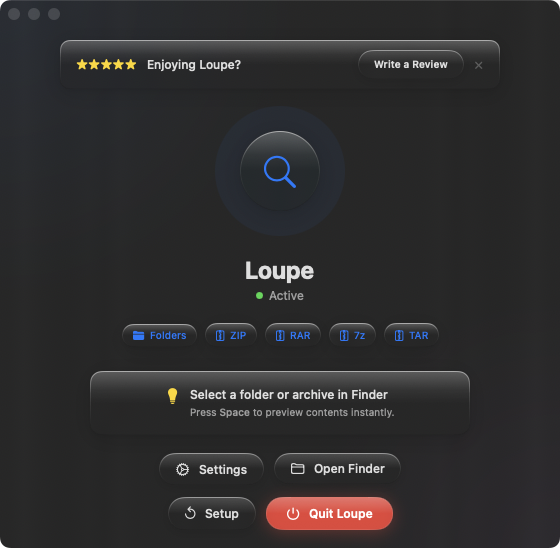
Loupe adds folder preview to Quick Look. Select any folder in Finder, press Space, and see its entire contents as a tree — every file and subfolder, with names and sizes, without opening anything.
Comparing project folders
You have three versions of a design handoff — v1, v2, and v3-final. Select each folder and press Space to see what changed between versions. No need to open each one and visually compare the contents. The tree view shows you the structure at a glance.
Finding the right directory
A project root has dozens of subfolders — assets, exports, drafts, finals, references. Instead of clicking into each one to see what's inside, use arrow keys to move through the list while Quick Look is open. Each folder's tree appears instantly as you navigate.
Auditing folder organization
Before archiving or sharing a project folder, press Space to verify everything is in the right place. Confirm that assets are in the assets folder, exports are in the exports folder, and nothing important was left in the wrong directory.