Find and replace is the single most common batch rename operation. You have a word or string that appears across a set of files, and you need it swapped for something else — a project got renamed, a client changed their company name, or an old naming convention needs to be updated across an archive. It sounds like the simplest possible rename task, and often it is. But the moment your file names are not perfectly uniform, basic find and replace starts to show its limits.
Where basic find and replace runs into trouble
Finder's find and replace works for clean, literal cases. But real folders are messier than that:
- The text you want to replace appears in different cases across files ("Draft" vs "draft" vs "DRAFT")
- The target string shows up more than once in a file name, and you only want to replace one occurrence
- You need to replace a pattern, not exact text — like any version number, not just "v1"
- You want to run several find-and-replace operations in sequence, each building on the last
Finder's replace handles exactly one exact-text substitution per run, with no case options and no pattern matching.
Find and replace with more control
Renym includes a find-and-replace action with regex support, so you get both simple literal replacement and pattern-based matching in the same tool.
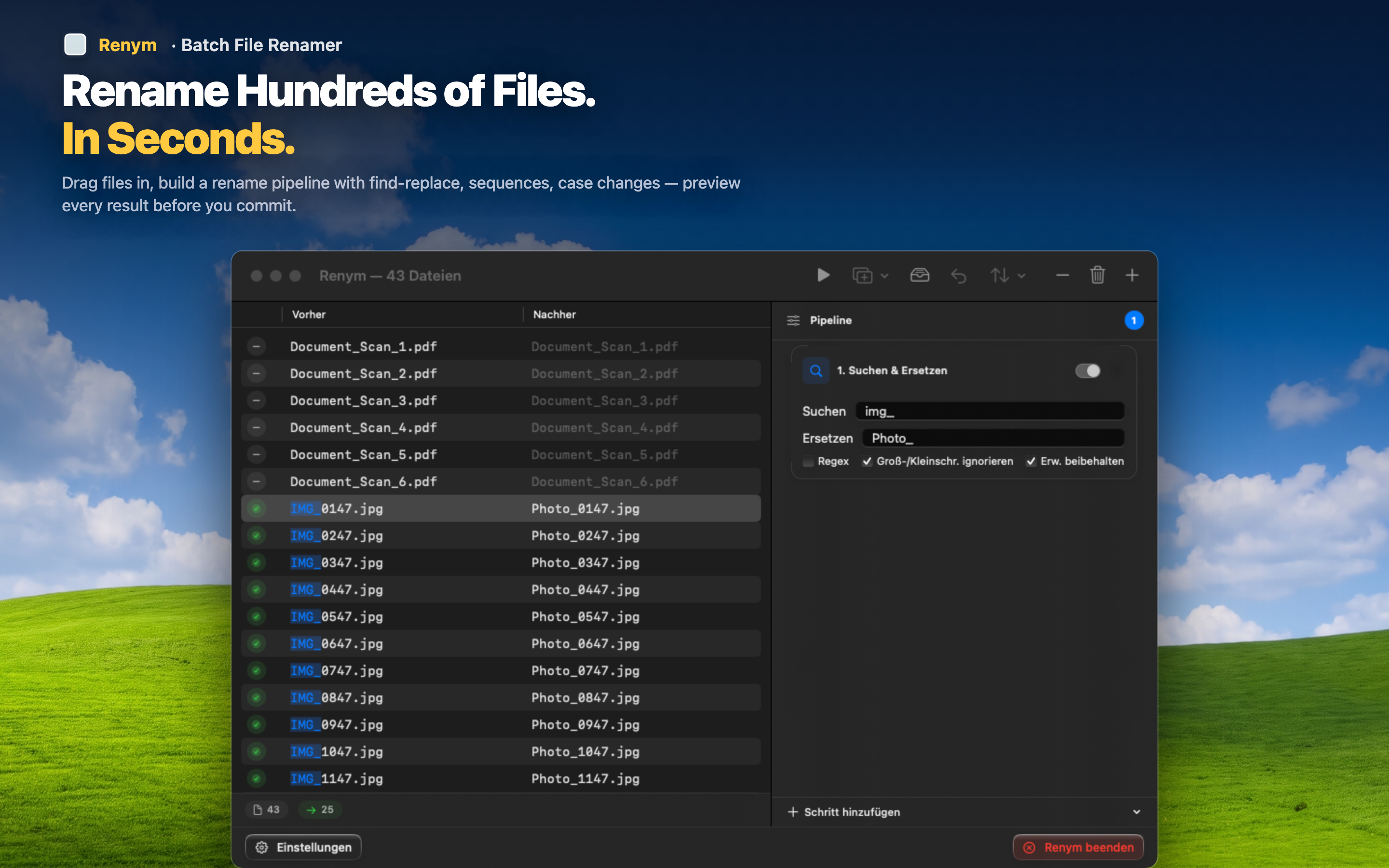
Simple swaps for straightforward cases
Replace "OldClientName" with "NewClientName" across every file in the batch, with the live preview confirming the change looks right before you apply it.
Pattern matching when text varies
Switch on regex and match patterns instead of exact strings — replace any "draft_v" followed by a number with "final," regardless of what number follows.
Chain multiple replacements
Need to fix three different inconsistencies in the same batch? Add three find-and-replace steps to the pipeline. Each one runs on the result of the previous step, and the preview reflects the full chain.