Every professional photographer has felt this: you open a folder of 800 images named IMG_4001 through IMG_4800 and try to find the shots from the Johnson ceremony. Or you merge two memory cards and discover both have files starting at DSC_0001. Or a client asks for the "blue dress portrait from the reception" and you have no way to search for it because every file is a meaningless number.
A consistent file naming system is not optional — it is the difference between a searchable archive and a graveyard of random numbers. The problem is that renaming 800 files by hand after every shoot is not realistic. You need automation.
What a good naming system looks like
Most professional photographers converge on some variation of this pattern:
[Date]_[Client/Project]_[Sequence].[ext]
For example: 2026-09-06_Johnson_Wedding_001.jpg
This gives you:
- Chronological sorting — files from different shoots sort by date automatically
- Searchability — search "Johnson" and find every image from that client
- No collisions — two shoots on different dates will never have overlapping file names
- Correct sort order — zero-padded numbers (001, 002) sort properly, unlike 1, 10, 11, 2
Why Lightroom and Capture One naming is not always enough
Both Lightroom and Capture One offer file renaming on import. For photographers who work exclusively within one of these tools, import renaming covers the basics. But there are common situations where it falls short:
- You need to rename files that were already imported without renaming
- You work with multiple tools and need consistent naming outside any single catalog
- You need to rename deliverables — exported JPEGs, not just RAW files
- A client sends back files with their own naming and you need to normalize them
- You are merging archives from different cameras, systems, or years
In these cases, you need a standalone renaming tool that works on any files, regardless of which app manages them.
Building a photographer naming pipeline
Renym lets you build a reusable pipeline for your naming convention. Set it up once and apply it to every shoot.
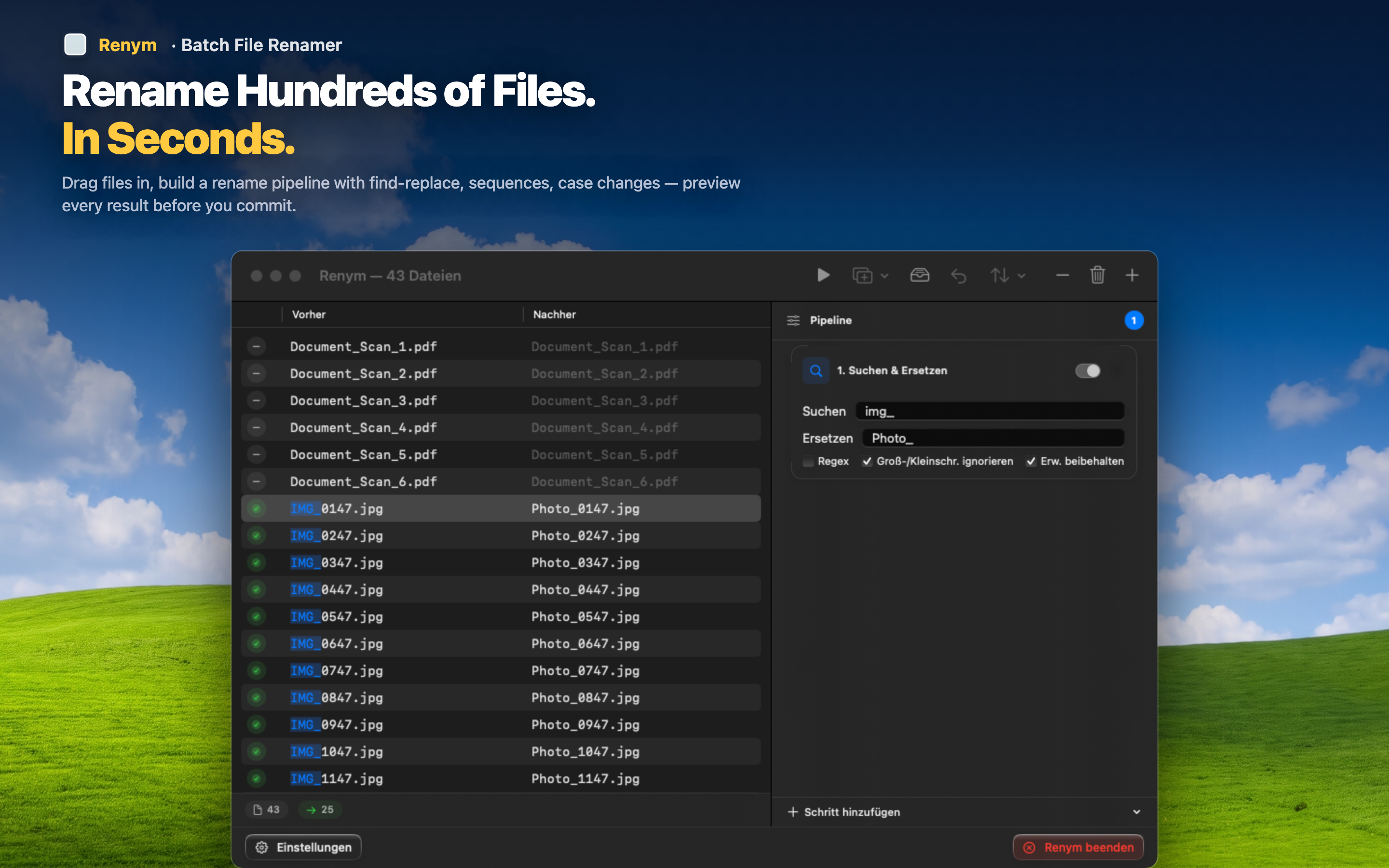
Step 1: Strip the camera prefix
Remove IMG_, DSC_, P10, or whatever your camera generates. A find-and-replace action handles this in one step, or use regex to match any camera prefix pattern.
Step 2: Add your naming structure
Insert the date and client/project name. This becomes the searchable, human-readable part of the file name.
Step 3: Add sequential numbering
Append zero-padded numbers so the files sort in the order they were shot. Choose the padding width based on your typical shoot size — three digits for shoots under 1,000 images, four for larger sets.
Step 4: Preview and apply
Scroll through the full list of before-and-after names. Verify that the sequence is correct, the padding looks right, and the naming is consistent. Then apply to the entire batch at once.
Deliverable renaming
When you export final JPEGs for a client, they often need different names than your working files. Build a separate pipeline for deliverables: maybe "Johnson_Wedding_Web_001.jpg" for social media files and "Johnson_Wedding_Print_001.tif" for print files.
A naming system is only useful if you actually apply it consistently. Automating the process means it happens every time, on every shoot, without the temptation to skip it because you are tired after a 10-hour wedding day.