You have a folder full of files like "report_2026-03-15_draft_v2.pdf" and you need to extract just the date and reformat it, or strip everything after the underscore, or replace a pattern that varies from file to file. Simple text replacement cannot handle this because the text is not the same in every file — it follows a pattern.
Regular expressions (regex) are the tool for pattern-based text manipulation. They let you match, capture, and rearrange parts of a file name based on rules rather than exact strings. The problem is that macOS does not give you regex renaming anywhere in Finder.
The Terminal approach and why most people avoid it
You can rename files with regex using Terminal commands like rename, sed, or a bash loop with parameter expansion. For example:
for f in *.pdf; do mv "$f" "$(echo "$f" | sed 's/draft_v[0-9]*/final/')"; done
This works, but it has real drawbacks:
- No preview — you see the result only after the rename happens
- One typo in the regex and you have mangled file names with no undo
- Writing and debugging regex in a one-liner is painful
- Non-technical users cannot realistically use this approach
Even experienced developers avoid Terminal renaming for large batches because the risk of irreversible mistakes is too high.
Regex renaming with live preview
Renym includes full regex support in its find-and-replace action. You write a regex pattern, define a replacement (including capture group references), and see the result on every file in real time — before anything is renamed.
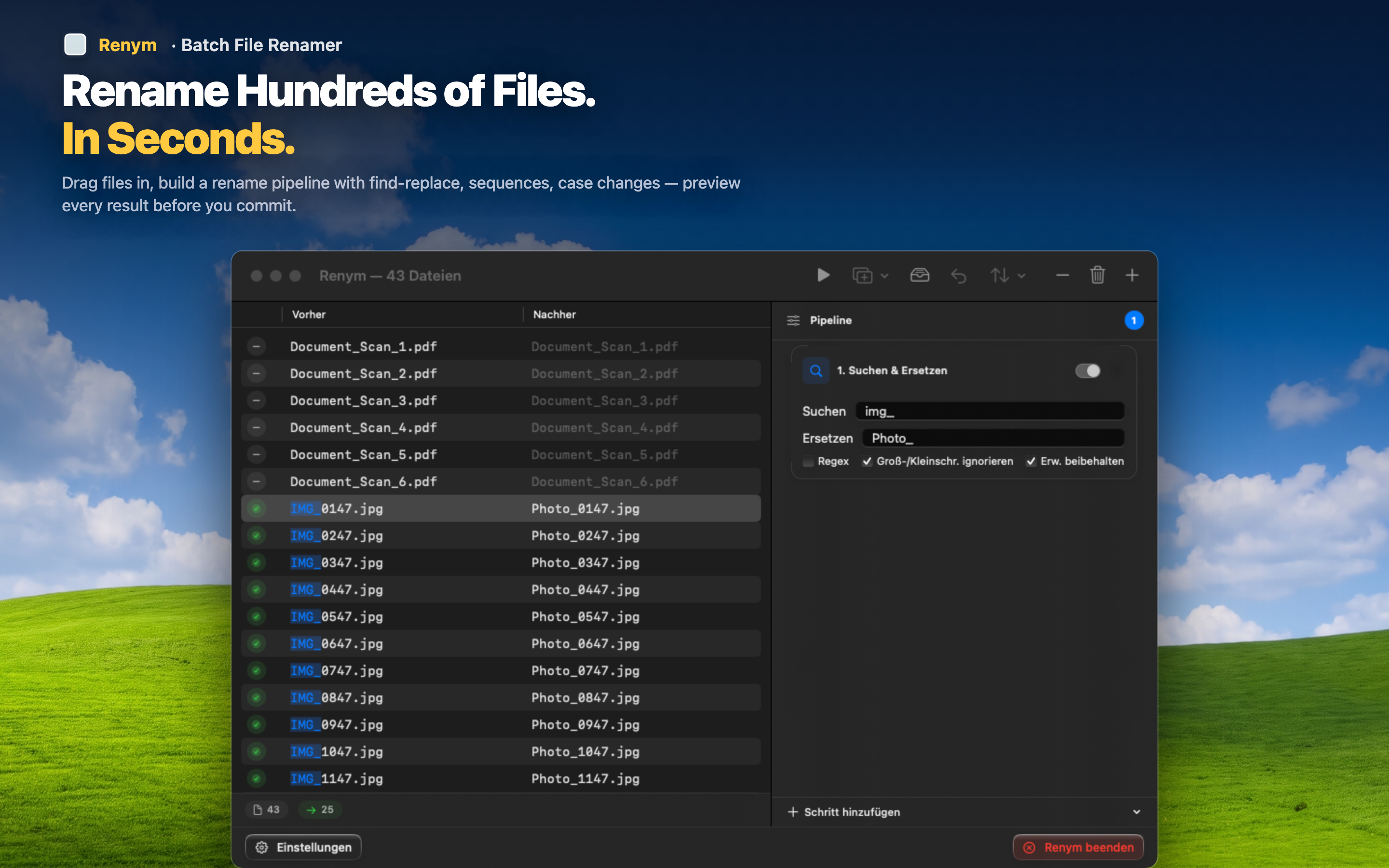
Capture groups in action
Say your files are named "2026-03-15_project_alpha.pdf" and you want "project_alpha_2026-03-15.pdf." Write a regex that captures the date and the project name as separate groups, then rearrange them in the replacement field. The preview column shows every file's new name instantly.
Pattern-based stripping
Need to remove all version suffixes like "_v1", "_v2", "_v14"? A regex like _vd+ matches all of them regardless of the number. One action, one pattern, every file cleaned up.
Combine regex with other actions
Regex is just one action in the pipeline. After a regex replacement, you can add sequential numbering, change case, or insert text. Each step builds on the last, and the preview reflects the entire chain.
If you have ever lost an hour debugging a Terminal rename command, or avoided regex entirely because there was no way to preview the result, Renym solves both problems at once.